What are scenarios and how can they save me time?
The Scenarios feature is the strategic heart of the MCP Tools Plus module.
A scenario is a set of pre-selected tools working hand in hand to achieve a specific business objective.
Think of a scenario as a "pre-programmed mission": instead of activating dozens of tools one by one with no link between them, you launch a complete and coherent strategy in a single click.
The goal is to translate your "business" needs into automatic technical configuration. You no longer need to understand how each tool works individually; you just need to know what objective you want to reach (boost your sales, automate your customer service, or optimize your SEO). By grouping the best tools for a specific mission, you gain efficiency while simplifying the management of your store.
🚀 What are the benefits for you?
- Time and Expertise Savings: You instantly deploy combinations of tools validated by experts, without having to dig through the full catalog.
- Performance and Savings: By activating only the tools necessary for your mission, the AI responds faster and consumes fewer "tokens".
- Total Security: Activating a scenario never overwrites your current configuration. It "adds" capabilities without risking interrupting your existing tools.
I - Creating a scenario
To set up your strategy, two approaches are available depending on your level of expertise and your needs:
Method 1: Use a predefined scenario
This method is particularly suitable if you are just starting out or if you want to quickly deploy optimized tool combinations. Simply choose from a list of pre-established scenarios gathering all the tools needed to reach a specific business objective.
Benefits:
- Immediate time savings: You don't have to look through the list of hundreds of available tools. One click, and everything necessary is activated.
- Business expertise: You benefit from tool combinations designed by e-commerce experts to meet real needs (Customer Service, Profitability, SEO).
To select a predefined scenario, follow this procedure:
- In the "Configuration assistant" tab, click on "Create a scenario"
- Choose the "Guided Path"
- Browse the list of available templates (e.g., "360° Support Management", "SEO and Content Optimization") :
- "Merchant" scenarios focus on sales and content management, while "Agency" scenarios offer technical tools for configuration, debugging, and audits.
- Click on "View details" to consult the description and tools included in a scenario.
- In front of the name of each tool, you will find colored icons indicating the status of each tool before activation:
- + means that the tool is currently disabled and will be enabled when the scenario is selected.
- ✓ means that the tool is already enabled (it will remain so when the scenario is applied).
- ⚠ means it's a tool allowing the use of a functionality from a third-party module but the latter is currently disabled. It will therefore be necessary to enable the module to make the scenario work fully.
- ⚠ means it's a tool allowing the use of a functionality from a third-party module but the latter is not yet installed on the shop. It will therefore be necessary to install and enable it to make the scenario work fully.
- "Merchant" scenarios focus on sales and content management, while "Agency" scenarios offer technical tools for configuration, debugging, and audits.
- Once the scenario is chosen, click on "Use this scenario": the necessary tools are then instantly activated (if they aren't already).
- Wait until the scenario creation modal closes. The chosen scenario appears in the "Your Scenarios" section of the "Configuration assistant" tab. At any time, you can edit the scenario and modify the selection of tools if needed.
Example: Predefined scenario "360° Support Management"
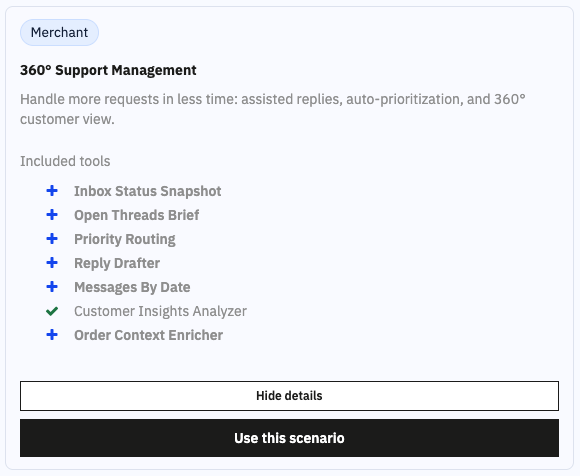
This scenario provides you with a complete toolbox to handle your messages:
- Inbox Status Snapshot: To get an overview of the state of your inbox.
- Priority Routing : To prioritize urgent or high-value tickets.
- Order Context Enricher: To see the status of a customer's order and their parcel tracking.
- Reply Drafter: To generate personalized response drafts.
Example prompt: "Based on the customer's order history and their current request, write a personalized and empathetic response proposing a refund or exchange solution."
Method 2: Create a scenario from scratch
This path is ideal for e-merchants with very specific business needs or wishing to maintain full control over their configuration. You benefit from absolute freedom to compose your bespoke toolbox.
Benefits:
- Total Freedom: Compose your own bespoke toolbox by precisely selecting the features you need.
- Versatility: Freely mix tools from different categories (Sales, SEO, Customer Service, Technical) to create unique and comprehensive cross-functional missions.
To create your scenario from scratch, follow this procedure:
- In the "Configuration assistant" tab, click on "Create a scenario"
- Choose the "Custom Path" and click on Next
- Give a name to your scenario by explaining your objective. For example: "Winter Sale Preparation".
- Write a description for this scenario to explain its purpose.
- Select your tools: Click on the tools in the left column or drag them to the right area. You can use the filters (categories, modules) to find your tools more easily.
- Once the scenario is completed with all the necessary tools, click on "Save scenario": the selected tools are then instantly activated (if they aren't already).
- Wait until the scenario creation modal closes. The created scenario appears in the "Your Scenarios" section of the "Configuration assistant" tab. At any time, you can edit the scenario and modify the selection of tools if needed.
Example 1: Custom scenario "Sale Product Page Optimization"
Selection of strategic tools to maximize the impact of promotions:
- Top Sellers Analysis:
product_performance_tracker: to analyze revenue, quantities sold, and interest (views) per product to identify products to highlight.
- Stock Analysis:
get_stock_alerts: to identify overstock or low inventory products to decide on discountsget_product_stock: to get exact available quantities
- SEO/GEO Optimization:
list_products_alt_text_status: to identify and update missing alt text on imagesget_geo_content: to manage content specific to GEO (Generative Engine Optimization)
- Promotions Generator:
specific_price_createto create discounts (specific prices) on products or combinationscreate_voucherto generate promo codes (cart rules)
Once the AI has retrieved the data through these tools, it will use its expertise to write attractive product descriptions. You can then ask it:
Example prompt: "Analyze the stock status for the 'Winter' category and propose a -30% or -50% discount for each product to clear stock before the end of the week. Then write the Meta-Description tags for these products."
Example 2: Custom scenario "My Monday Morning Follow-up"
You create a custom scenario by choosing:
- The
sales_analytics_dashboardtool for a weekly sales analysis. - The
inventory_alerts_monitortool to be alerted of stockouts. - The
inbox_status_snapshottool to have a summary of unread customer messages.
Result: Every Monday, you ask your AI: "Launch my follow-up scenario", and it provides you with a complete report on these three specific points.
II - Management of your scenarios
All the scenarios you have created or selected appear in this section. This is your strategic dashboard. Each scenario is presented as a detailed card with several indicators:
Decoding a scenario card
1. The audience badge:
- Merchant : Business, sales and content oriented scenarios.
- Agency : Technical scenarios for setup and audit.
2. The counters (top right):
These badges give you the overall health status of your scenario:
- ✓ Green: Number of tools currently active.
- || Brown: Number of tools suspended (manually disabled).
- ⚠ Yellow: Number of tools whose module is not enabled.
- ⚠ Red: Number of tools whose module is missing.
3. The tools (badges):
Each tool is represented by a badge. Its color and icon indicate its status:
- Blue badge without icon: The tool is active and ready to use.
- ||Yellow badge with pause icon: The tool is suspended (manually disabled).
- ⚠Yellow badge with alert icon: The linked module is disabled
- ⚠Red badge with red alert icon: The linked module is not installed
- Modifying a scenario: You can click on "Edit" at any time.
Example: You had created a "Marketing" custom scenario, but you have just installed the Google Merchant Center Pro module. You can then modify it to add thegoogle_shopping_get_feed_reportingtool so that the AI can retrieve the last generation report of your product feed (number of products exported, update date, any errors) and ensure that the catalog is properly synchronized with Google Shopping. - Deleting a scenario: You can delete a scenario without fear. Indeed, even if you delete a scenario, the tools it activated remain functional on your shop as long as you do not disable them manually.
Warning however: The scenario will be permanently deleted and cannot be recovered. You will have to rebuild it if you want to use it again.
- Unlimited number of scenarios possible: You can create as many scenarios as you wish. Do not hesitate to create as many scenarios as there are business objectives (Mother's Day, Technical Maintenance, Revenue Analysis, etc.).