Which PrestaShop configurations are supported (combinations, languages, currencies, and multistore)?
Which PrestaShop configurations are supported (combinations, languages, currencies, and multistore)?
The ChatGPT Ads module by Business Tech allows you to export your PrestaShop catalog data to ChatGPT Ads by configuring product identifiers, text content, images, features, and offers.
The “Settings” tab contains the options that determine which information is included in product feeds in CSV format. These settings apply to all feeds for the shop. After making any changes, you must regenerate the relevant feeds for the new settings to be applied to the exported files.
Shared product identifiers
This section allows you to define how product and combination identifiers are generated. These identifiers distinguish offers and ensure data consistency when your catalog is updated.
Product identifier prefix
This field allows you to add a prefix to product and combination group identifiers. This prefix is optional and can contain up to 32 characters, including letters, numbers, periods, hyphens, and underscores.
For example, you can use the prefix FR to distinguish the generated identifiers. Choose a value that is consistent with your organization and avoid changing it unnecessarily once the feeds are in use.
Product identifier source
This drop-down list allows you to select the source used to generate identifiers for products and their combinations. The module offers the “Generated product and combination identifiers” option, among others.
Your selection determines how products and their variants are identified in the feed. Identifiers must remain consistent across feed generations to help offers be recognized during updates.

Product text
This section allows you to choose the text information used to describe products in the feed.
Title source
This option determines which PrestaShop field is used as the product title. Two options are available:
- Product name: uses the product name stored in PrestaShop.
- SEO title: uses the product's SEO title when one has been entered.
If the SEO title is empty, the module automatically uses the product name. Make sure your titles are descriptive and appropriate for the language of the feed.
Include variant names
This option allows you to add combination attributes to the product title. It is particularly useful when several variants share the same name but differ in color, size, or another attribute.
For example, a product named “T-shirt” can be exported with a title that specifies the corresponding variant. Adding combination names does not change identifiers or how variants are grouped.
Description source
This drop-down list determines which descriptions are exported in the feed. Several options are available:
- Short description, then full description: prioritizes the short description and uses the full description when necessary.
- Short description: exports only the short description.
- Full description: exports only the full description.
- Short and full descriptions: exports both descriptions.
- SEO description: uses the product's SEO description.
Your selection determines the text content transmitted in the feed. Make sure the descriptions contain useful information and accurately reflect the relevant products.

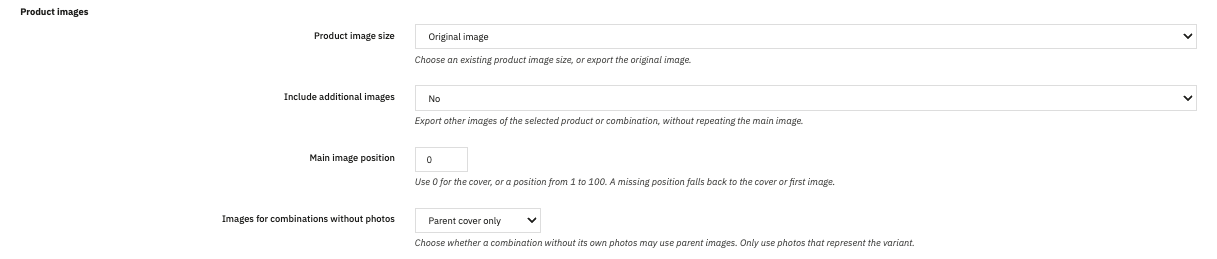
Product images
This section determines which images are exported in the feed and how the module selects images for combinations.
Product image size
This drop-down list allows you to select the image format to export from the image types available in PrestaShop. The module offers the following formats, among others:
- Original image: uses the original product image.
- cart_default (125 × 155): format intended for cart images.
- home_default (390 × 484): format intended for display on the homepage.
- large_default (700 × 869): large image format.
- medium_default (600 × 745): medium-sized image format.
- rectangular_cart_default (126 × 84): rectangular format for the cart.
- rectangular_home_default (390 × 260): rectangular format for the homepage.
- rectangular_large_default (696 × 464): large rectangular format.
- rectangular_medium_default (600 × 400): medium-sized rectangular format.
- rectangular_small_default (192 × 128): small rectangular format.
- small_default (190 × 236): small image format.
- square_cart_default (125 × 125): square format for the cart.
- square_home_default (390 × 390): square format for the homepage.
- square_large_default (700 × 700): large square format.
- square_medium_default (600 × 600): medium-sized square format.
- square_small_default (190 × 190): small square format.
The available formats depend on the image types configured in your PrestaShop store. Choose a format that suits your catalog and make sure the corresponding images have been generated.
Include additional images
This option allows you to include or exclude additional images associated with the selected product or combination. When enabled, the feed contains the other available images without duplicating the main image.
Main image position
This field allows you to define the position of the main image in the product's image list. The value 0 uses the cover image or, if no cover image is defined, the first image. You can also enter a position between 1 and 100.
Images for combinations without photos
This option determines which images are used when a combination does not have its own specific image. Three options are available:
- Parent cover only: uses only the cover image of the parent product.
- Parent image gallery: allows images from the parent product's gallery to be used.
- No fallback: does not use replacement images from the parent product for combinations without their own images.
Choose the behavior that best suits your catalog. If combinations have their own images, prioritize those images to ensure that each variant is represented accurately.
Product data
This section allows you to define the additional information exported for products.
Preferred GTIN source
A GTIN is a standardized trade item identifier used to identify a product. This option determines which type of code should be prioritized from the available sources:
- EAN: prioritizes the EAN code.
- UPC: prioritizes the UPC code.
- ISBN: prioritizes the ISBN code.
The module prioritizes the selected code and then checks for other valid codes available for the same product or combination, depending on the data provided. If no usable identifier is available, the GTIN may be omitted from the feed.
Include category path
This option allows you to include or exclude the product's category path in the feed. When enabled, the path is exported in the language of the feed, without the store's root category.
This information identifies the category to which the product belongs and helps place it within your catalog.

Offer selection
This section allows you to filter exported offers according to their availability and the identifiers provided.
Stock selection
This drop-down list offers three options:
- All stock states: includes offers corresponding to all supported availability states.
- In stock only: limits the export to offers that are currently in stock.
- In stock, backorders and preorders: includes offers that are in stock, available for backorder, or offered for preorder.
Choose the option that matches your sales policy and the offers you want to send to ChatGPT Ads. Excluded offers are listed in the generation report.
Identifier selection
This drop-down list allows you to determine whether offers without certain identifiers should be exported. Three options are available:
- Include offers without identifiers: allows offers without a valid GTIN or manufacturer part number (MPN) to be exported.
- Require GTIN or MPN: excludes offers that have neither a valid GTIN nor a manufacturer part number.
- Require GTIN: excludes offers without a valid GTIN.
Your selection determines which offers are eligible for inclusion in the feed. Exclusions are recorded in the generation report to help you identify the affected products.

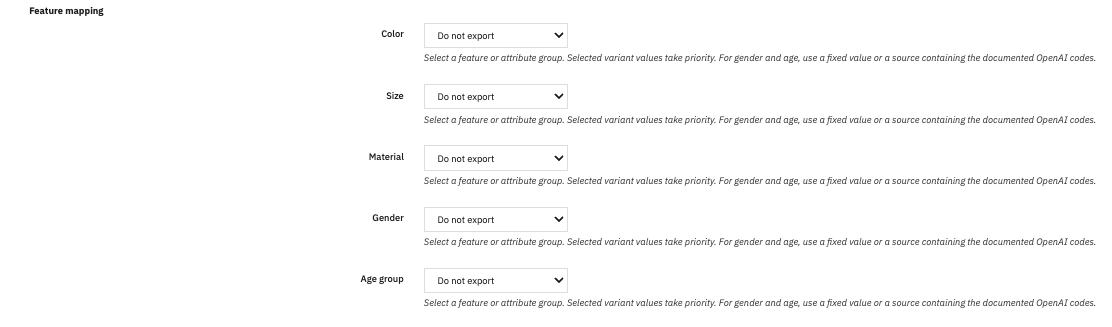
Feature mapping
This section allows you to map features or attribute groups from your PrestaShop catalog to the corresponding features in the exported data.
The module provides five fields:
- Color: allows you to select the feature or attribute group corresponding to the product's color.
- Size: allows you to select the feature or attribute group corresponding to the product's size.
- Material: allows you to select the feature or attribute group corresponding to the product's material.
- Gender: allows you to select the feature or attribute group corresponding to the intended gender.
- Age group: allows you to select the feature or attribute group corresponding to the intended age group.
For each field, select the feature or attribute group that matches your catalog. Combination values take priority when available.
For features such as gender and age group, make sure you use values that comply with the codes documented by OpenAI when such codes are required. If you do not want to export a feature, leave the “Do not export” option selected.
Languages, currencies, and multistore
The general settings determine which data is exported, while the language, country, and currency are defined when configuring each feed.
To target multiple markets, create a separate feed for each required combination of language, country, and currency. Make sure that translations, prices, and product data are available in the corresponding languages and currencies.
This allows you to prepare multiple feeds from the same catalog, with configurations tailored to the markets you want to target. Since the general settings are shared by the feeds within the same shop, changes to these settings may affect all those feeds the next time they are generated.
In multistore mode, make sure you configure the module in the context of the relevant shop. The general settings, available products, and scheduled tasks must correspond to the shop you want to manage. The exact behavior also depends on your PrestaShop multistore configuration.
Save the settings and regenerate the feeds
After changing the options in the “Settings” tab, click “Save”. Changes are not applied retroactively to CSV files that have already been generated.
To apply the new settings, regenerate the relevant feeds. You can then review the generation reports to check for any exclusions or detected issues.
To learn more about feed creation, the CSV format, and automating feed updates, see our FAQ: How are my products and their data transmitted to and updated in ChatGPT Ads?.