How to use the advanced position tool ?
If native positions do not suit your theme, the module lets you choose an HTML container into which the login buttons are inserted.
Note: this tool requires technical knowledge. If you do not know how to identify an HTML element in your theme, ask your integrator for help.
Identify the container
- Open the shop page where you want the buttons, for example a category page.
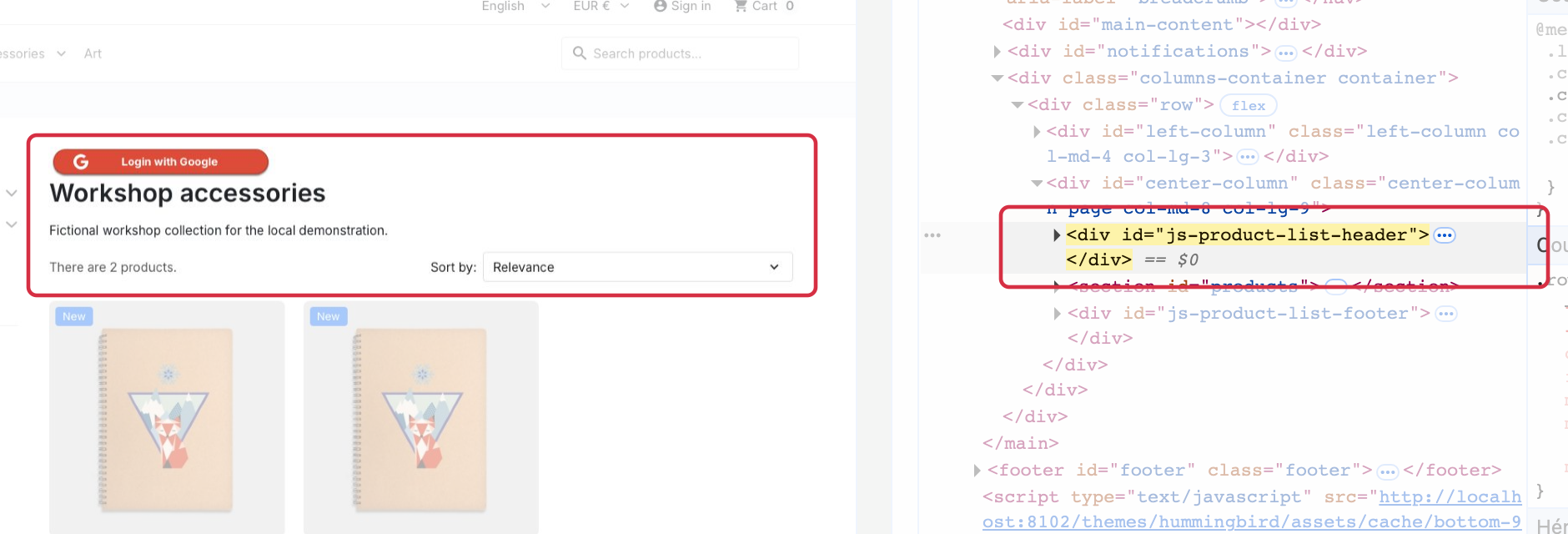
- Use the browser inspector to identify a container at the required location. Note a simple, specific selector: a dot for a class, such as
.block-category, or a hash for an ID, such as#content-wrapper. - Check that the container suits your theme and page type. These examples must not be copied to every shop.
Choose a unique container where possible: if the selector matches several elements, the block can be added several times. Use a simple selector without spaces.
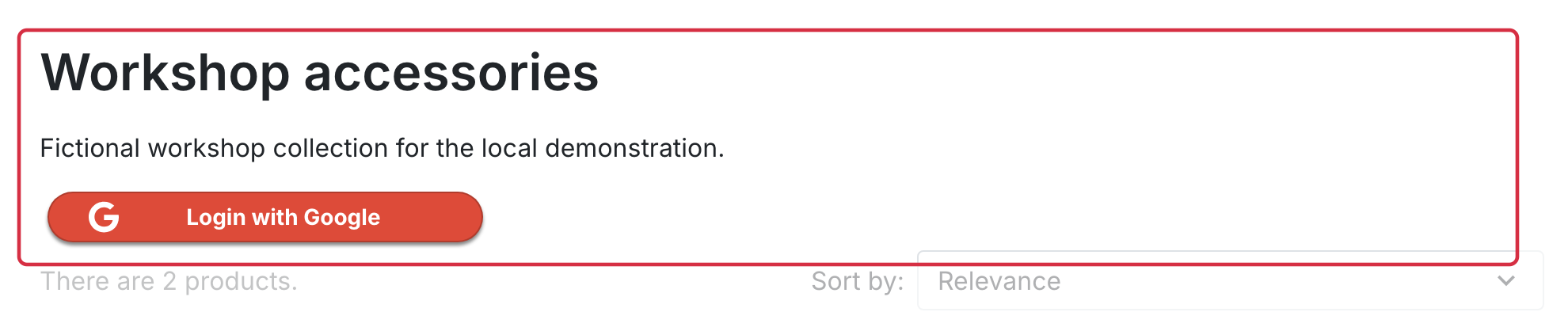
In the Hummingbird example below, the inspected container is #js-product-list-header, present once on the “Workshop accessories” category page. The generic selectors mentioned above are not those of this theme: use the element actually observed on your page.
Create the position
- Open “Position advanced settings”, then “Position advanced settings: use of HTML elements”, and click “Add new position”.
- Activate the position and give it a recognizable name.
Important: use a name different from all existing positions, including native positions.
- Select the page type and enter the selector for the identified container.
- Choose the button position. “Above” inserts the block at the start of the targeted element’s content, while “Below” adds it at the end of that content.
- Choose the size, select the connectors and configure the block’s CSS. The invitation text also depends on its activation in Basic settings.
- Save with “Add”, then check the new position row.
If a theme or third-party module supplies the page type, use the custom controller setting only after obtaining its value from the publisher.
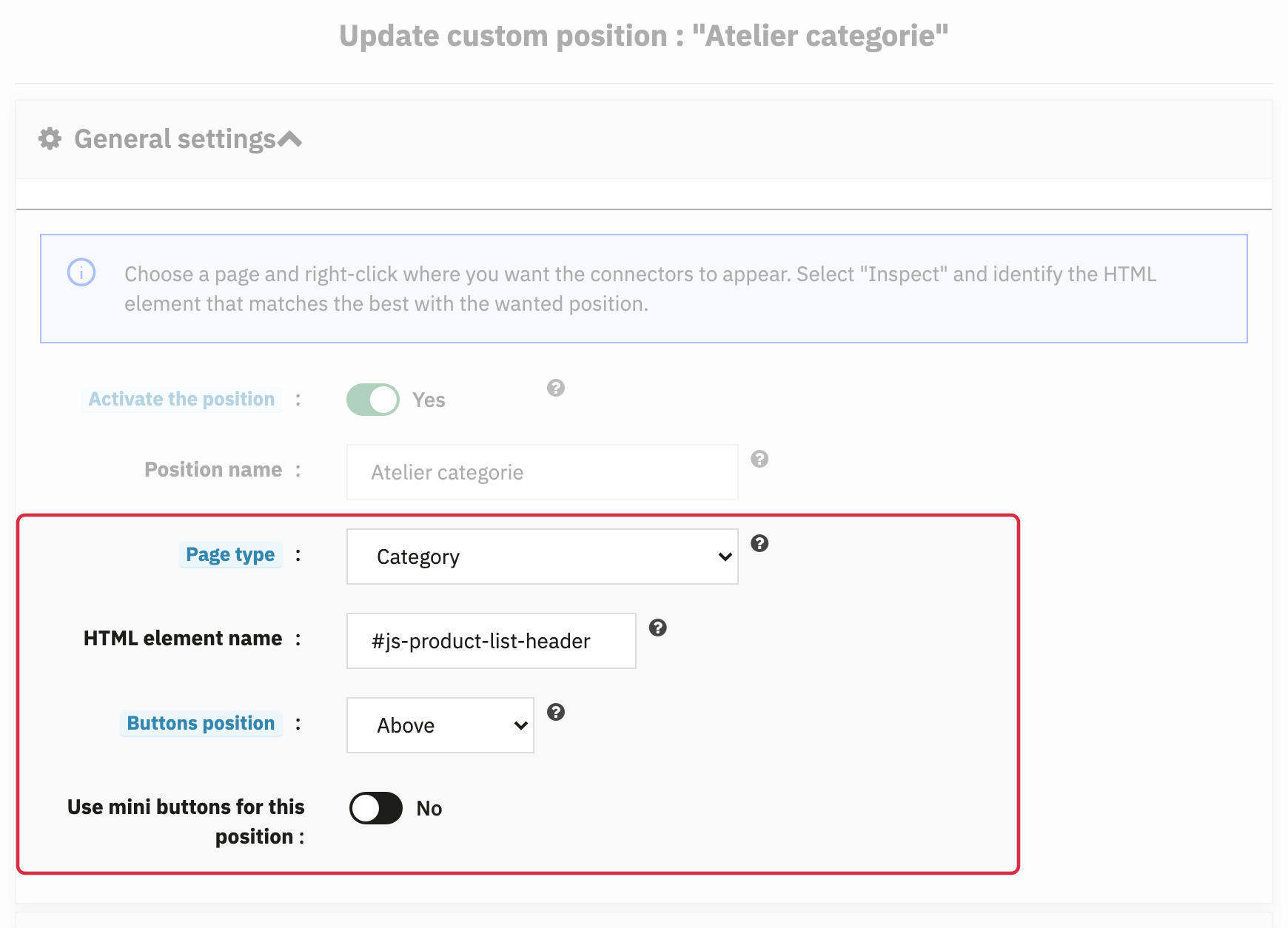
On PrestaShop 9.2 with Hummingbird, the login page uses the authentication page type and the separate registration page uses registration. Check the actual page type and HTML container when configuring a position.
Check the result
Open the page as a logged-out visitor and check the actual placement, readability and absence of duplicates. Adjust the container or settings if necessary. Selectors can change after a theme update.