How do feed generation reports work, and how should you interpret warnings and errors?
The ChatGPT Ads module's feed generation report helps you check the products processed when generating the CSV feed, identify exported or rejected offers, and determine which product data needs to be corrected in your PrestaShop catalog.
Each offer is associated with a result and, when necessary, information highlighting the items that need attention. This helps you distinguish between issues that prevent an offer from being exported and issues that can be corrected to improve the quality of the data sent to OpenAI.
Accessing the generation report
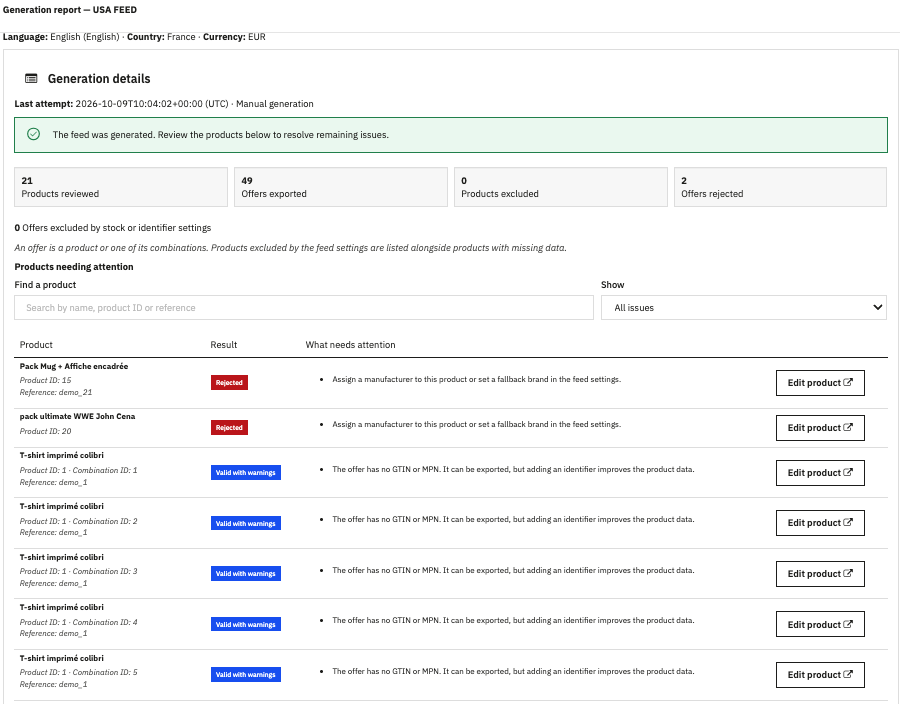
After generating the feed, open the Generation report for the relevant feed. The report displays details such as the language, country and currency used for the generation, as well as the date of the last attempt and whether it was launched manually or automatically.
The Generation details section displays several indicators that help you quickly assess the outcome:
- Products examined: the number of products processed during generation.
- Offers exported: the number of offers included in the generated feed. A product with multiple combinations may correspond to several offers.
- Products excluded: the number of products excluded by the stock or identifier selection rules.
- Offers rejected: the number of offers that could not be exported because problems were detected in their data.
The message displayed at the top of the report also indicates whether the feed was generated. Successful generation does not necessarily mean that every offer can be used: some offers may have been rejected or may contain warnings that require your attention.
Understanding offer statuses
In the Products requiring your attention section, each row corresponds to a product or combination. It displays the product name, identifier, reference, validation result and any items that need to be checked.
Rejected
The Rejected status indicates that the offer was not exported. The report specifies the missing information or issue that needs to be resolved.
For example, if a product has no manufacturer assigned and no default brand has been configured in the feed settings, the report may ask you to assign a manufacturer to the product or define a default brand in the feed settings.
To resolve this issue, click Edit product to open the relevant product page. Enter the appropriate manufacturer or brand, based on the information available in your catalog. If several products are affected, you can also configure a default brand in the feed settings, provided this is appropriate for your catalog.
Regenerate the feed to check whether the offer is now exported.
Valid with warnings
The Valid with warnings status means that the offer can be exported, but some of its data should be completed or checked.
For example, the report may indicate that an offer has neither a GTIN nor an MPN. These identifiers help identify a product more precisely. Their absence does not necessarily prevent the module from exporting the offer, but it may reduce the quality of the information sent to OpenAI.
To improve the offer, check whether the product has a valid GTIN, such as an EAN, UPC or ISBN code, or an MPN corresponding to the manufacturer's part number. If an identifier exists, enter it in PrestaShop.
Do not create false identifiers to remove a warning. If the product genuinely has no manufacturer identifier, refer to the applicable OpenAI specification and the behavior supported by the module.
Which fields are required by OpenAI?
OpenAI's official documentation distinguishes between fields required for product data and optional attributes or fields subject to specific conditions. Requirements may also vary depending on the type of integration. For a feed intended for advertising, consult the product feed specification and the documentation covering advertising feeds.
In OpenAI's product data specification, the following core fields are identified as required:
- item_id: a unique, stable identifier for the item or combination in the feed.
- title: the product name, including combination characteristics where relevant.
- description: a factual description of the product.
- url: the product page URL, ideally with the relevant combination selected.
- brand: the product's brand.
- seller_name: the seller's name.
- image_url: the URL of the product's main image.
- availability: the product's availability status, such as in stock or out of stock.
- price: the product price in the relevant currency.
These fields must contain values that comply with the expected format. For example, the product page and image URLs must be publicly accessible, and availability must use a value recognized by the specification.
The presence of a field in this list does not mean that the module necessarily uses the same technical name in its PrestaShop interface. The module maps catalog data to the format expected by the feed.
For the complete list of fields, their data types and their requirements, consult the official OpenAI product data documentation.
Are GTIN and MPN identifiers required?
GTIN and MPN requirements depend on the conditions defined in the OpenAI specification. When a product identifier is required, a valid GTIN or an appropriate MPN may be necessary unless the absence of an identifier is explicitly declared in accordance with the applicable rules.
- GTIN: a Global Trade Item Number used to identify a commercial product, such as an EAN or UPC code.
- MPN: a part number assigned to a product by its manufacturer.
The module's report may flag missing identifiers as a warning rather than rejecting the offer. It is therefore important to distinguish the module's behavior during feed generation from OpenAI's data requirements: an exported offer does not necessarily contain every recommended identifier or every identifier required in a particular situation.
To check the exact conditions that apply to these fields, consult the relevant section of the OpenAI product data specification.
Understanding excluded products
Products excluded by the stock or identifier selection rules are counted separately from rejected offers. Their exclusion results from the feed selection settings and does not necessarily mean that their PrestaShop product pages contain errors.
The report also indicates that products excluded by the feed settings are listed alongside products with missing data. It is therefore important to check the stated reason before modifying a product page.
If a product should not have been excluded, check the stock selection rules and the identifier requirements in the module settings. Available choices may include all stock statuses, in-stock products only, or products that are in stock, available for backorder or available for preorder.
Searching for products and filtering issues
When your catalog contains many offers, use the Search for a product field to find an entry by its name, identifier or product reference.
The Display drop-down list lets you filter the items shown in the report. This allows you to focus on the issues that need attention, depending on the filters available in your version of the module.
These tools help you locate the relevant products without having to review the entire report.
Editing a product and checking the correction
The Edit product button, available on each row, opens the relevant product page in PrestaShop. Correct the reported information using the actual product data.
After making your changes, regenerate the feed and review the updated report. Check that the offer is no longer rejected and that the warnings have disappeared where the issues have been resolved.
If a warning remains even though the information appears correct, check that the values comply with the OpenAI specification and the feed settings before making further changes.
Automating feed generation and monitoring
If you automate feed generation using a cron task, regularly check the results to detect new rejections and warnings. An automated generation can complete successfully while some offers still require corrections.
To configure a cron task in PrestaShop, see our FAQ: How to create a cron task?.
Other FAQs in this category
- Where can I find the Conversions API key, and how is it used?
- How does customer matching work, and what data is used?
- What is Validation mode used for, and when should I disable it?
- What is the Conversions API used for, and how does it work?
- How does user consent affect event tracking?
- Where can I find my Pixel ID, and what is it used for?
- What is the Pixel used for, and why should I enable it?