How to translate my category descriptions with the help of AI?
Before starting, configure the module and check your subscription and available quota.
The category field you want to translate must already contain saved text in the source language. Choose a different destination language.
Open the tool
Open “E-commerce Copilot”, then “Copilot for translating content”.
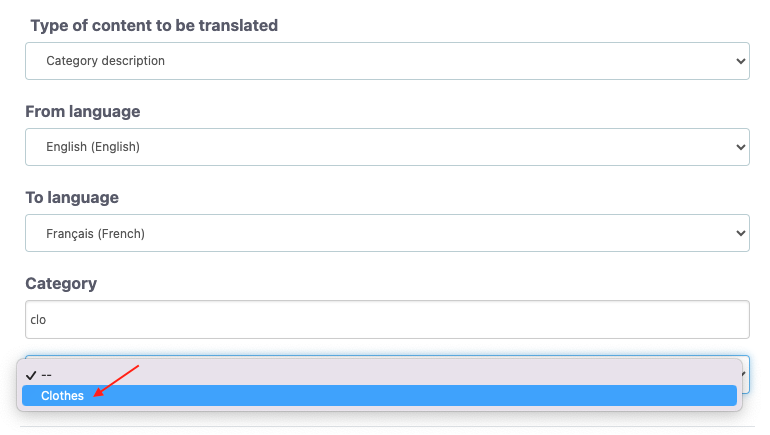
- Choose a category description, additional category description (from PrestaShop 8.0 onward) or category meta-description.
- Select the source language in “From language” and the destination language in “To language”.
- Start typing the name of the category and select the matching result. Search uses names or titles in your back-office interface language.
- Click “Translate”, then wait for the preview.
- Read the content, correct it if necessary, then click “Save”.
Important: we recommend that you always proofread the translation to check its vocabulary and faithfulness to the original text. Also check names, amounts, currencies, commercial terms and links. Take care to retain useful HTML tags where present.
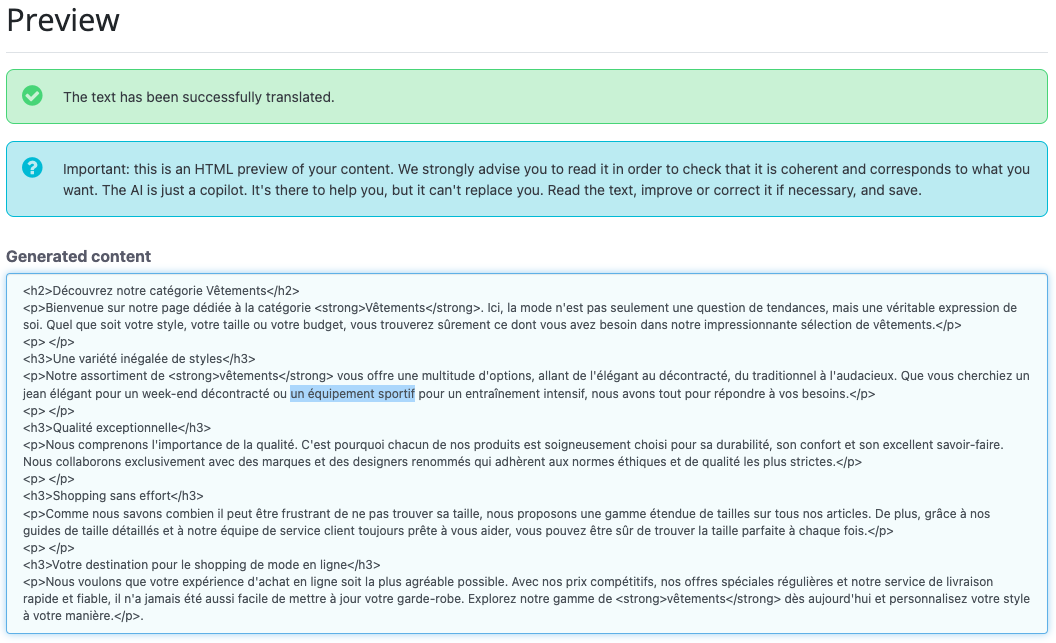
Before saving, check the selected field and language: existing content may be replaced. Keep a copy of the existing text if you may want to reuse it. Then check the result in the back office and on the storefront if the category is visible.
Access from the module configuration
In “Copilot access”, click “I need my copilot for a translation”. This opens the same tool; follow the back-office menu steps above.