How to configure the Advanced Featured Products module?
Module - Advanced Featured Products
The Advanced Featured Products module allows you to display, on your PrestaShop store’s homepage, custom product tabs showcasing selections of products according to your own criteria: categories, best sales, new products, promotions, or manual selection. This way, you can highlight the most strategic products for your business while offering clear and attractive navigation to your visitors.
Thanks to its flexible configuration, each tab can be customized: name, type of products displayed, display order, etc. The display uses elements from your PrestaShop theme. A custom theme may require adjustments: see our FAQ on theme integration.
This guide will walk you step by step through configuring and making the most of all the possibilities offered by the Advanced Featured Products module.
1. General presentation and operating principle
The module adds a tab block to your store’s homepage. Each tab corresponds to a product selection: you can create as many tabs as you wish, and for each one choose:
- The tab name (multilingual)
- The tab type: category, home featured, best sales, new products, promotions, free category
- The sort and sort direction of the products
- The category or products to display depending on the tab type
- The activation or not of the tab
Tips:
Use tabs to highlight your best sales, new products, or seasonal promotions. You can also create a specific tab for a strategic category (e.g.: "Our favorites", "Summer new arrivals", etc.).
2. Tab configuration
- In the module’s left menu, click on Tabs to access the product tabs management.
- Click the Add tab button to create a new product tab.
- Activate the tab or leave it inactive as needed by selecting the Active option.
- Enter the Tab name (fill it in for every active language of your store before saving).
- Select the Tab type:
- category: products from a specific category
- home featured: products from the home category configured in the module.
- best sales
- new products
- promotion
- free category: manual product selection
- Choose a sort criterion from those offered for the selected tab type, then the direction (ascending or descending). Available criteria depend on the type: for example, best sales offers price or position; random sorting is offered for category, home featured and free category tabs.
- Depending on the selected tab type:
- For a "category" tab: select an active category to display in the tab.
- For a "free category" tab: search for and manually add the products to display in the tab.
In the Products section, enter the first letters of the product name in the search field, then click the matching suggestion. The product appears under Your added products. Add the other products, save and reopen the tab to check that your selection has been kept.
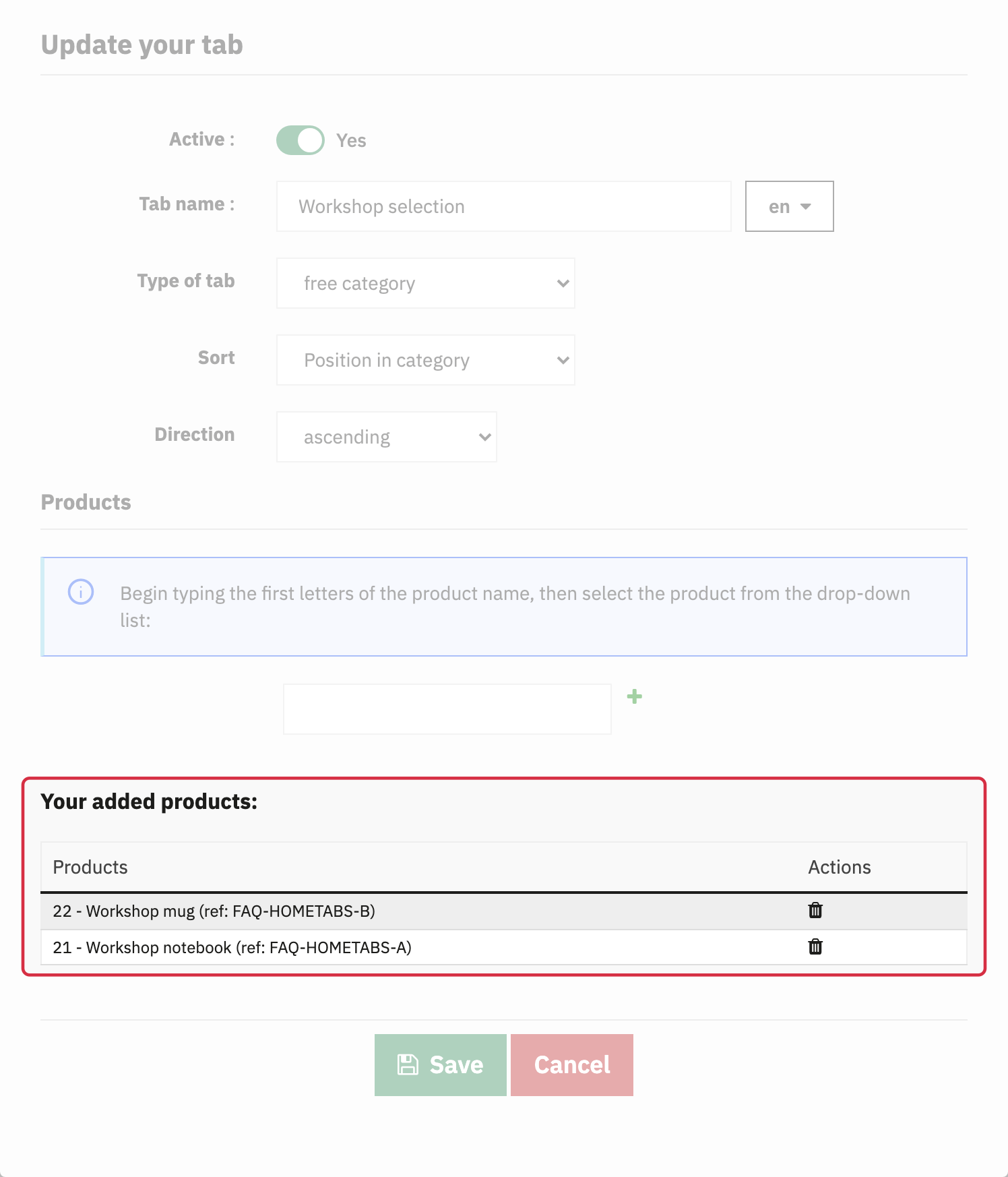
Manually selected products after saving and reopening the tab.
- For other types (best sales, new products, promotions, home featured): product selection is automatic according to the module’s criteria.
- Save the configuration of your first tab.
- Repeat until you have created all the desired homepage tabs.
Tips:
For optimal display, use high-quality product images and make sure each product added to a tab has a photo and an attractive description.
Once your tabs are created, you can at any time:
- Reorder the tabs by dragging in the Sort column or using its up/down arrows to choose the display order on the homepage.
- Activate or deactivate each tab, then save and check the storefront.
- Edit the content of a tab at will.
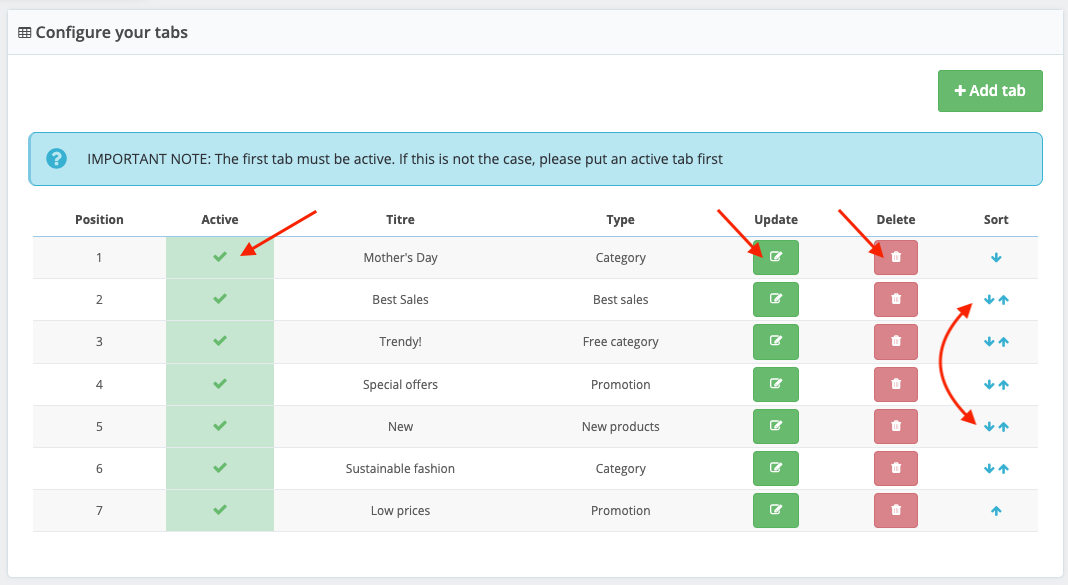
Note:
The first tab must be active for the block to display correctly on the homepage.