How to test the triggering of the purchase event (order) on my site?
The test must check creation of the purchase event, its parameters and reception in GA4. Seeing this event in Tag Assistant alone does not certify its processing in reports.
1. Prepare the test
Disable any ad blocker for the tested domain. Check the measurement ID and consent. Run an initial test by accepting all cookies to establish a technical reference.
- Connect Tag Assistant to your store URL using Add domain, then Connect. Keep the windows open.
- In the tab of your site opened by Tag Assistant, place a new test order using fictitious details and an authorized test payment method.
- Check that you return to an order confirmation page recognized by the module. A payment completed entirely off-site without returning may prevent triggering in this flow.
Important: use a new transaction for each attempt, because GA4 deduplicates purchases sharing the same transaction_id. A non-zero order makes amount checks easier. Free orders are not universally prohibited: their flow depends on the PrestaShop version and payment method; check the actual confirmation reached.
2. Check purchase
- In Tag Assistant, select the confirmation page and the
purchaseevent. - In Data Layer, check
transaction_id,currency,valueanditems. Compare value with the module’s tax, shipping, wrapping and discount settings; it does not necessarily equal the displayed tax-inclusive total. - Check the
G-destination, Hits Sent and Consent state. - Open the corresponding GA4 property and check reception in DebugView for the debugging session or in Realtime. Standard reports may require 24–48 hours.
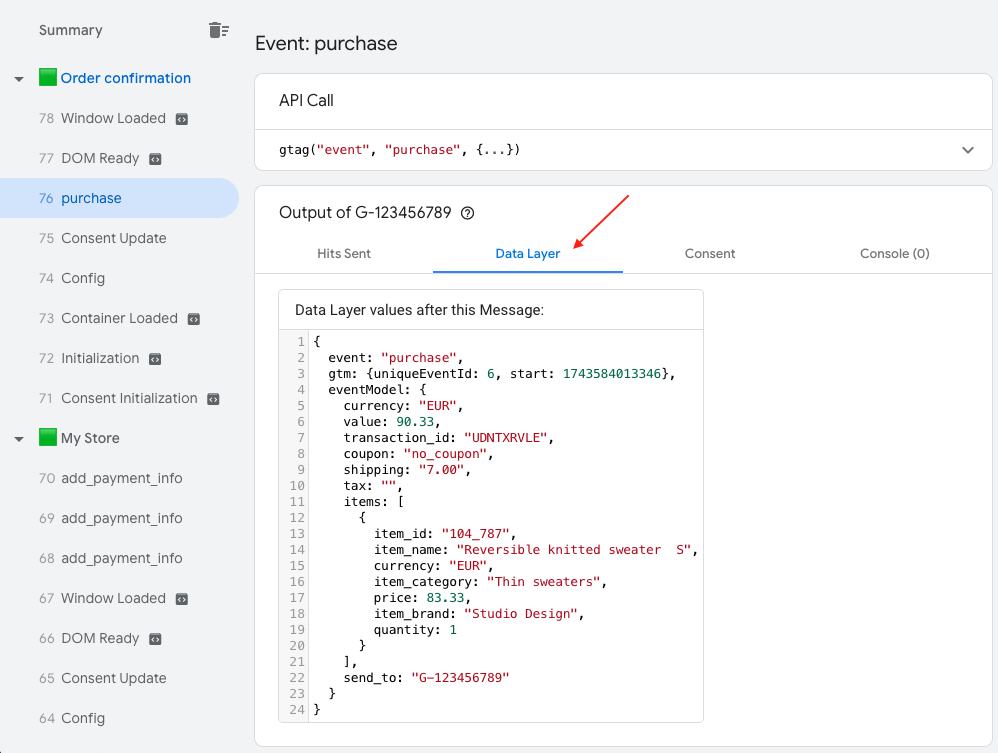
Reading example: amounts and labels in this existing illustration may differ from your order and interface. Check the values in your own test; this image does not validate reception.
If you can see the "purchase" event and its values in Tag Assistant, local preparation is verified for this order; complete the reception check before drawing a conclusion.
If you don’t see the "purchase" event: check the return page, tracking activation, errors, consent, minimum order ID threshold and order status. The module excludes an order in the error state. See the tag diagnostic.
Then test refusal and partial choices separately. If the order appears in the test but not in the expected reports, see the additional checks.
Official ecommerce event validation