How are my products and their data sent to and updated in ChatGPT Ads?
The ChatGPT Ads module allows you to generate product feeds in CSV format from your PrestaShop store data. Each feed generates a file accessible through a URL that OpenAI can use to retrieve your product catalogue information.
You can create multiple feeds for different markets, configure the data to export and automate file generation to keep your catalogue up to date.
Create a feed for your target market
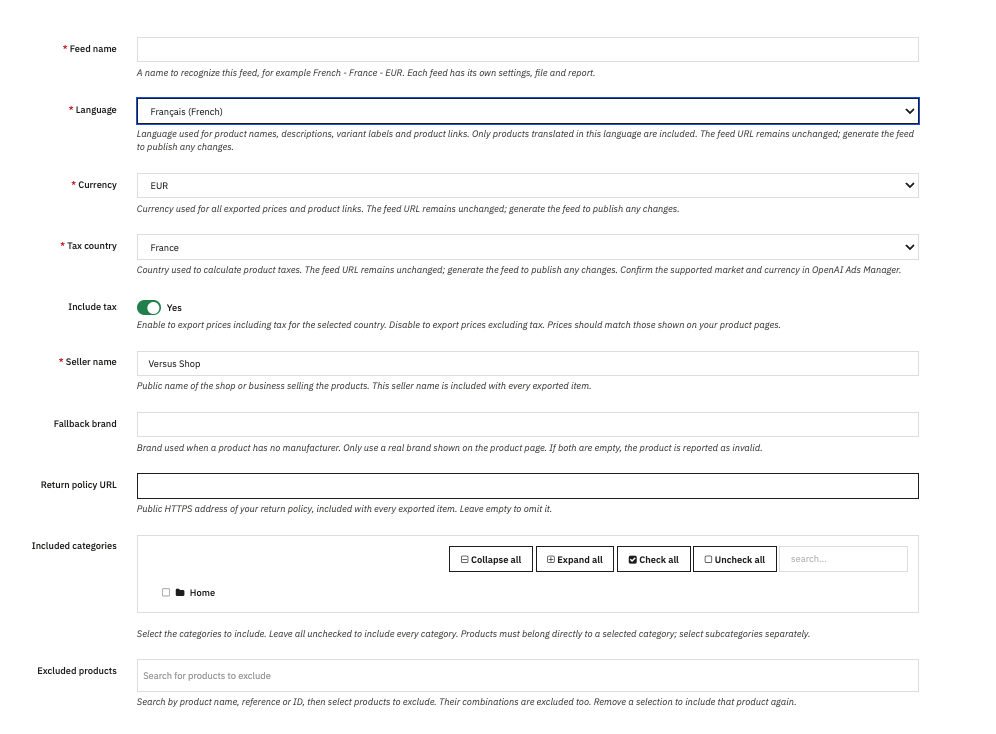
In your PrestaShop back office, open the configuration page for the ChatGPT Ads module, then go to the "Feeds" tab. Click "Add a feed" to create a new feed.
When creating a feed, you can define its name, language, target country, currency and the price management method offered by the module. These settings allow you to prepare a file tailored to the relevant market.
You can create multiple feeds if you want to export your catalogue for different markets. Each feed has its own configuration and generated CSV file.
Define the data to export
The information included in the CSV file depends on the module's settings. In the "Settings" tab, you can choose the sources used for product identifiers, titles, descriptions and images.
Other options allow you to manage additional images, product attributes and certain additional data, such as GTINs and categories. The module also provides settings for mapping your catalogue attributes to the corresponding attributes in the exported data.
These settings determine how your PrestaShop catalogue information is prepared in the CSV file. They do not directly modify the data stored in your catalogue.
[Screenshot of the "Settings" tab, showing the options for configuring product identifiers, text fields, images and additional product data.]
To learn which PrestaShop configurations are supported, including combinations of product variants, languages, currencies and multistore, see our FAQ Which PrestaShop configurations are supported (product variants, languages, currencies and multistore)?.
To consult OpenAI's technical specifications for product data, also refer to the official OpenAI documentation on the product file format. This documentation describes the fields and requirements defined by the specification. The data actually exported depends on the features and settings supported by the module.
Generate the CSV file
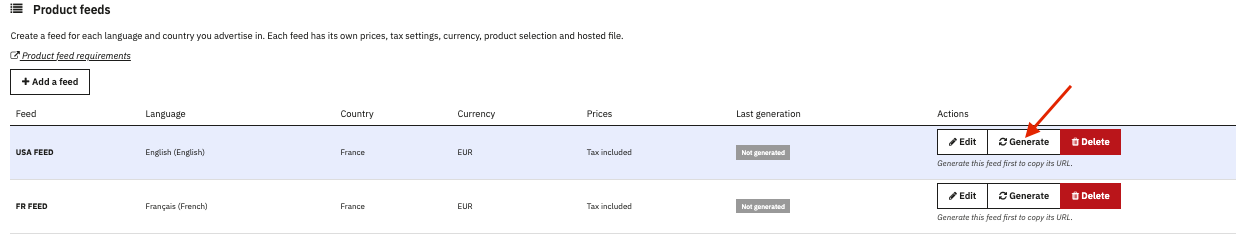
Once you have configured the feed, use the "Generate" action in the "Feeds" tab to create its CSV file from your store data.
The module provides a URL through which the generated file can be accessed. This URL serves as the access point for OpenAI to retrieve the product feed.
Generating the file in PrestaShop and processing it in OpenAI are two separate operations. Creating a new CSV file does not mean that the data is updated immediately in ChatGPT Ads: OpenAI must retrieve and process the feed.
Update exported product data
When you modify product information in PrestaShop, these changes are not automatically included in a CSV file that has already been generated. You must generate the relevant feed again so that the file reflects the data available at the time of the new generation.
This applies to changes such as prices, descriptions, images or availability, depending on the data exported by the module.
Similarly, if you change the general settings that determine the contents of the feed, you must regenerate the relevant files to apply the new settings.
Updating the CSV file does not guarantee that the changes will appear immediately in ChatGPT Ads. The time required for the changes to take effect depends in particular on OpenAI retrieving and processing the feed.
Automate feed generation
To avoid launching each generation manually, open the module's "Cron" tab. It provides the information needed to configure scheduled tasks for generating feeds.
You can use the task associated with an individual feed or the task that schedules the generation of all feeds for the store. The available commands allow you to automate these operations, depending on the capabilities of your hosting environment.
To learn how to configure a scheduled task on your server, see our FAQ How to create a Cron task?.
The execution frequency should be adapted to how often your catalogue is updated. A scheduled task can regenerate CSV files, but it does not determine how frequently OpenAI retrieves the data.
Check file generation
After generating a feed, you can open the "Reports" tab to check the outcome and identify potential issues. The information displayed includes the number of warnings and errors associated with each feed.
If a problem occurs, open the corresponding report to review the detailed messages and identify any errors encountered during generation in PrestaShop.
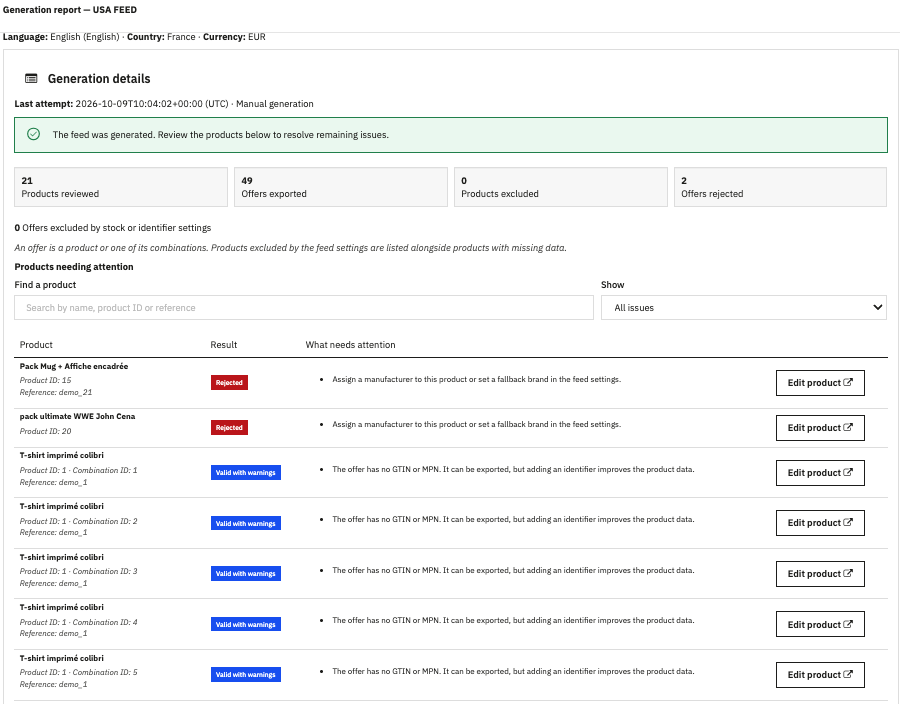
To understand what warnings and errors mean and how to interpret them, see our FAQ How do feed generation reports work, and how can I interpret warnings and errors?.