How to test my module?
This test checks whether the Google Customer Reviews opt-in appears on the order confirmation page. It does not guarantee a survey email or a store rating.
First configure the module. Use a test shop whose module version and payment flow have been checked. Its domain must be eligible for the Google integration; a local copy of the shop alone may not display the window.
Check that the module is enabled
First check that the module is installed and enabled for the shop being tested. This is separate from order validity, its status, the display of the window and the buyer’s decision to opt in.
Prepare the payment method and test status
Choose a test payment method that returns the customer to the shop’s order confirmation page. At that point, PrestaShop must consider the order valid, and its current status must be selected under Order settings → Valid order statuses in the module. Save with Update settings.
Payment by check or bank transfer can be used as an example on an isolated test shop. Availability depends on the installed modules; do not assume a payment module is installed by default.
- Record the original payment configuration, status configuration and module status selection.
- If using “Awaiting check payment”, open that status for editing. In PrestaShop 1.6, use Orders → Statuses; in PrestaShop 1.7, use Shop Parameters → Order Settings → Statuses.
- In this test environment only, enable Consider the associated order as validated for that status if needed, then save. This changes the status behaviour: do not apply it to a status used by real orders to carry out this test.
- In the module, also select that status under Valid order statuses, then save.
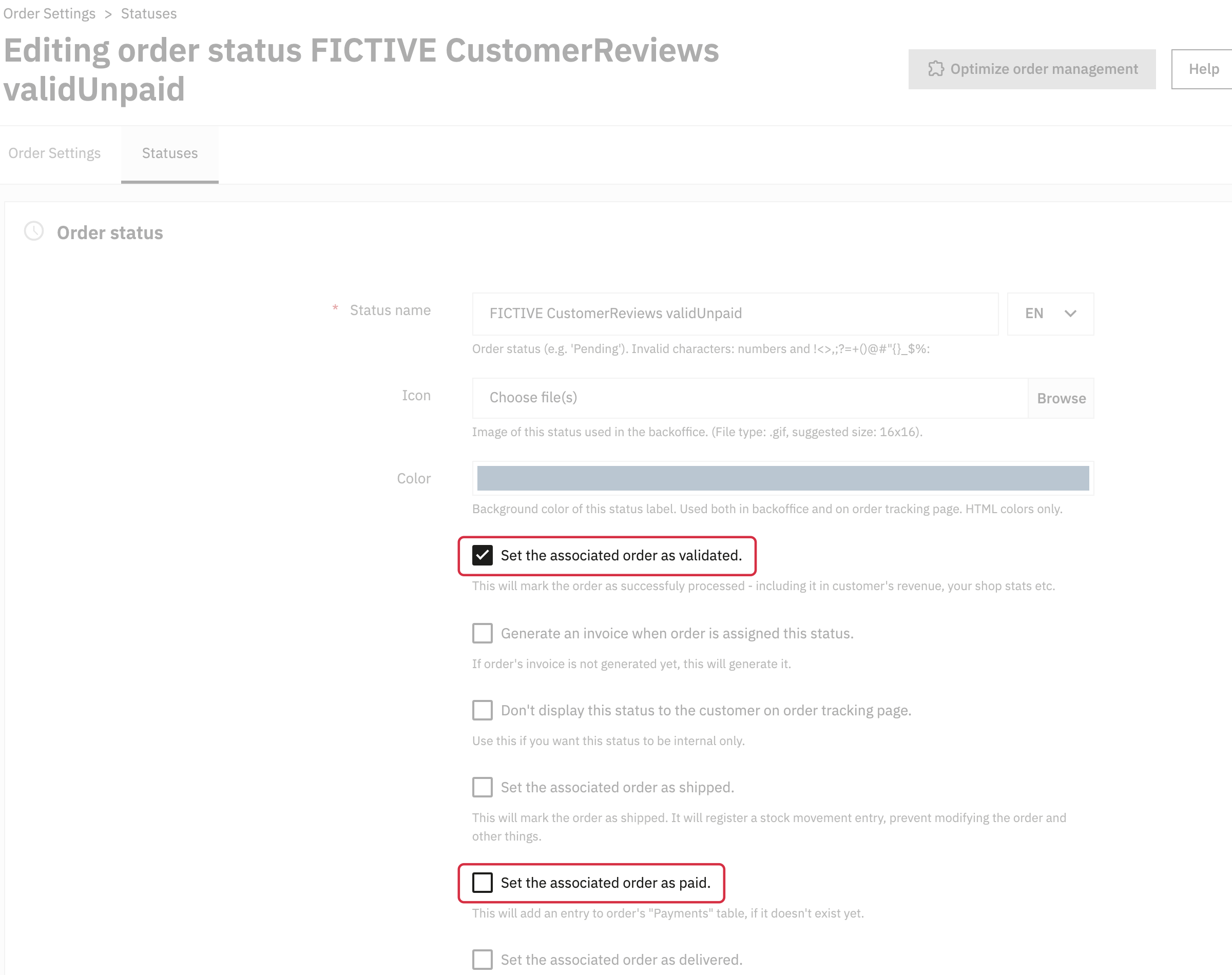
Native order status settings: “validated” and “paid” are separate options.
Validating an order and marking it as paid are separate settings. The module checks PrestaShop validity and the selected current status; a status labelled “paid” does not replace those two checks. Prefer a dedicated fictional status for your isolated test rather than changing a shared status.
Place an order
- Use a test account and test details, including an email address you control.
- Add a product to the cart and complete checkout using the prepared payment method.
- Let the payment flow return you to the shop’s HTTPS confirmation page. Check that the Google opt-in is displayed without another element covering it.
- To continue checking the survey process, opt in using your own test email address.
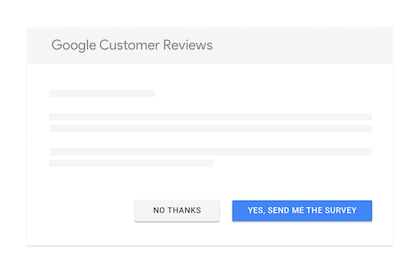
The integration sends the transaction details Google needs to display the opt-in. The buyer then chooses whether to receive the survey. Displaying the window does not guarantee that an email will be sent.
Check the data and follow-up
If necessary, ask your technical provider to check that exactly one opt-in integration is present and that merchant_id, order_id, email, delivery_country and estimated_delivery_date match the order. The estimated date must be consistent with expected delivery.
If the window does not appear, first check the current status and order validity, Merchant Center ID, return to the claimed domain, HTTPS and JavaScript errors. Also check browser extensions that block scripts. See Google’s official troubleshooting guide.
Google manages survey delivery after the estimated delivery date; a later status change does not trigger it. Some opt-ins do not result in an email. Check the Google Customer Reviews dashboard; Google’s troubleshooting guide says reporting can be delayed by up to one week.
Restore the test configuration
Restore the original module status selection and the PrestaShop status validation setting. Restore the payment method too if it was enabled only for this test. Keep the useful observations: payment method, status on return, whether the window appeared and the estimated date supplied.