How to create and install my Snapchat pixel?
Create or select your shop’s Snap Pixel in Snapchat Ads Manager, then enter its ID in the module.
- Open Events Manager from the Ads Manager menu. If your shop does not have a pixel yet, start setting up a web event source and create the pixel. Follow Snapchat’s documentation for choosing a Web source and pixel.
- Retrieve the ID of the pixel you want to use.
- In the module configuration, open Snapchat Pixel > Pixel code, paste only this ID into Snapchat Pixel ID, and save.
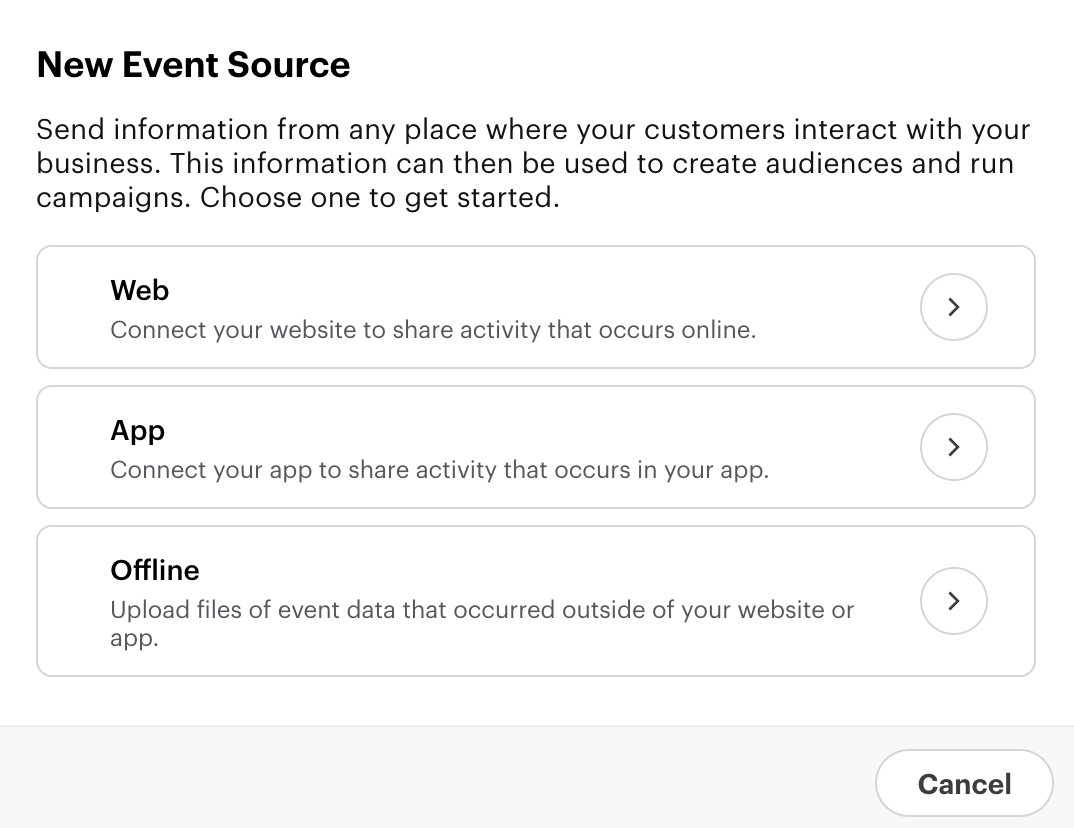
Official Snapchat illustration, English interface: source documentation.
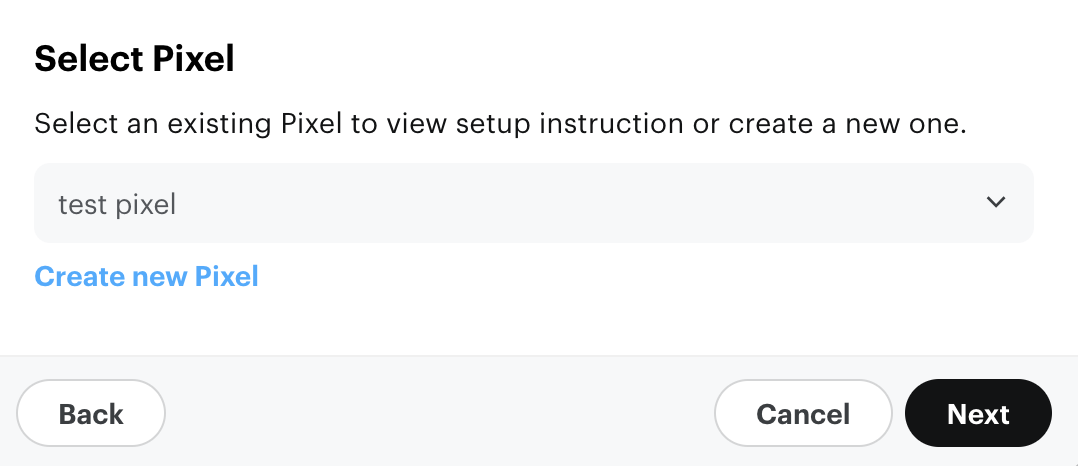
Official Snapchat illustration, English interface: source documentation.
The module uses this ID to insert the pixel code. You do not need to paste the complete script into this field.
Next, check your shop with the Snap Pixel Helper and review events in Events Manager. Saving the ID does not by itself confirm that events are being received: verify this on the relevant pages.
To import your products into a Snapchat catalog, see the catalog import instructions.