How to configure the Google Ads Conversion Tracking Pro module?
Module - Google Ads Conversion Tracking Pro
The module installs a Google Ads conversion event using PrestaShop order information. Available data and attribution depend on Google Ads settings, payment return, browser behavior and consent, among other factors.
1. Basic configuration
Prerequisites: a Google Ads account and a website purchase conversion action providing an ID and label. Create the action or find the identifiers.
In Basic settings, enter Your Google Ads tag ID including AW-, then Your Google Ads tag conversion label. Save the tab.
2. Conversion tracking
a) Conversion value configuration
In Conversion tracking, choose whether the value includes tax, shipping and wrapping costs. Then compare the transmitted amount and currency with a test order using the test procedure.
b) Advanced settings
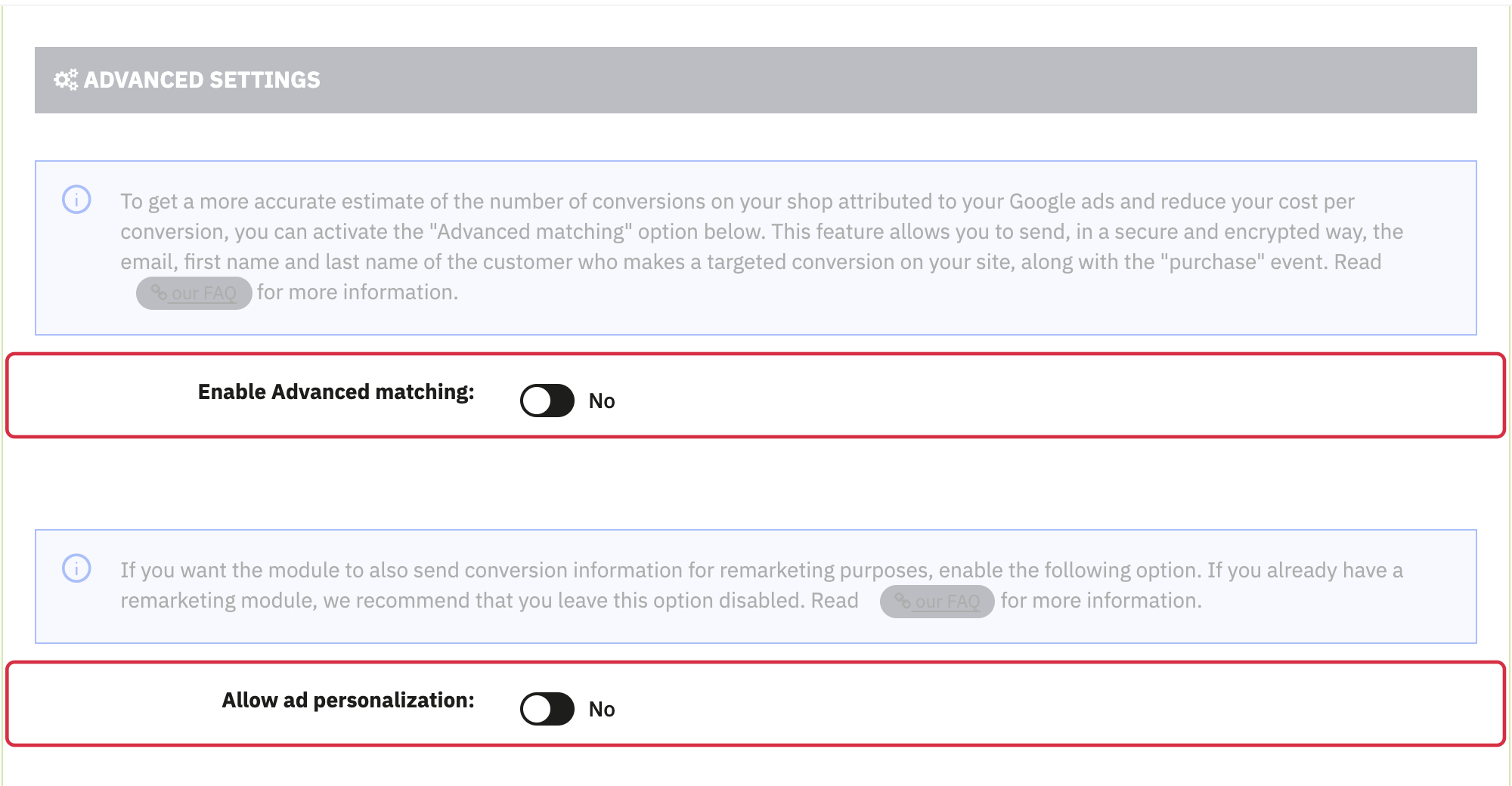
- Enable Advanced matching: use this option together with the corresponding Google settings, required consent and diagnostic checks. See how it works and its limits.
- Allow ad personalization: controls signal use for personalization and is disabled by default. It does not obtain visitor consent or deduplicate conversions. See the dedicated FAQ.
c) Custom controller management
The module recognizes orderconfirmation and submit. If your payment uses another return controller, ask its developer for the exact name to enter under Custom name for order controller. Leave the field empty when unnecessary and save the settings.
3. Consent mode
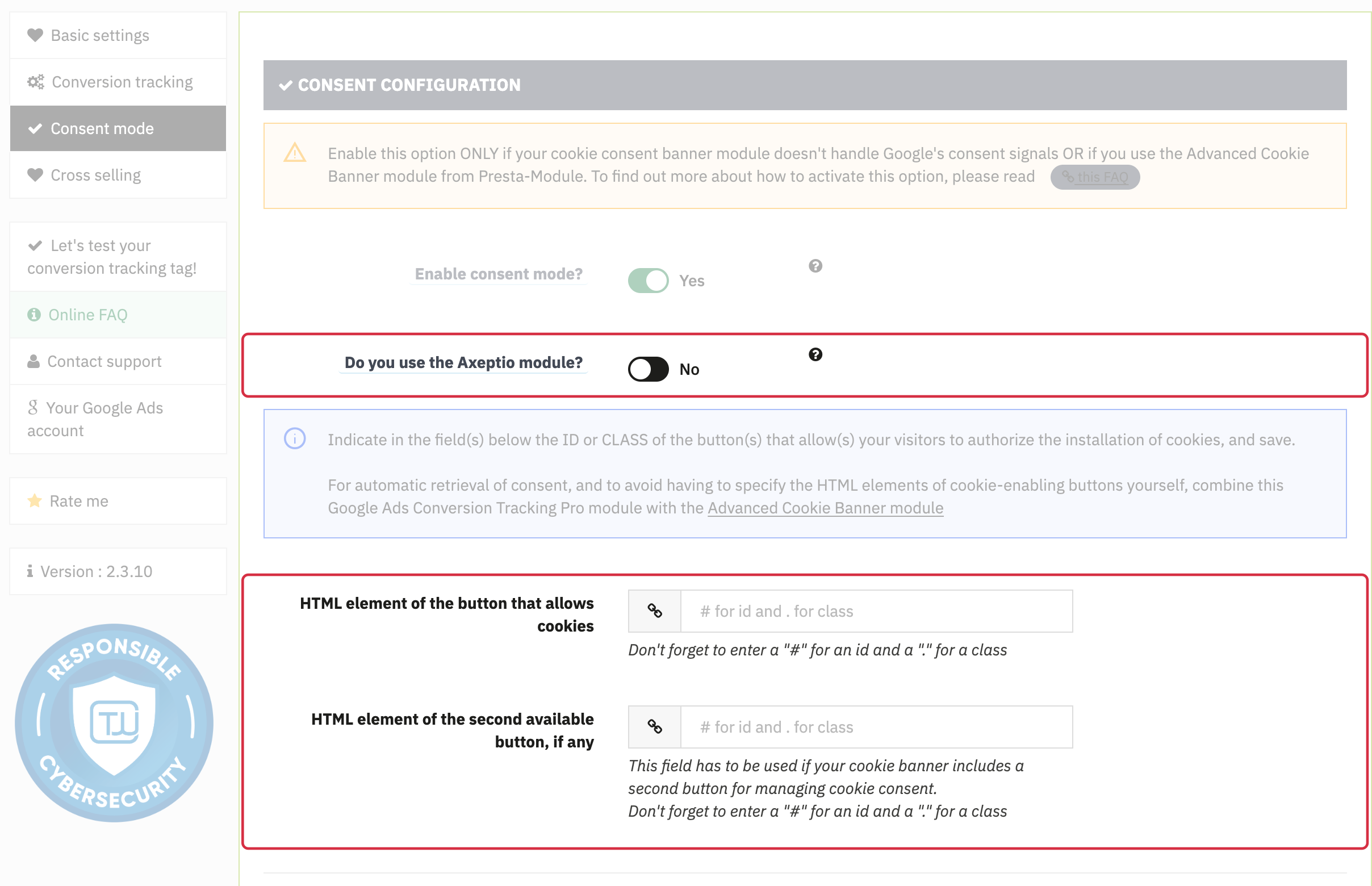
The Consent mode tab provides an Advanced Cookie Banner integration, an Axeptio option or two HTML selector fields. Choose according to your installation and validate the result on the store: read the shared consent FAQ before changing it.
Prerequisites: identify which component transmits consent states and check their order and values. Enabling an option does not guarantee compliance or prove that refusal is respected.
- Advanced Cookie Banner: the module may display a detection notice. Also check its association with the appropriate banner category and the results after acceptance, refusal and reload.
- Axeptio: an option is available when the Advanced Cookie Banner branch is not shown. Check Axeptio configuration and actual states; the switch alone does not prove complete consent management.
- Manual selectors: fields require
#for an ID and.for a class, for example#accept-cookiesor.btn-accept. Use elements actually present on your store. Configuring buttons is not equivalent to handling all preferences and withdrawal.
Note: Google distinguishes basic and advanced consent mode. No tag after refusal can be an intended basic-mode choice. Have actual behavior checked before disabling a protection or concluding that something is faulty.
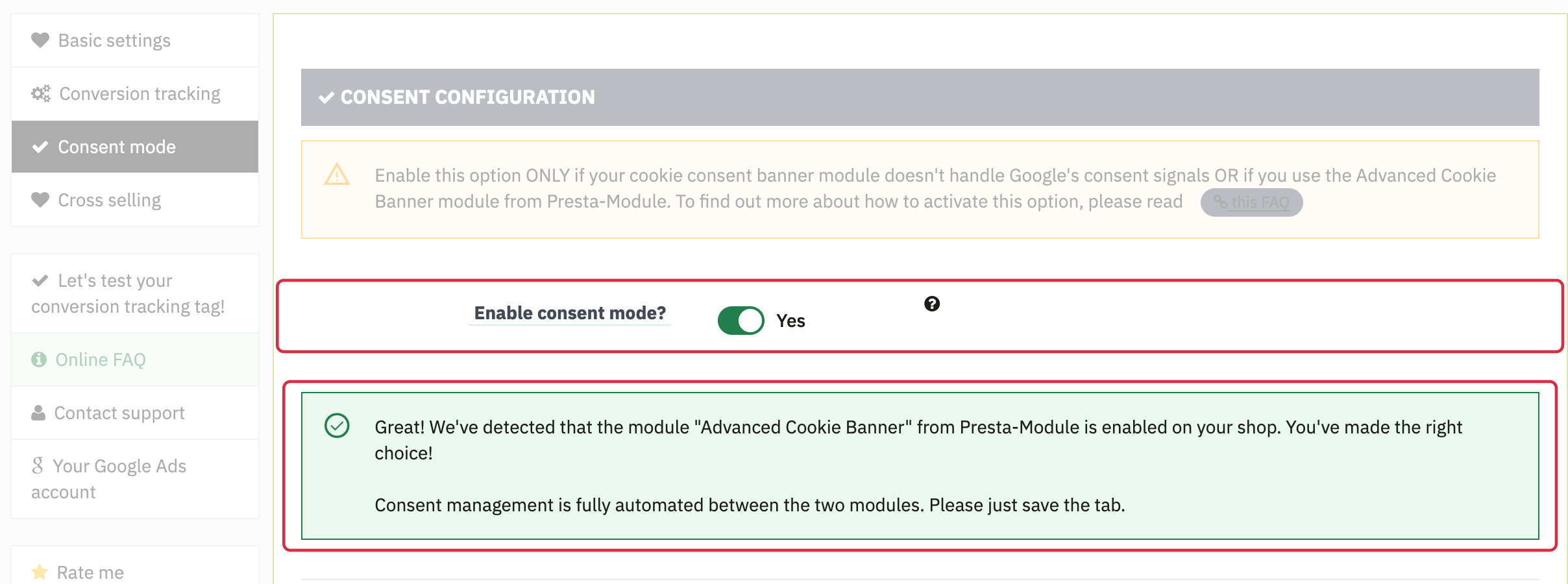
Advanced Cookie Banner detection in the consent settings. Check the signals and their order on your shop.
4. Test the conversion tag
Follow the conversion test with a paid order returning to confirmation. Check the event, ID/label pair, value, currency, order ID, consent states and Google Ads diagnostics.