How do I create my conversion action in Google Ads and retrieve my Google Ads tag ID and my conversion label?
If your conversion action already exists, use the identifier retrieval FAQ. To track purchases with their order values and IDs, create a manually configured website conversion action.
1. Create a purchase action
Under Goals > Conversions, open the summary and create an action. Choose conversions on a website, enter the domain and follow the steps to connect that source. Choose Purchase, add the action and select manual setup using code. The flow may vary with your account state; Google’s current procedure describes these steps.
2. Set purchase options
- Name: choose a recognizable name, such as Sales tracking.
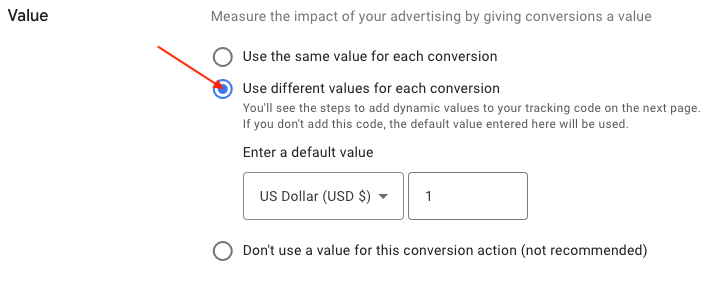
- Value: use different values for each conversion. The module supplies the order value and currency; the default value is a fallback when none is provided.
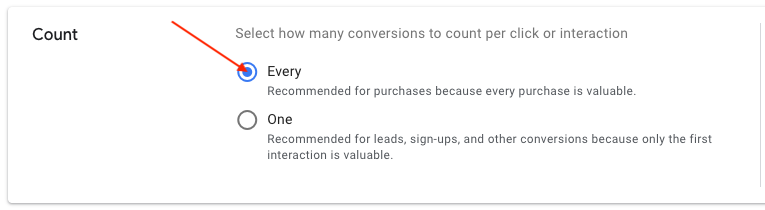
- Count: choose Every to count distinct attributable purchases.
- Windows and attribution: choose periods and a model that suit your strategy; do not assume one configuration fits all accounts.
- Optimization: decide whether this action should be Primary for bidding or Secondary for observation, considering existing purchase actions.
3. Connect the module
Finish saving the action. Find its ID and label using this FAQ, then enter them in Basic settings and save.
The module already generates the conversion event with value, currency and order ID. Do not add another copy of the same event through the theme or Google Tag Manager without checking for duplicate counting.
4. Check enhanced conversions and test
If you use advanced matching, also check its prerequisites and diagnostics and current Google settings, which changed in 2026. Configure consent and then test with an order.