How to manage the V2 consent mode for Google Ads and Google Analytics tags?
Consent mode communicates the visitor’s choices to Google tags for analytics_storage, ad_storage, ad_user_data and ad_personalization. It complements your consent solution; it does not collect valid consent by itself or guarantee compliance.
Choose the expected behaviour
Google distinguishes two implementations. In basic consent mode, tags remain blocked before consent and no transmission is expected after a refusal. In advanced consent mode, tags can load with denied states and send cookieless measurements. An absence of data after refusal does not, by itself, establish a banner fault. Modelling depends on Google’s eligibility criteria and does not guarantee recovery of all missing data.
Cookieless measurement does not establish anonymisation or an exemption from consent. Determine the rules applicable to your shop’s actual uses before choosing its configuration.
With Advanced Cookie Banner
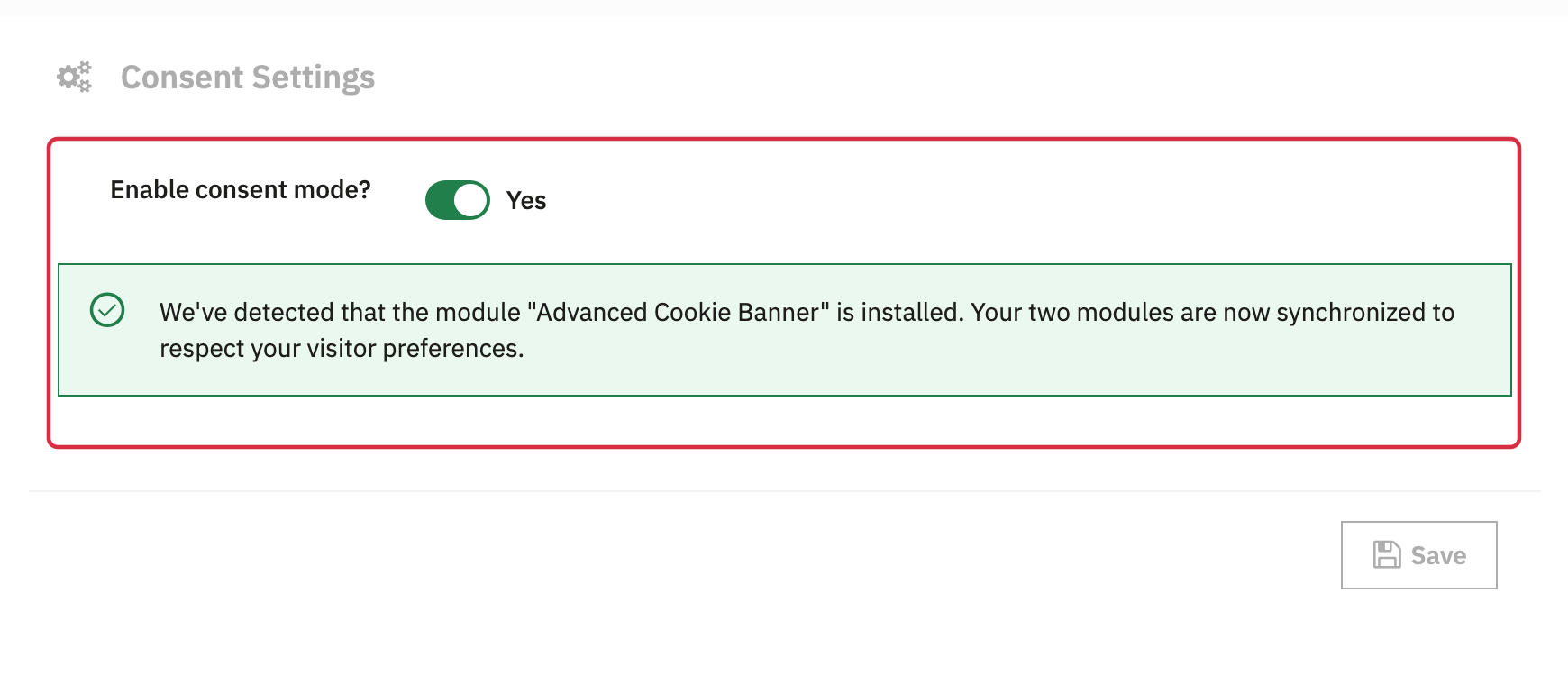
- In the Google module, open Consent mode and enable the mode. Check that the Advanced Cookie Banner detection message appears.
- In Advanced Cookie Banner, check the Blocked Modules List. Categorisation determines whether the Google module can load before consent. A module assigned to statistics may remain blocked before acceptance; this corresponds to basic behaviour.
For an advanced implementation with ganalyticspro, its tag must be allowed to load to apply consent states. Check initial states, statistics-only and marketing-only choices, full acceptance and withdrawal in your complete configuration.
Advanced Cookie Banner 4.3.0 automatically disables its own Consent Mode commands when it detects ganalyticspro installed at version 2.2.7 or later, or Google Dynamic Remarketing at version 1.7.6 or later. Its Consent V2 settings then become unavailable: do not assume it continues to send the signals alone if you disable the Google module’s consent mode. Also check other installed tags and their versions.
With Axeptio or another banner
When Advanced Cookie Banner is not detected, the tab provides an Axeptio option, followed, for another banner, by two HTML acceptance element fields. The Axeptio option does not guarantee handling of every V2 choice: test acceptance, refusal, partial choices and withdrawal with the actual installed versions.
For manual acceptance fields, ask your integrator to identify the actual button: #cookie-accept targets an element with id cookie-accept; .cookie-accept targets a class. Use the second field only for an equivalent second acceptance button. Do not specify a refusal or customisation button: a recognised click grants all four signals in this flow. This binding does not provide complete granular consent or withdrawal handling. Elements created after initialisation require a technical check.
Check the signals actually emitted
Do not disable a setting to recover missing data. Check which component sends consent states and their actual order and values.
Do not force consent to compensate for a decline in reports.
- Start a fresh test session and check the state before making a choice.
- Test refusal, statistics only, marketing only, full acceptance and withdrawal separately, then reload.
- In Tag Assistant, check command order and all four states at the time of each event, together with the requests actually sent. Check that another module does not overwrite these states.
- For Analytics, also confirm reception in the correct property: tag test and purchase test. For the other modules: Google Dynamic Remarketing and Google Ads Conversion Tracking Pro.
Official Google consent mode overview; Verify consent signals.