How to test my Google Analytics tag?
This test separates three checks: data prepared on the store, tag calls and reception in your GA4 property. A value in the data layer alone does not prove processing in reports.
1. Prepare a reference session
Disable any ad blocker for the store domain during the test. Check the configured measurement ID and consent management. Run the initial test by accepting all cookies to isolate collection with consent. Test other choices separately afterwards, without changing your customers’ preferences.
2. Inspect events in Tag Assistant
- Open Tag Assistant, choose Add domain, enter your store URL and connect. Keep the debugging windows open.
- In the store tab opened by Tag Assistant, after accepting cookies on your consent banner, open a product page.
- In Tag Assistant, select the page and its
view_itemevent, then Data Layer. Compareitems,currencyandvaluewith the product and relevant settings.
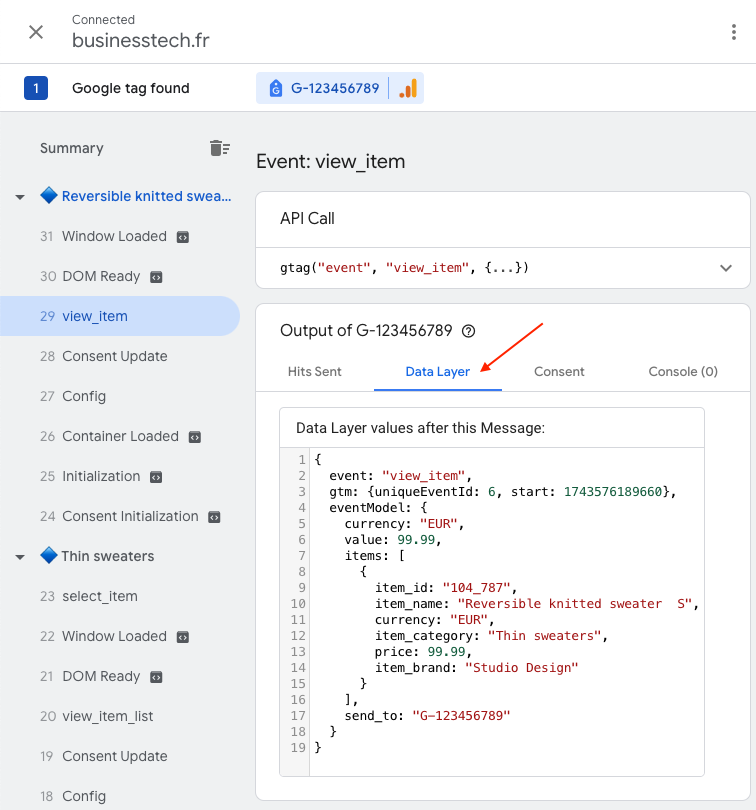
If you can see the product information in the data layer, you have verified its preparation for this event. Also check the G- destination and the tag’s Hits Sent, then check reception as described below.
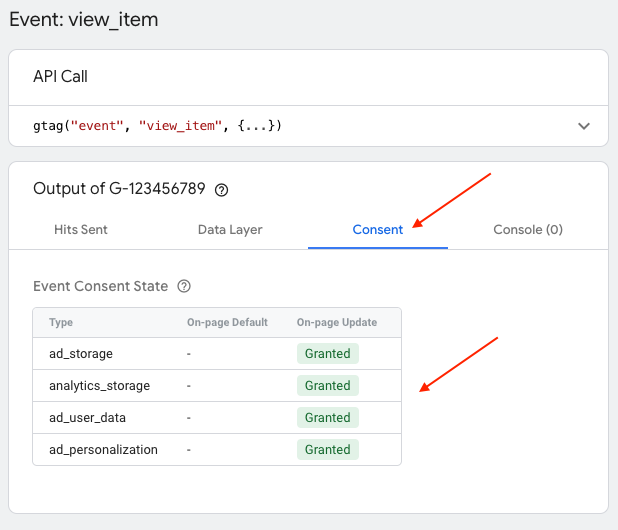
Open Consent to examine the states actually applied to the event: analytics_storage, ad_storage, ad_user_data and ad_personalization. Values must reflect the test session’s choices.
Add the item to the cart, then test the relevant steps in your flow. A product-page test alone does not validate the cart, payment or every theme. For orders, follow the purchase event test.
3. Check reception in GA4
In the property corresponding to the stream, use DebugView with a debugging session, or the Realtime report. Look for the expected events in the event count by event name card. Actions marked as important appear as key events. Standard reports may require 24–48 hours of processing.
If you don't see any data appear, check the ID, session, calls, errors and consent before concluding that the tag is blocked. See the diagnostic for no detected data. If only certain click events are missing, see their specific diagnostic.
Repeat with refusal, partial acceptance and consent withdrawal. Basic consent mode can block the tag after refusal; advanced mode can send measurements without cookies. Compare the result with the selected mode. For a later drop in reports, see the additional checks.
Google ecommerce event validation