How to create my TikTok app?
Important: this procedure requires at least version 4.1.12. Prefer the current stable module version; if you cannot update, contact support.
In the module configuration, select the relevant shop if multistore is enabled. Open “Social login buttons configuration” and edit the TikTok connector. Keep this form open to copy its redirect URL and enter the credentials.
Prepare the app
- Sign in to TikTok for Developers and create or select the app. Choose the owner that actually corresponds to your organization or circumstances.
- Enter your website name, an icon consistent with your brand, an accurate description of the site, and the shop, terms of service and privacy policy URLs.
- Add Login Kit and the
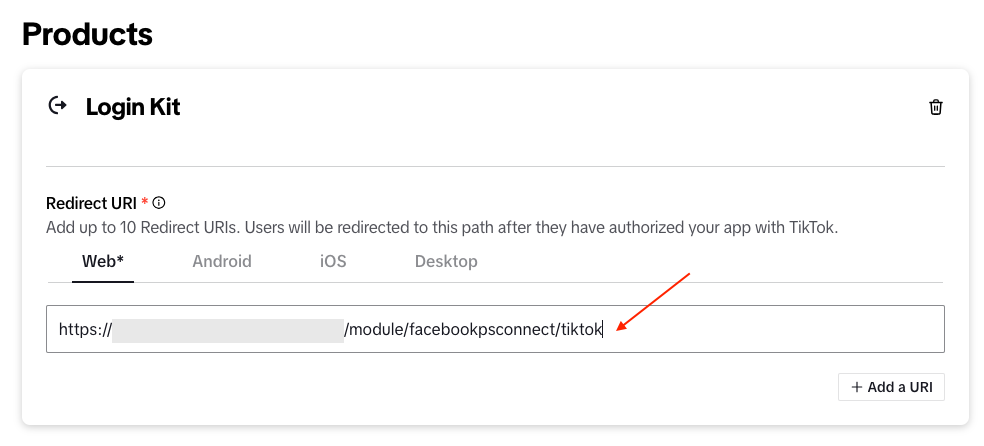
user.info.basicpermission used by the module. - Enable Web configuration and register the redirect URL supplied by the module for the relevant shop in Login Kit.
Important: the redirect URL must be absolute, HTTPS, static, without parameters or a fragment, and match a registered URI exactly. Check the selected shop in multistore mode.
Copy the Client key and Client secret into the TikTok connector and save with “Update”. Keep confidential values out of screenshots.
Prepare for TikTok review
A short submission description is not sufficient on its own: the current procedure requires an explanation of the products and permissions used and a video showing the complete flow. For a first review, TikTok requires the integration to be demonstrated in the portal’s sandbox environment.
The demonstrated website must match the configured domain and the functions actually used. Read the official review criteria before submitting, together with the Login Kit Web requirements.
Important: supply information and evidence for your own site. TikTok approval is required to make the integration available to customers; do not present a test environment as an approved app.
Email address and activation
The connector does not receive the customer’s real email through user.info.basic. It uses the display name returned by TikTok and generates a technical address ending in @tiktok.com. Check the real email address request option under “Basic settings” to enable order communications.
Check the button translations and applicable TikTok presentation rules. When the app is approved and ready, activate the connector and save.
To choose where the buttons appear, see module configuration and, if needed, advanced positions.
Then test the complete flow as a logged-out visitor: authorization with the provider, return to the correct shop, creation or retrieval of the customer account, and a session that remains logged in after reloading the page. An authorization screen alone does not confirm that shop login succeeded.
Interface examples
If the login return fails, contact support with the versions used and the error message with confidential data removed. Provider approval of the app does not replace checking the complete flow with your module version.