How to configure the IndexNow tool?
IndexNow notifies participating engines about added, changed or deleted URLs. The module offers Bing and Yandex. An accepted notification does not prove crawling or indexing and guarantees no timing.
Domain verification: IndexNow verifies ownership of your website using a publicly accessible text file containing your IndexNow key. Since version 2.1.1, the module publishes this file automatically during installation or upgrade and checks it before submitting URLs, recreating it if necessary. Your server must allow the module to write the file at the root of your website, and search engines must be able to access it.
Registering your site with Bing Webmaster Tools is recommended for monitoring your site, but it is not a prerequisite for IndexNow submissions. For a step-by-step guide, see our dedicated FAQ. For more technical information about the protocol and key-file verification, see the official IndexNow documentation.
1. Configuration
- Your IndexNow API key is already generated automatically by the module. You can regenerate it if you want:
- In the IndexNow > Configuration tab, enable IndexNow integration.
- Select the content types whose changes you want to notify: products, categories and/or CMS pages.
- Enable the automatic submission option if you want new URLs to be sent without manual intervention.
- Select search engines to notify via IndexNow:
- Click Save to confirm the configuration.
2. First URL submission (First Submission and Queue Management tabs)
The First Submission tab provides an optional bulk submission tool. It is not required to activate IndexNow or automatic submissions. Use it when your whole catalog has recently changed, for example after a migration or major redesign. For the ongoing discovery of existing pages, use an XML sitemap.
- Go to the First Submission tab to bulk submit all the URLs in your catalog (products, categories, CMS pages). Select a first search engine:
- Click the "Queue My Store URLs" button:
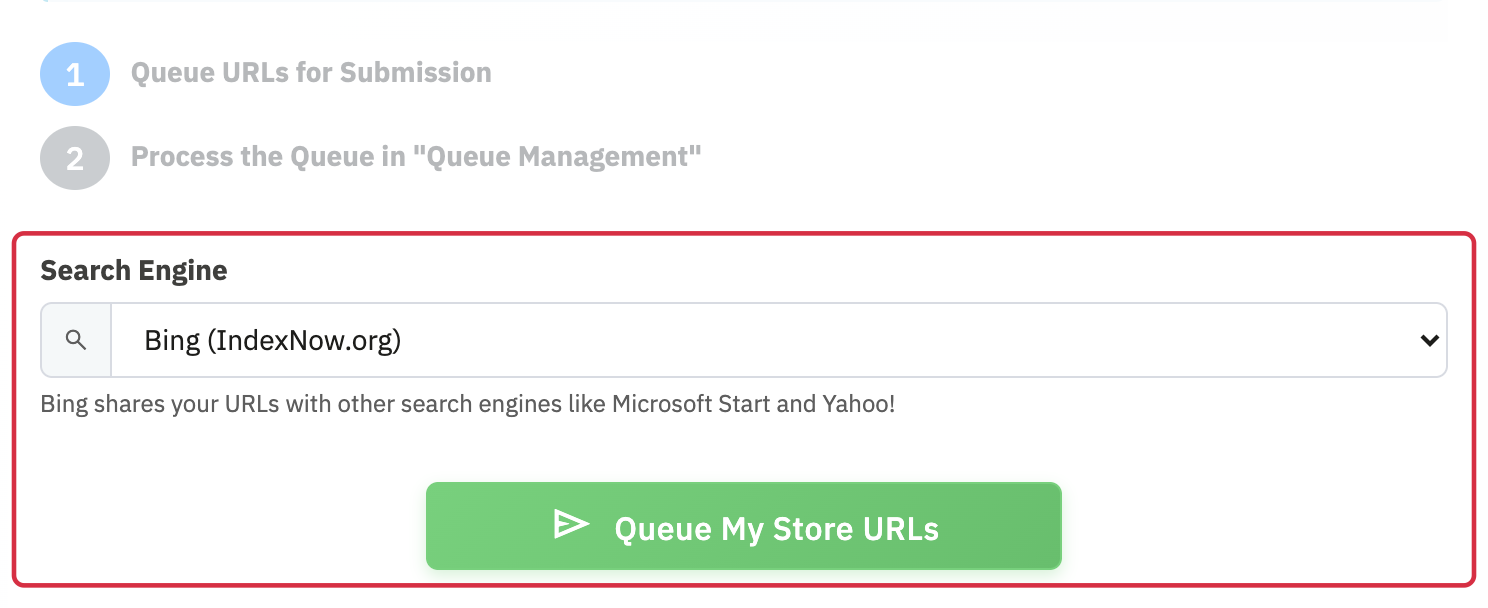
A pop-up window opens and the queuing process begins.
- Close the pop-up once all your URLs have been queued.
- One participating engine is sufficient for the protocol: submissions are shared among IndexNow engines. Do not routinely repeat the same batch for every engine.
- Then go to the Queue Management tab and click on the "Execute all the queue" button:
- Monitor the progress of the submission, check for any errors, and restart submissions if necessary.
Automatic submissions do not depend on this bulk operation. Enable IndexNow and the automatic submission option, select the content types and search engines to notify, then save the configuration. Subsequent eligible changes can then be queued by the module without first submitting the entire catalog. If you use the bulk tool above, you must still process its queue to send those queued URLs.
Note: These tabs remain useful in the following cases:
- You want to force the submission of a large number of URLs after a migration or major site redesign.
- You notice submission errors and want to retry certain submissions.
- You want to check the status of the queue or the history of bulk submissions.
3. IndexNow Dashboard
The Dashboard tracks submissions and their technical responses. It does not show actual engine indexing status.
- Submission tracking: View the detailed history of submissions, the status of each URL (successful, pending, error).
- Error analysis: For each failed submission, see an explicit error message (e.g.: URL format issue, invalid API key, no response from the search engine, etc.) to quickly correct the situation.
The dashboard is particularly useful for:
- Check that notifications are sent and accepted; use engine tools to check indexing.
- Detecting any blockages or slowdowns in URL submission.
4. Manual submission
The Manual Submission tab allows you to individually submit one or more specific URLs to IndexNow, outside of the automatic or bulk submission flows.
Main use cases:
- You have just published an important page (new product, special offer, landing page) and want to notify participating engines about its availability.
- You corrected a page and want to notify the change without waiting for the next automatic submission.
- You want to test IndexNow on a specific URL before launching a global submission.
Manual submission complements automatic notifications for a specific change; it cannot force indexing.
Other FAQs in this category
- How to configure the AI bot traffic analysis?
- How to configure the GEO advanced optimization (fresh content, aiCitationPhrase, UsageContextTags)?
- How to configure the Alt Text tool?
- How to configure the FAQ tool?
- How to configure the LLMS.txt tool?
- How to configure the GEO JSON-LD tool?
- How to configure the XML Sitemaps tool?
- How to configure the GEO Suite module?
- CLI method: how to avoid timeouts when generating fresh content