How to create my Google app?
In the module configuration, select the relevant shop if multistore is enabled. Open “Social login buttons configuration” and edit the Google connector. Keep this form open to copy its redirect URL and enter the credentials.
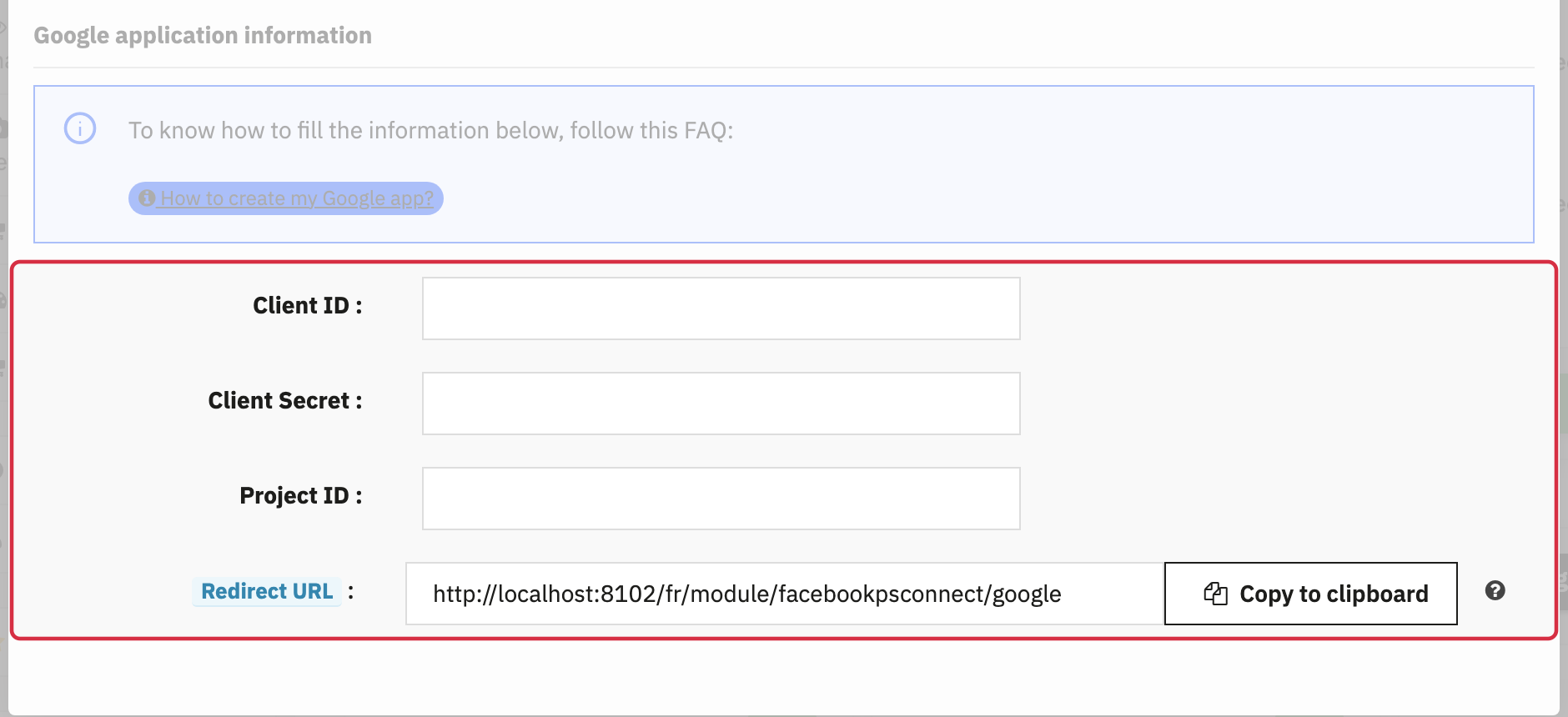
Important: copy the redirect URL supplied by the module for the relevant shop. Do not reuse a URL from another shop or an old screenshot.
Prepare the Google project
- Sign in to Google Cloud Console with an account authorized to manage the project, then create or select the project for your shop.
- In Google Auth platform, configure the app identity under Branding, its audience under Audience and its permissions under Data Access. Choose an external audience for a shop serving customers outside your organization.
- Provide a recognizable identity, an authorized support email, your domains and the applicable privacy pages. The module uses the basic
emailandprofilepermissions.
Follow Google’s consent configuration guide for the current sections.
Important: brand verification and scope verification are separate procedures. Follow the requirements shown for your project; omitting a logo does not guarantee that verification or limits will not apply.
Access rules depend on the audience, publishing status and requested permissions. Google documents an exception for basic identity scopes only. See OAuth app states and brand verification.
Create Web client credentials
- Under Clients, create an OAuth client of type Web application.
- Add the exact URL displayed in the module’s Google form to the authorized redirect URIs, then save the client. This server-side flow does not require an authorized JavaScript origin.
- Copy the Client ID and Client Secret into their matching module fields.
- Enter the Google project’s text identifier in Project ID; it is different from the numeric project number. The form requires a value.
- Check the button text in the languages of your shop and select its style. Activate the connector when your configuration is ready, then click “Update”.
To choose where the buttons appear, see module configuration and, if needed, advanced positions.
Then test the complete flow as a logged-out visitor: authorization with the provider, return to the correct shop, creation or retrieval of the customer account, and a session that remains logged in after reloading the page. An authorization screen alone does not confirm that shop login succeeded.