How to import my products into a Facebook catalog?
First prepare your catalog and choose the update method. You need the required catalog permissions. This procedure covers the main feed; for localization, see country and language feeds.
Check the URL to import
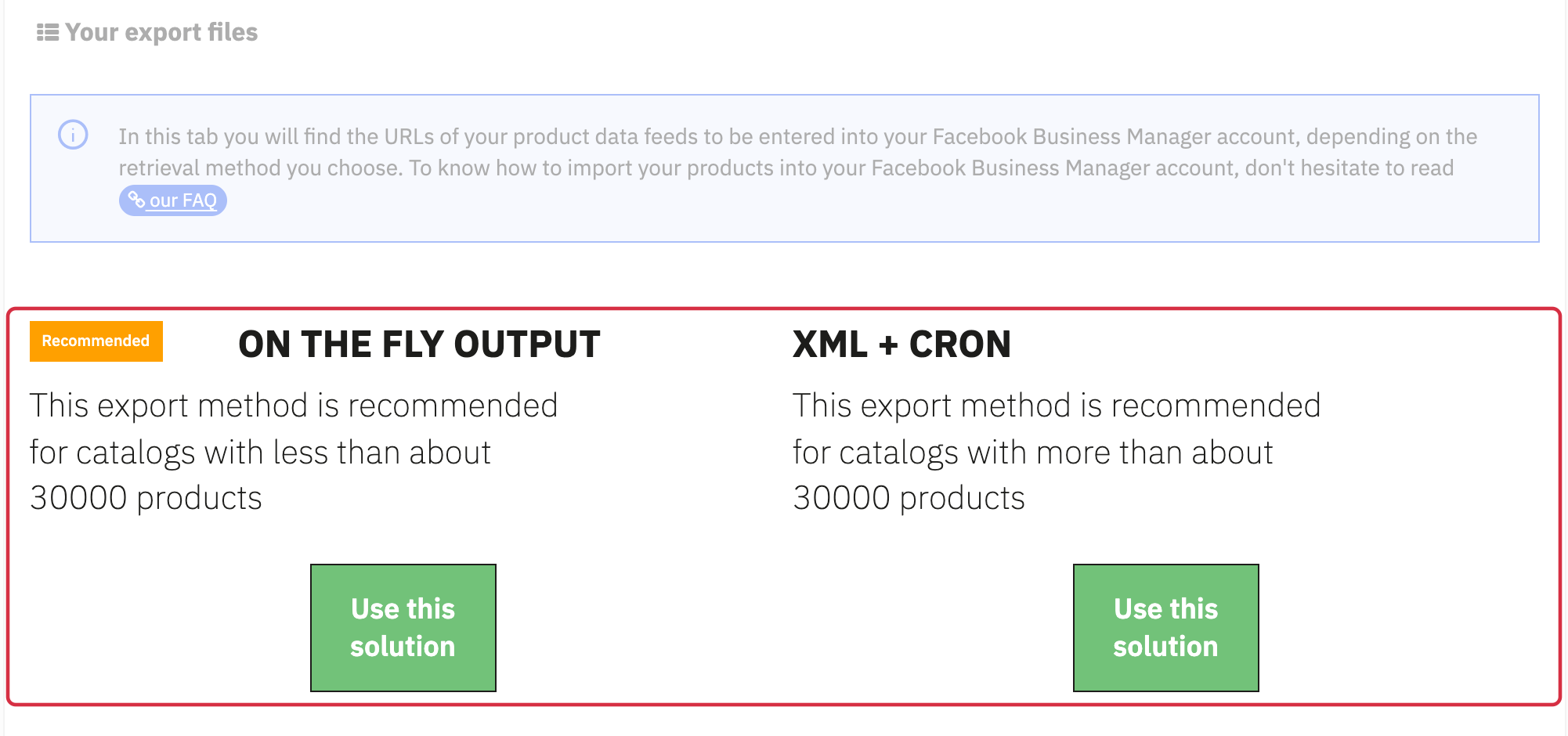
In My feeds, copy the on-the-fly URL or the XML file URL prepared by CRON for the required Language/Country/Currency combination. Do not use the CRON task URL as the Meta source. Test the URL: it must return XML without requiring a back-office login or showing an intermediate HTML page.
Add the source in Meta
- In Commerce Manager, select the catalog, then Catalog → Products or Data sources.
- Choose + Add → Data file.
- Select the format matching the file. The module generates XML with product attributes; review any field mappings Meta proposes.
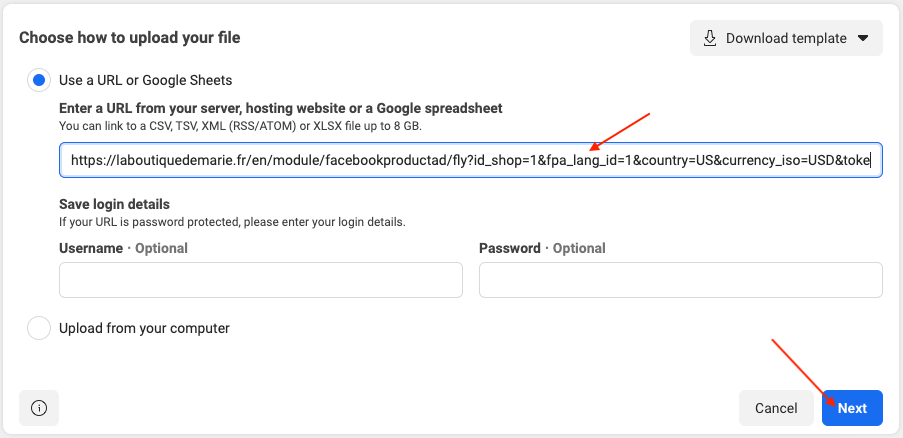
- Select Use a URL or Google Sheets and paste the XML URL. Enter login details only if the URL actually requires them.
- Give the feed a meaningful name and check the fallback currency; file prices should already include the correct currency.
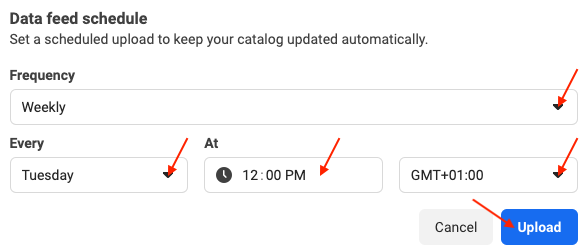
- Choose hourly, daily or weekly retrieval according to your needs and the options offered. For XML + CRON, schedule it after file generation.
- Start the upload and inspect its summary: item counts, file errors and issues preventing use of particular products.
Example: Weekly, Tuesday means one retrieval per week, not one per day. The selected time and timezone must agree with the generation task.
References: upload a data feed and scheduled retrievals. Return to Data sources to inspect recent results or change the schedule.
The retained earlier illustrations below show examples and navigation landmarks. Names, dates and layouts may differ in your version; follow the checks described in the text.
Other FAQs in this category
- How to create a Facebook product catalog?
- Facebook Starter Guide
- How to create a Business Manager account?
- How to create a Facebook and Instagram Shop?
- How to create a Facebook Page?
- How to import my products into the "Shop" section of my Facebook Page?
- What are the consequences of the release of iOS14 on the module's Facebook Pixel?
- How to customize my Facebook Shop?