How to create my Paypal app?
Important: this connector requires module version 3.0.10 or later.
In the module configuration, select the relevant shop if multistore is enabled. Open “Social login buttons configuration” and edit the PayPal connector. Keep this form open to copy its redirect URL and enter the credentials.
Prepare the app and permissions
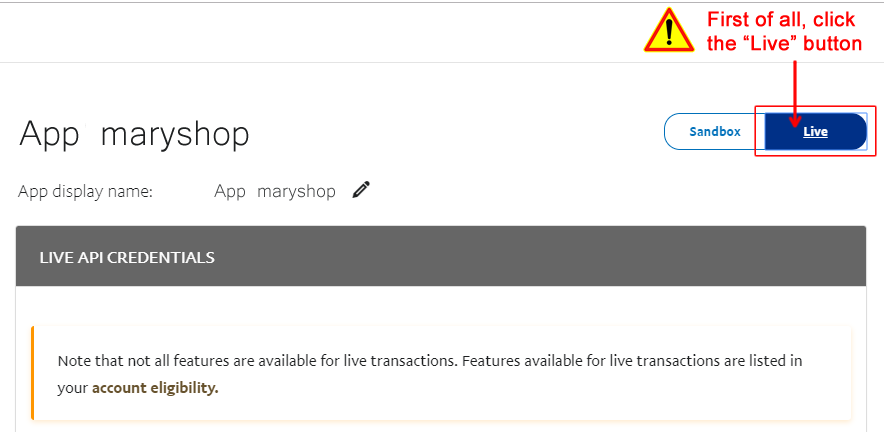
In the PayPal Developer Dashboard, open Apps & Credentials and your app. For a production shop, use the Live app and credentials.
Important: Sandbox credentials do not work with the shipped connector’s Live flow. Check the environment before copying the Client ID and Secret.
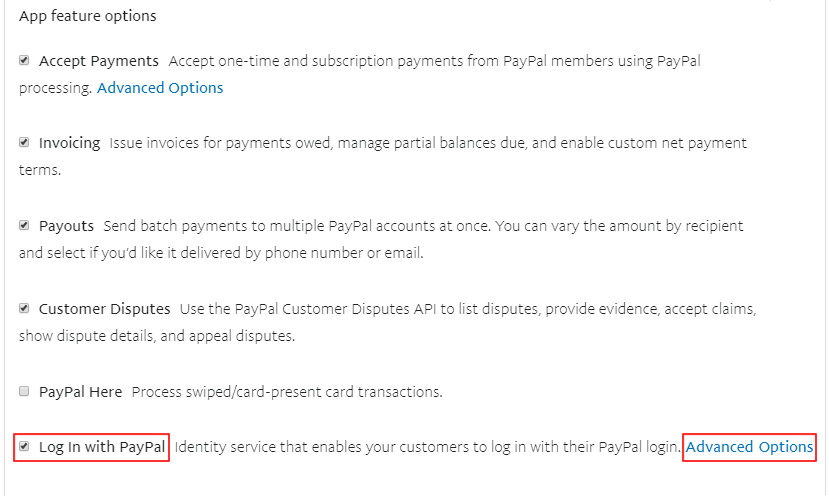
- Under Other features, enable Log in with PayPal and open Advanced Settings.
- Set the Return URL to the exact redirect URL displayed by the module, then enter your shop’s privacy policy and user agreement URLs.
- Match the permitted information to the scopes requested by the module:
openid profile address email. Do not select additional data without a need. The module uses the name, email and postal address when returned. - Save the settings and follow the app’s review status in PayPal.
PayPal approval is required before Live use. The current procedure automatically submits a Live app when saved; the published review time is indicative and can take several weeks.
See the official Log in with PayPal procedure and any requests shown in your account. Never send the Secret in an email or support screenshot.
Configure the module and place the button
- Copy the Live Client ID into “App ID” and the Live Secret into “Secret Application ID”.
- Check the Return URL, button text and translations, then save with “Update”.
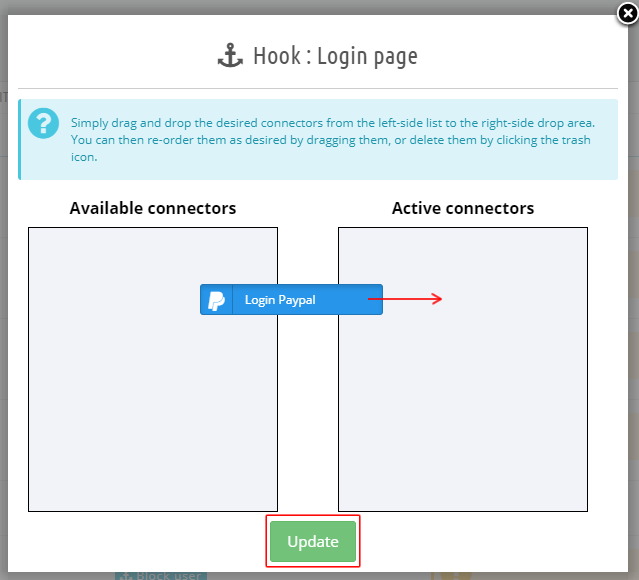
- When the app is approved and ready, activate the connector. In position management, drag PayPal into Active connectors, on the right, then save.
To choose where the buttons appear, see module configuration and, if needed, advanced positions.
Then test the complete flow as a logged-out visitor: authorization with the provider, return to the correct shop, creation or retrieval of the customer account, and a session that remains logged in after reloading the page. An authorization screen alone does not confirm that shop login succeeded.
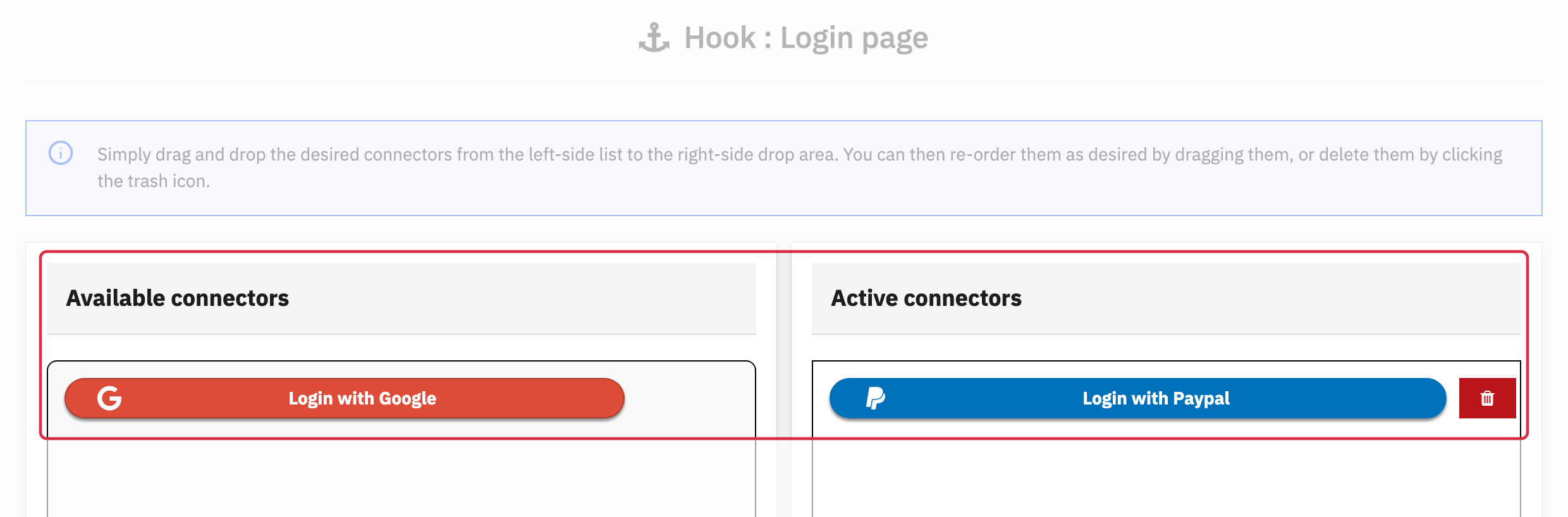
Interface examples
If the login return fails, contact support with the versions used and the error message with confidential data removed. Provider approval of the app does not replace checking the complete flow with your module version.