How to configure the AI bot traffic analysis?
The module recognizes agents such as GPTBot, ClaudeBot, PerplexityBot and Applebot in collected visits. Two modes are available: JavaScript buffer or server log analysis. The classifier does not recognize Googlebot and Bingbot by name; this dashboard does not cover every crawler.
Mandatory prerequisite: To use the advanced mode (log analysis), you must:
- Have access to your server log files (usually via your host or FTP/SFTP access).
- Check that the log deposit folder is authorized by the module (ask your site administrator or webmaster).
Without access to these files, the advanced mode will not work.
1. Configuration
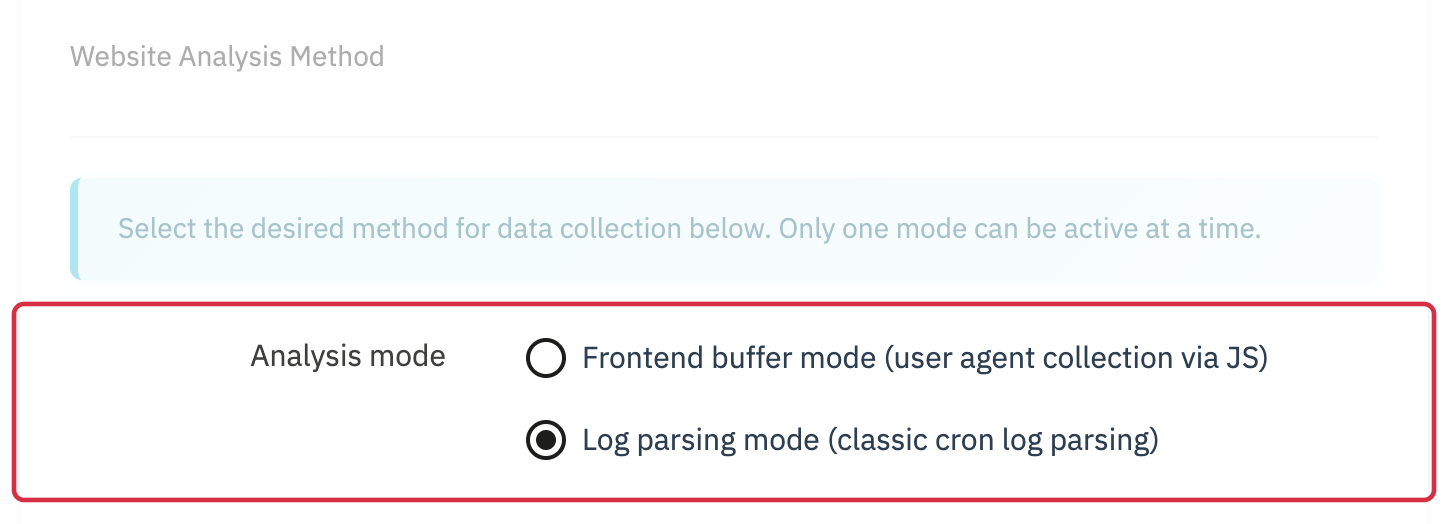
- In the Data Analysis tab, choose the analysis mode:
- Simple mode: JavaScript collection. Only agents that execute the script can be observed; crawlers that do not run JavaScript will not appear.
- or Advanced Mode: Log analysis mode (classic log analysis via CRON)
- For advanced mode, specify the log file path (it must be in an authorized path—
open_basedirrestriction). Schematic example to replace with your host’s absolute path:my_site/logs/access.logand, if needed, the custom format.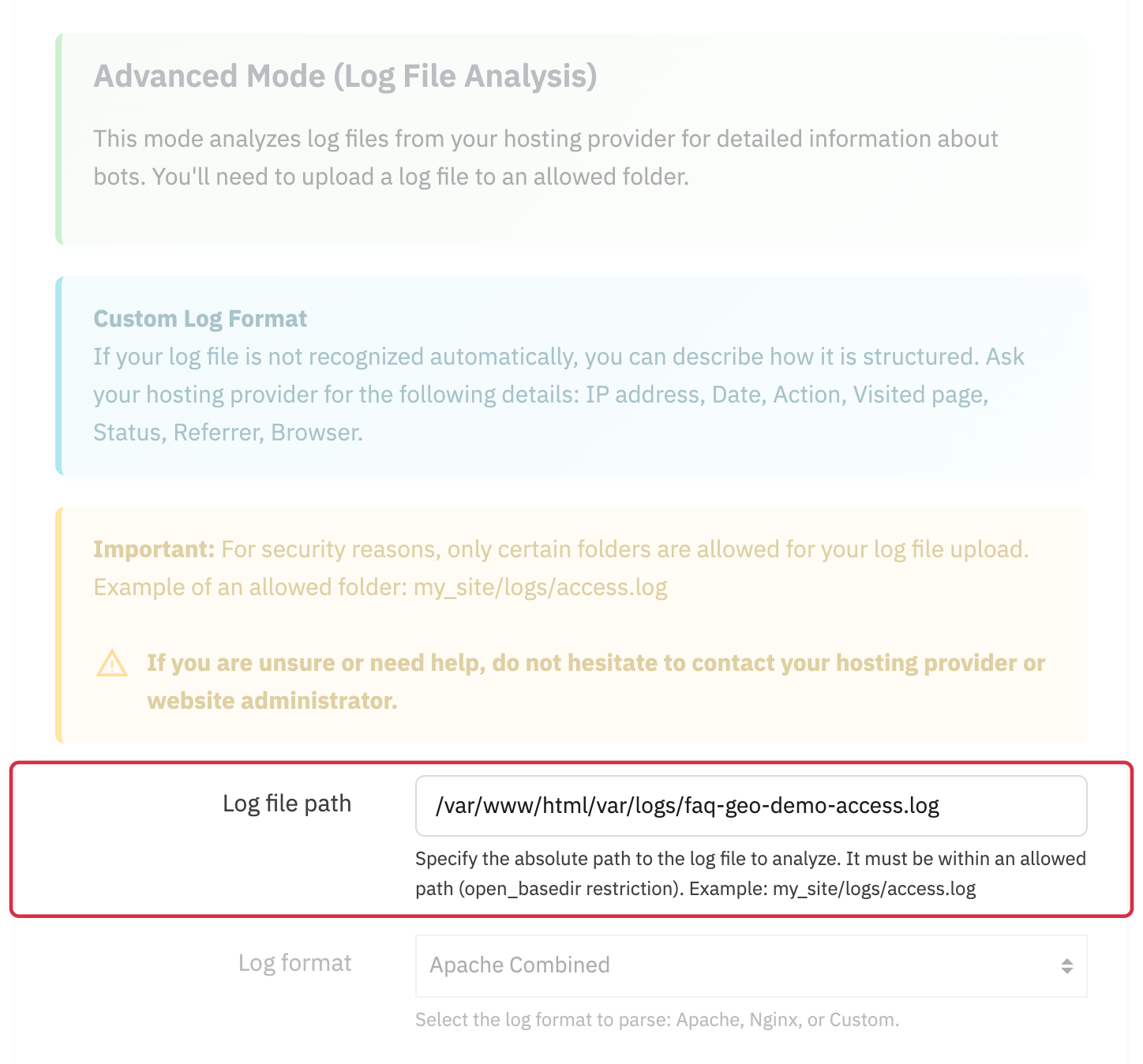
- Click Save to save the configuration.
Tips:
- Use simple mode if you have no technical knowledge of logs.
- Advanced mode offers more detailed analysis for high-traffic shops but requires more technical knowledge.
2. Log analysis (for advanced analysis mode)
The Log Parsing (CRON URL) subtab provides the processing URL for the selected mode: Buffer Sync CRON URL to aggregate and purge the buffer, or Data Analysis CRON URL to parse logs. Copy the URL displayed for your mode and schedule it on your hosting.
Check processing results and adapt scheduling to volume. Log analysis loads logs into memory; it does not guarantee unlimited large-volume capacity.
3. AI Bot Traffic analysis (AI Bot Traffic button)
Open bot traffic monitoring from the GEO Suite section of the PrestaShop menu or its monitoring button in module configuration. It shows collected data without proving an agent’s real identity or use of your pages in an AI answer.
- Understand the frequency of bot visits to your site.
- Identify the most active bots.
- Spot the appearance of new bots.
- Track traffic spikes generated by robots.
Features and usage:
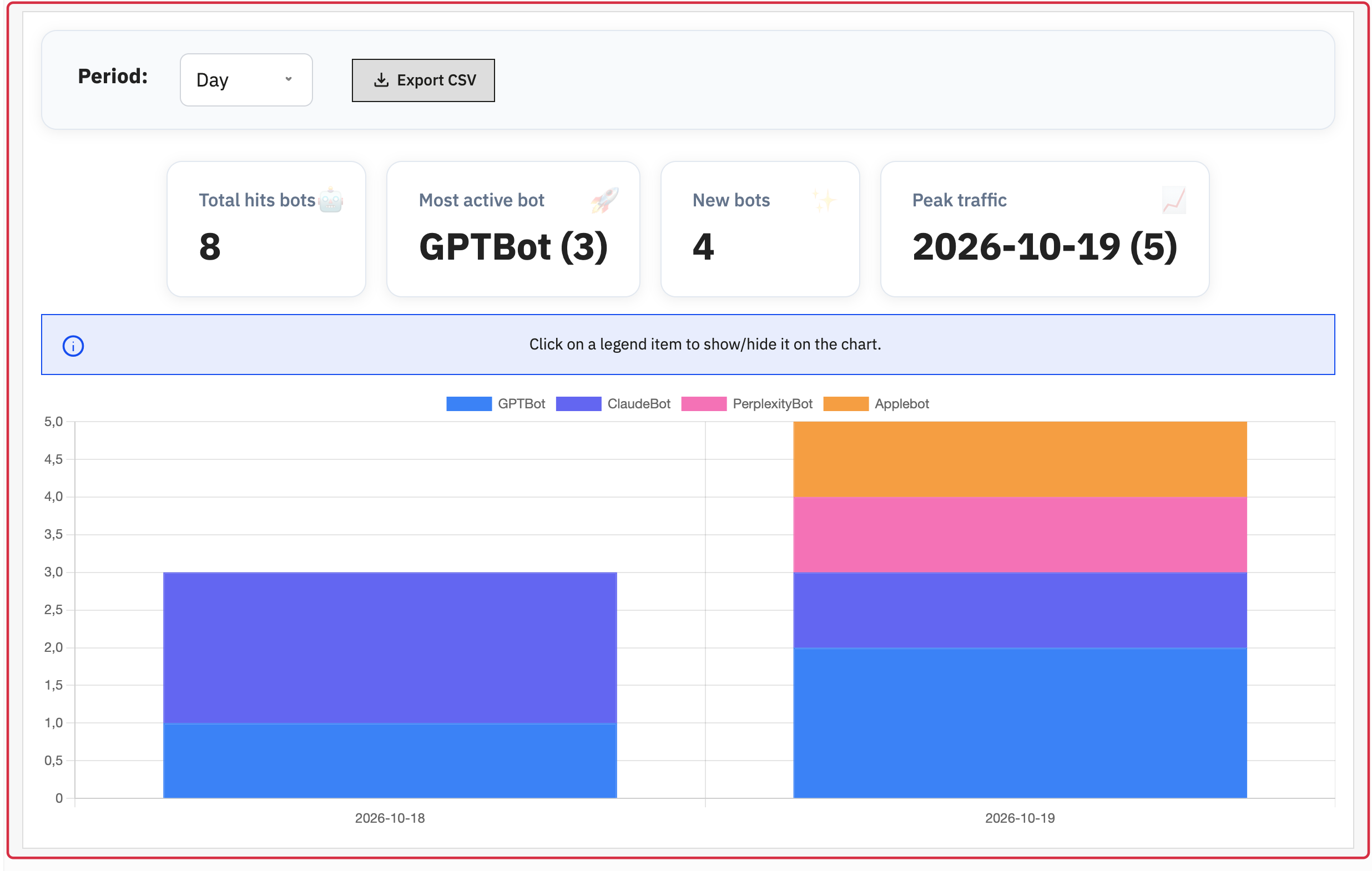
- Period selector: choose to display statistics by day, by month, or over a custom range (with date selection).
- Key indicators (KPIs):
- Total bot visits: total number of bot visits over the selected period.
- Most active bot: name of the bot with the most visits, with the associated number of hits.
- New bots: the counter corresponds to distinct bots present in the selected period. Do not interpret it as their first historical visit to the shop.
- Traffic peak: day with the highest total of collected visits within the selected period.
- Interactive chart: view the evolution of traffic from different bots over the chosen period. You can hide/show each bot by clicking on the legend.
- CSV export: export the displayed data in CSV format for further analysis or archiving. The "Export CSV" button takes into account the selected period and filters.
Tip: Click on an item in the chart legend to hide or show the curve for a specific bot.
For log mode, ask your host for an absolute path readable by PHP and the matching format. The relative path above is schematic. Permissions and open_basedir, when set, must allow reading. A User-Agent alone does not authenticate origin. Google-Extended is a robots.txt control token without a separate HTTP agent; do not expect a dedicated curve under that name for real visits.
In the illustrated fictional example, the module recognized 8 visits, 4 distinct bot names and a peak of 5 visits on 19 October. GPTBot and ClaudeBot each have 3 visits over the period; the most-active label does not resolve that tie. Other log agents, including Googlebot and Bingbot, are not counted by this classifier.
See the official Google crawler documentation for the status of Google-Extended.
Other FAQs in this category
- How to configure the GEO advanced optimization (fresh content, aiCitationPhrase, UsageContextTags)?
- How to configure the Alt Text tool?
- How to configure the FAQ tool?
- How to configure the IndexNow tool?
- How to configure the LLMS.txt tool?
- How to configure the GEO JSON-LD tool?
- How to configure the XML Sitemaps tool?
- How to configure the GEO Suite module?
- CLI method: how to avoid timeouts when generating fresh content