How to create my Facebook app?
To use Facebook Login, prepare a Meta app for signing in to your shop, then link it to the module’s Facebook connector. Use an account authorized to manage the app.
Prepare the Meta app
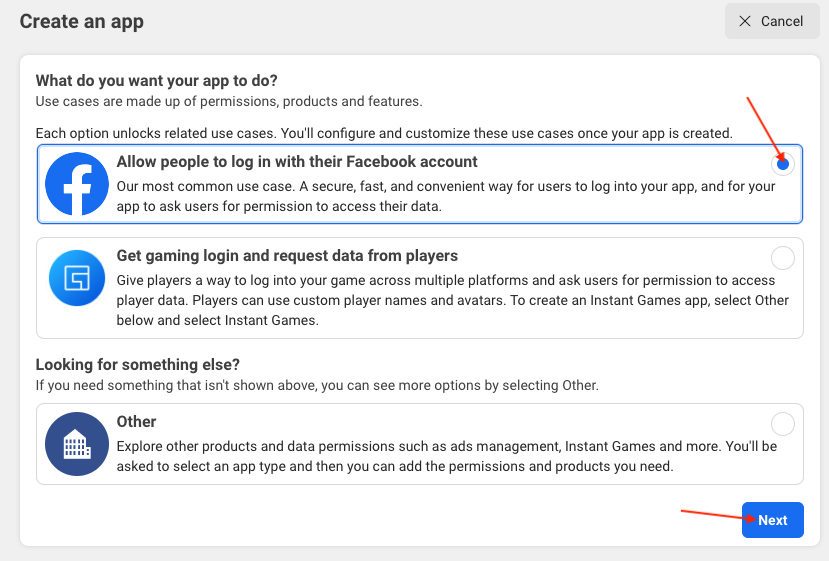
Open Meta for Developers and create or select your app. Follow the options available to your account to add Facebook login for a website, using the app creation documentation and the Facebook Login documentation. Steps and requirements can differ between older apps created with a type and apps created with a use case.
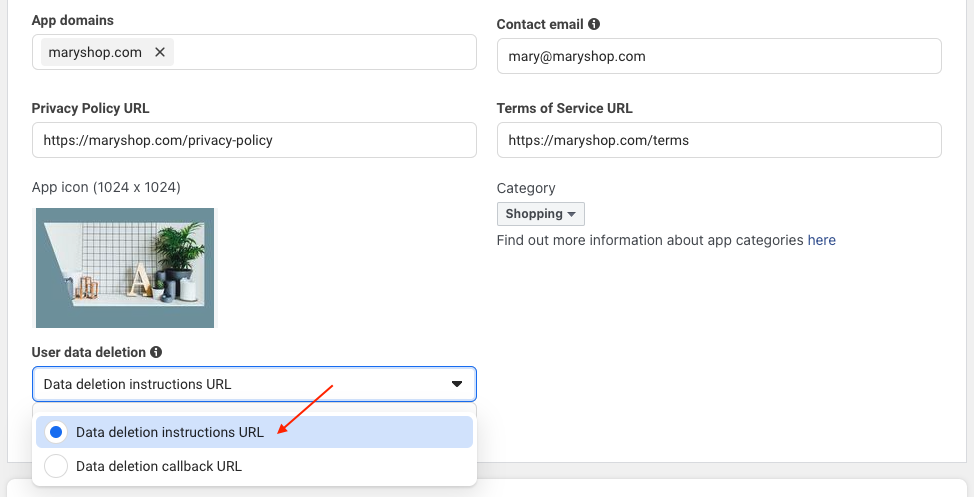
Enter your shop’s actual identity, domain, website URL and an authorized contact address. Provide the applicable privacy policy and user agreement pages, and instructions explaining how customers can request deletion of their data. Answer Meta’s requests according to your business’s actual circumstances.
Do not confuse a data deletion instructions URL with a data deletion callback. A page explaining how to request deletion is not an endpoint that processes deletion automatically; do not substitute one for the other.
Link the module to the app
- In the module configuration, select the relevant shop in multistore mode, open “Social login buttons configuration” and edit the Facebook connector.
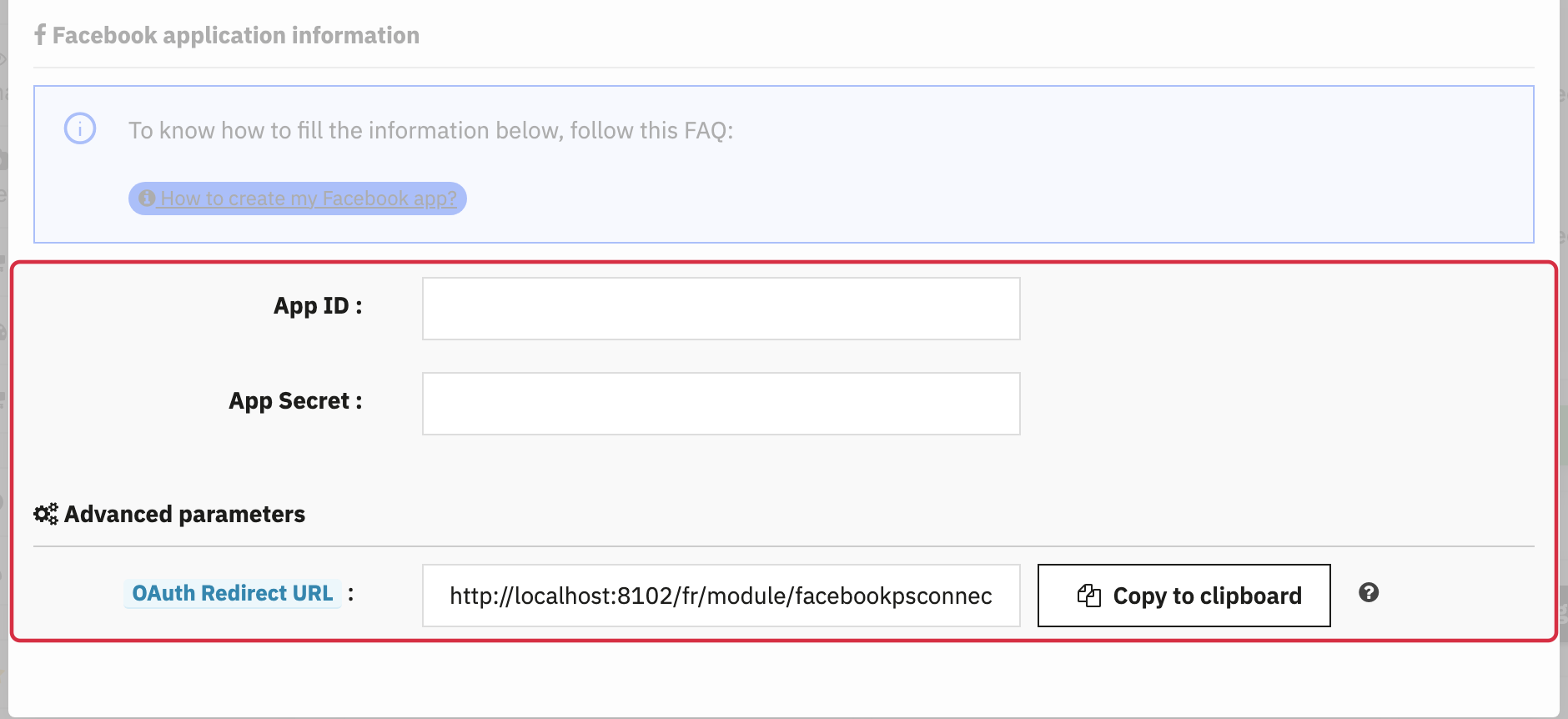
- Enter the app ID and app secret in the corresponding fields. Keep the secret confidential: do not publish it or include it in a support screenshot.
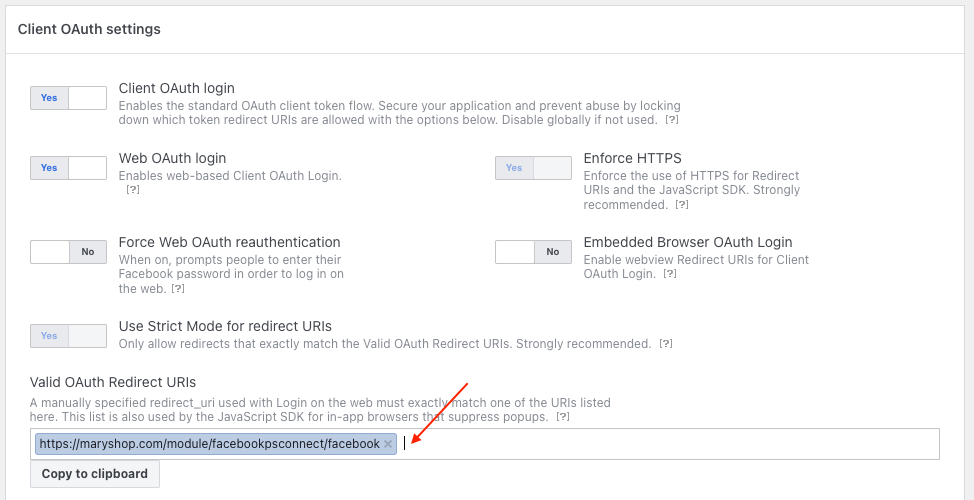
- Copy the OAuth redirect URL displayed by the module for that shop and register it among the allowed Facebook Login redirect URIs in the Meta app.
- Check the button text in your shop’s languages and follow the applicable Facebook presentation guidelines. Save the module settings.
Important: use the complete, exact URL provided by the module for the selected shop. Do not copy an illustration URL or another shop’s URL, and do not replace the callback with a privacy policy URL.
Check permissions and availability
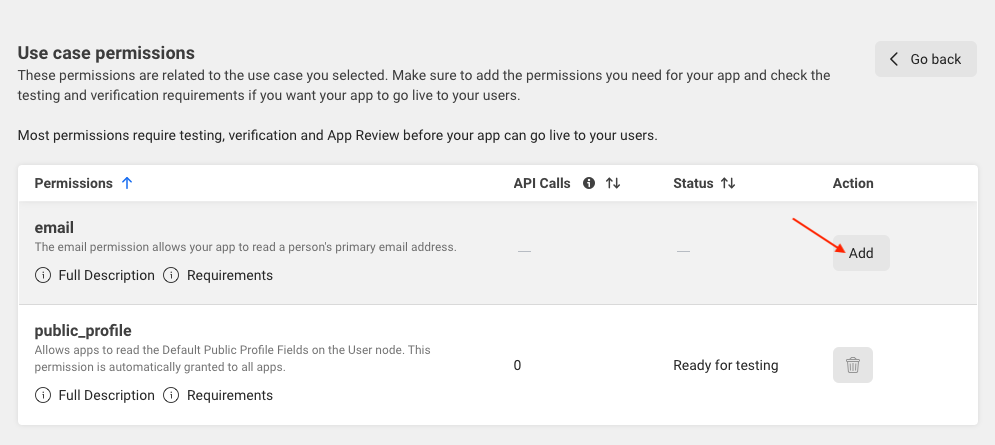
The module requests the email permission and uses the profile data actually returned. A date of birth is not guaranteed: including it in a field list does not grant the corresponding permission. A real email address is not guaranteed either; see the Facebook email diagnosis if a technical address appears.
Check the permissions and requirements displayed for your app. For apps within its scope, the access levels documentation distinguishes standard and advanced access, people with an app role and other users. Business verification, review and required checks depend on the app model and access; do not automatically apply another app’s workflow.
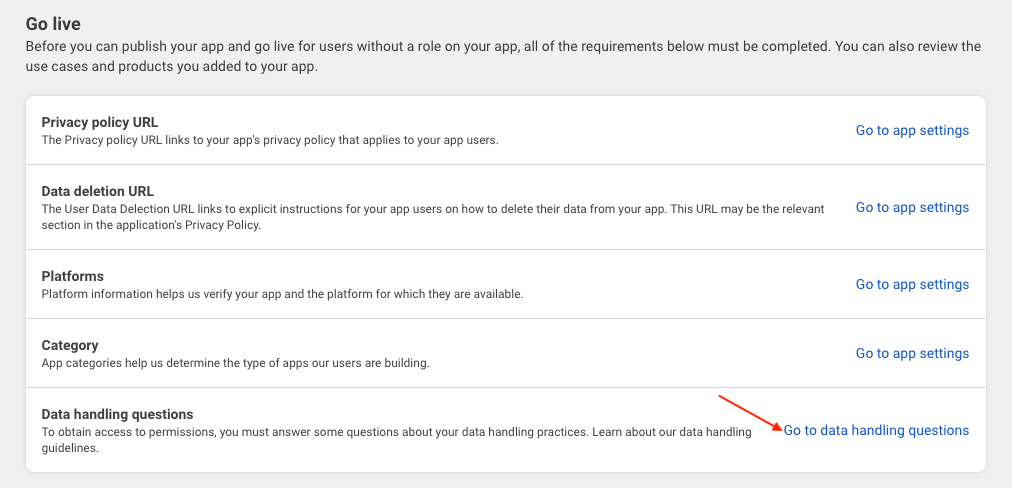
Do not copy sample answers to data handling questions or ignore a permission warning. Every answer and declaration must reflect your actual practices. Follow the deadlines displayed by Meta rather than assuming a universal three-month period.
Prepare button placement using module configuration or advanced positions. Activate the connector when its configuration and permissions are ready. Before opening it to customers, check in Meta that the app is actually available to people without an app role; a successful administrator test does not establish this access.
On your authorized test environment, complete the flow: start as a logged-out visitor, authorize access, return to the correct shop, check the created or retrieved customer account, the address actually stored and the session after reloading. A consent screen does not establish shop login. For a state-check error, see the session and URL checks.
Interface examples