How to configure my module?
The module lets customers create an account or log in to your shop with Facebook, Google, PayPal, X, Amazon or TikTok. Setup includes provider permissions, connector configuration and placement.
1. Prepare the connector
If you use multistore, select the shop to configure: configuration cannot be performed in the “All shops” or shop-group context.
Follow the selected provider’s guide to create the app, register its redirect URL and obtain credentials:
Some providers require review before customer access. Wait for the necessary approvals before presenting the button as available.
Under “Social login buttons configuration”, enter the connector credentials, check the displayed redirect URL and button text in the shop’s languages. Save the settings and activate the connector when ready.
2. Choose positions
- Open “Connectors position management (native hooks)”.
- Edit the required position, such as “Login page”.
- Drag the connector from the available list to Active connectors, on the right. You can reorder the active connectors.
- Click “Update” and repeat for other required positions.
If your theme requires a different container, use advanced positions. If the buttons are missing from the login page, follow the display checks.
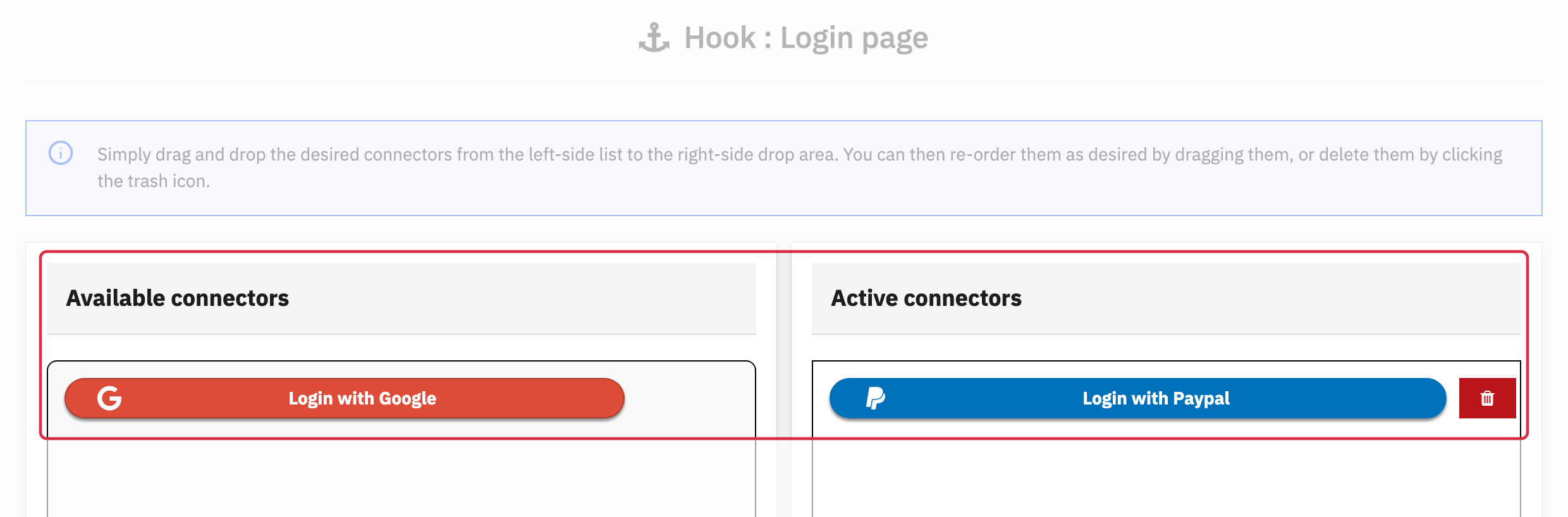
Check your theme’s login and registration pages separately. To adapt the display to another location, use the advanced positions linked above.
3. Check login
Then test the complete flow as a logged-out visitor: authorization with the provider, return to the correct shop, creation or retrieval of the customer account, and a session that remains logged in after reloading the page. An authorization screen alone does not confirm that shop login succeeded.
For X and TikTok, also check the real email address request option under Basic settings: these connectors use a technical address if no usable address has been provided.