What is the ViewCategory event, and how can I disable it?
ViewCategory is a custom event used by the module to report visits to category pages and certain other product lists, such as brand, new-product, promotion and best-seller pages. It describes browsing a list of products; ViewContent describes viewing an individual product page.
Should I leave ViewCategory enabled?
The option is enabled by default. Leave it enabled if you want the module to report these visits to Meta, for example when you use this event in your audience rules or reporting.
You can disable it if you do not use this information or if you have deliberately assigned this tracking to another integration. Before changing the setting, check whether your existing audiences or reports rely on this event.
Where can I change the setting?
- Open the module configuration in your PrestaShop back office.
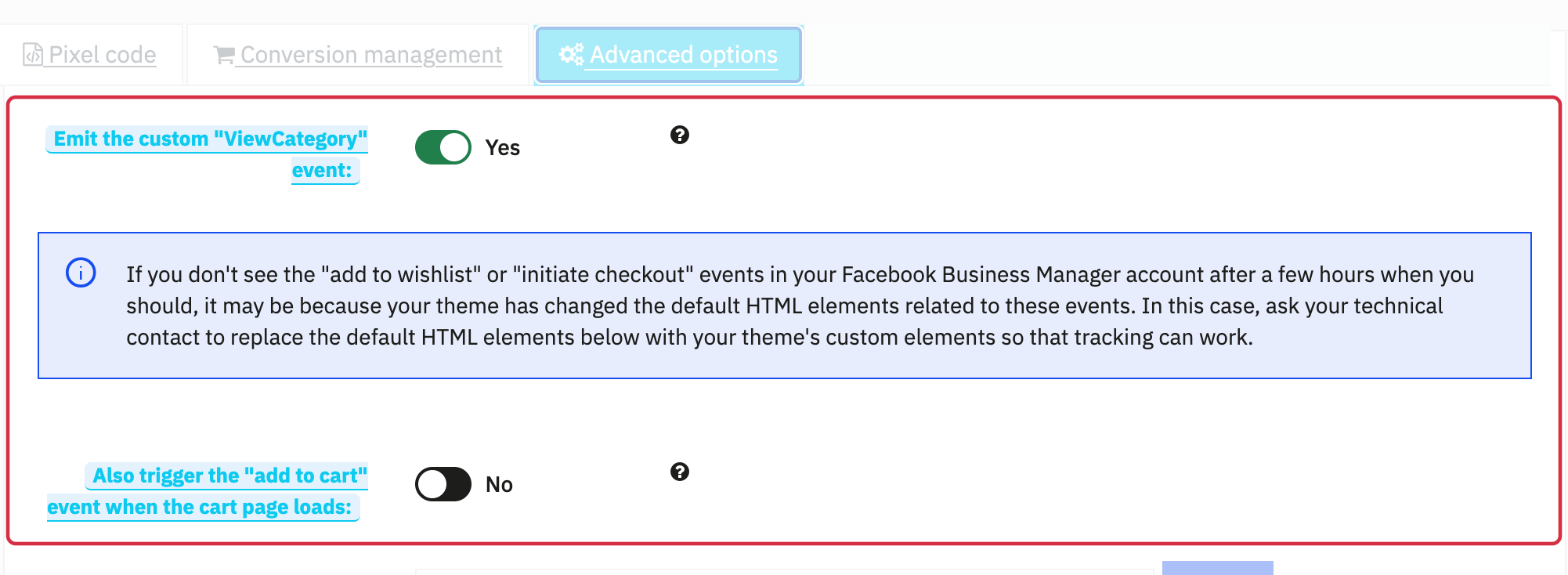
- Go to Facebook Pixel → Advanced options.
- Find Emit the custom "ViewCategory" event. Select Yes to enable it or No to disable it.
- Save, then reload the storefront page before checking the result.
What does disabling it change?
The module stops sending its custom ViewCategory event, including the category pagination tracking it handles. This setting does not disable the Pixel itself: events such as PageView, ViewContent, AddToCart and Purchase remain governed by their own triggers, settings and consent conditions.
It does not change the products exported in your catalog feeds. It also does not control events sent by another module or integration.
How can I check the result?
- Check that the Pixel is enabled and that your test session has granted the consent required by your tracking configuration.
- Open a category containing products and inspect its events with Pixel Helper. Check reception in Meta Events Manager using the Pixel testing procedure.
- With the option enabled, look for ViewCategory. With the option disabled, its absence is expected and is not a Pixel error. Also check category pagination if your shop uses it.
If ViewCategory still appears after disabling it and reloading the page, check whether another integration sends the same event. If no Pixel events appear, follow the Pixel troubleshooting FAQ.
Other FAQs in this category
- Where to find my Business ID?
- How to configure the module ?
- How to create and install my Facebook Pixel?
- How to fill my shop's URL?
- What is the Conversions API and how to enable it in the module?
- How to automatically update my feeds (on-the-fly output or CRON task)?
- Do I have to ask the module to include the attribute IDs into combination URLs?
- How to choose the construction mode of product IDs in the feed?
- How to create custom labels to segment my catalog?
- How to match my products with Facebook categories?
- How to create advanced exclusion rules?
- Do I need to rewrite numeric values into the combination URLs?
- My shop uses multi-currency : how to make Facebook detect the correct currency?
- Do I have to include the LANG ID in the product ID?
- How to test my Pixel code?
- Should I include anchors in my product URLs?
- What is the Facebook "Advanced Matching" feature?
- How can I use Facebook country feeds for several languages, countries and currencies?
- How to tag products reserved for adults?