How to use the Pixel Diagnostics tool?
After configuring the Pixel in the module, check events both on your shop and in TikTok Events Manager.
Check browser events
- Open TikTok Ads Manager, go to Tools > Events, and select the Web data source used by the module.
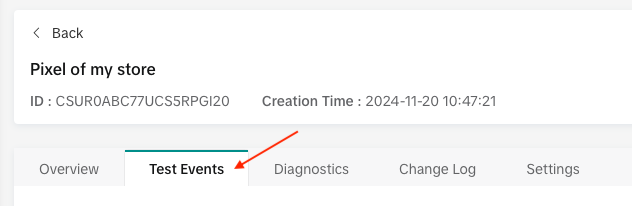
- Open Test Events and follow the instructions to open your shop. The current tool can open a website directly in a browser; a smartphone and QR code are not always required.
- View a product, run a search, add a product to the cart and place a test order. Compare received events with the events provided for by the module.
- Check the Pixel, product IDs, amount and currency where applicable. For combinations, also check that the ID matches the catalog.
The Chrome TikTok Pixel Helper extension also lets you inspect browser events and their parameters on your shop.
Check the API and diagnostics
If you use Events API, also verify server-channel reception in Events Manager. A browser event does not prove that its API equivalent was accepted. API testing may require specific parameters; the module configuration has no server test-code field.
Use event details and the Diagnostics tab to investigate warnings. Check for duplicate events between browser and server as well. Overview statistics may appear with a delay.
See TikTok’s official monitoring documentation for current tools. Test the consent choices you want to verify.
Visual references from the previous interface: labels and layout may vary. Follow the written steps above.