How to create advanced custom labels ?
Custom labels segment products in Google Ads for reporting and bidding. Customers do not see these labels in your ads.
Choose a slot from 0 to 4
A product may have one value in each of the five attributes custom_label_0 through custom_label_4. Select the number explicitly in each rule. For example, use slot 0 for season (“Summer”) and slot 1 for performance (“Best sellers”).
When several active rules match the same product and slot, the rule highest in the rule order wins. Rules targeting different slots may apply together. Slots are therefore not assigned automatically to the first five labels encountered.
Create a rule
- Open Google management → Custom labels integration and select Add a custom label.
- Enable the rule and select a slot from
custom_label_0tocustom_label_4. - Choose its type, label value or series name, conditions and an optional expiry date.
- Add the rule. Arrange the rows and save the configuration. Check the XML of products matching several rules.
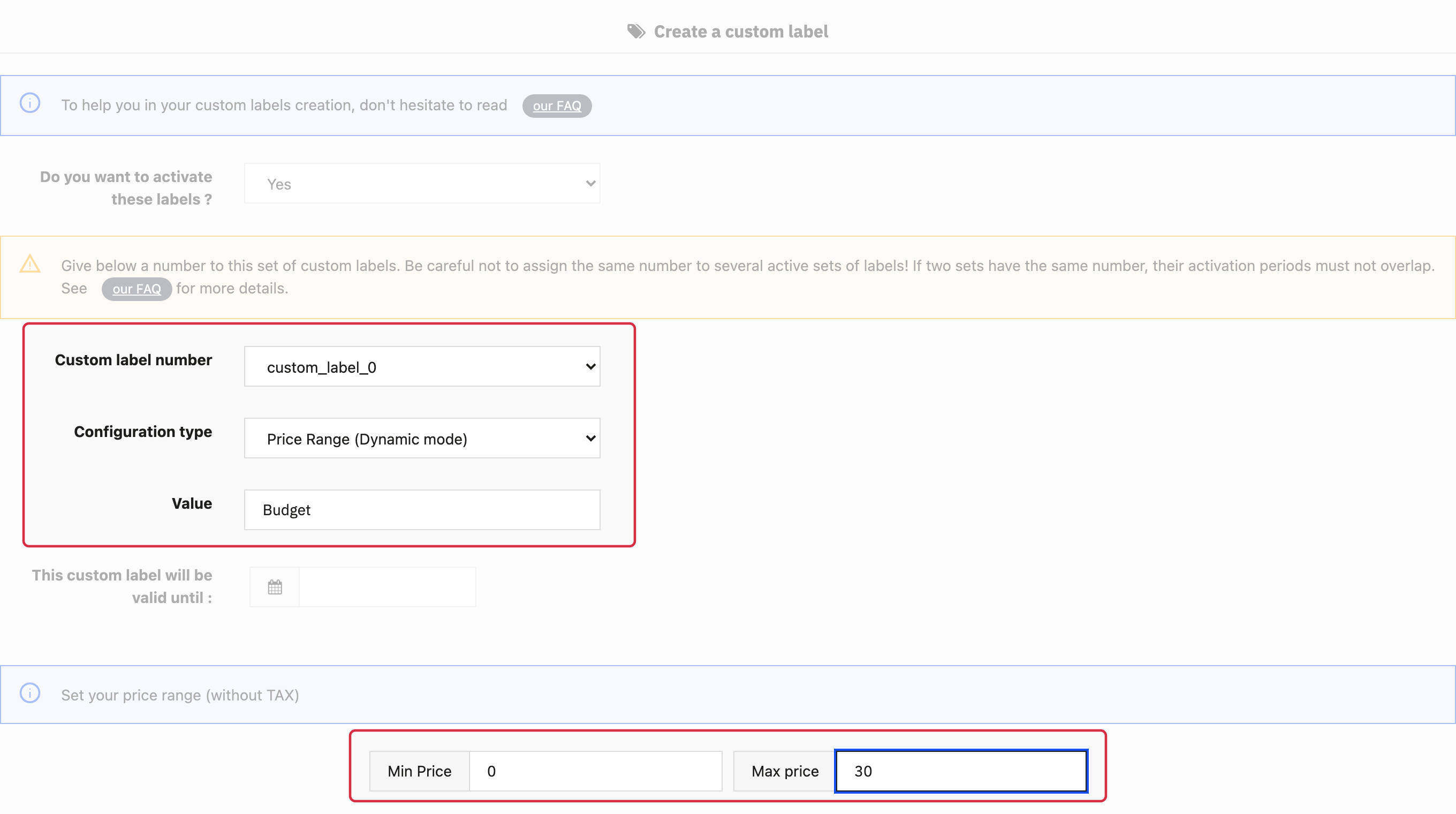
Dynamic label example: slot, value and tax-exclusive price range.
Series can be enabled, disabled and scheduled independently. Avoid conflicting values within a slot and check for overlapping activation periods.
The nine available types
- Basic: a fixed value for selected categories, brands, suppliers or individual products.
- Categories: a value derived from the product’s default category.
- Features: the value of the selected product feature.
- New products: products added after the specified date, with your selection criteria.
- Best sales: a units or revenue threshold over the chosen period.
- Price Range: a tax-exclusive price interval. For example, “Budget” for 0–30 excluding tax; the customer’s tax-inclusive price may differ.
- Last product ordered: products ordered during the selected period.
- Product promotions: products meeting this mode’s promotion conditions.
- Products not sold: products with no sales during the specified period.
Dynamic modes are recalculated during feed updates. The default-category setting and multiple-condition mode (AND/OR) affect selection: AND requires every condition, while OR accepts at least one. Regenerate the feed after changes and check sample product values before using labels in a campaign.
Other FAQs in this category
- Where can I find my store code?
- How to add a local inventory feed in Google Merchant Center?
- How to display my product price per measure unit?
- What are the additionnal features for product title of the PRO version?
- How to configure my local product inventory feed?
- How to configure my special offer (promotion) feed ?
- Google Customer Reviews: How to configure the feature?
- What is the difference between the classical module and its Pro version?
- Google Customer Reviews: Why does my badge say "No Reviews Available" when I've already collected reviews?
- Google Customer Reviews: What are the conditions for Google to request product ratings in addition to seller ratings?
- Google Customer Reviews: Where to find my Google Merchant Center account ID?
- Google Customer Reviews: Is the program available in my country?
- Google Customer Reviews: What is the Google Customer Reviews program?
- Can I temporarily stop certain products from showing in shopping ads?
- How to apply specific shipping labels?
- How to display the energy efficiency class or other energy certification of my products?
- How to create advanced exclusion rules?
- What is the point of exporting the cost price of products?
- What are local inventory ads for?
- How to configure my product ratings feed ?
- How to switch from a classic GMC feed to a Pro one ?
- How do I export product features as product details?
- How do I export tags dedicated to Google AI Mode?
- Can I request the module to adapt the tax rate based on geolocation?
- How to indicate that my product is available for pre-order or that it will soon be back in stock?