How to configure my module?
Module - TikTok Ads + Pixel & Events API
The module prepares product feeds for TikTok and installs the TikTok Pixel on your shop. You can use event tracking, export your catalog, or configure both.
Prepare your access
You need a TikTok for Business account and access to the relevant assets. For tracking, create a Web data source and retrieve its Pixel ID. For catalog ads, prepare a catalog with the appropriate country and currency. Catalog features depend on your account and market.
Configure the Pixel
In TikTok Pixel > Pixel code, enter the Pixel ID and save. The module installs the script: do not install a second copy of the Pixel for the same tracking.
Advanced Matching supplements events with hashed customer identifiers when the data is available. Review the data you intend to share and the corresponding TikTok settings.
To use Events API, enable it and enter your access token in the dedicated field. Your server needs cURL. This module triggers API sending through JavaScript on the shop; enabling it does not guarantee collection independent of the browser.
In Conversion management, choose whether to include taxes, shipping and wrapping fees in the reported amount. Check the amount and currency on a test order, then verify received events.
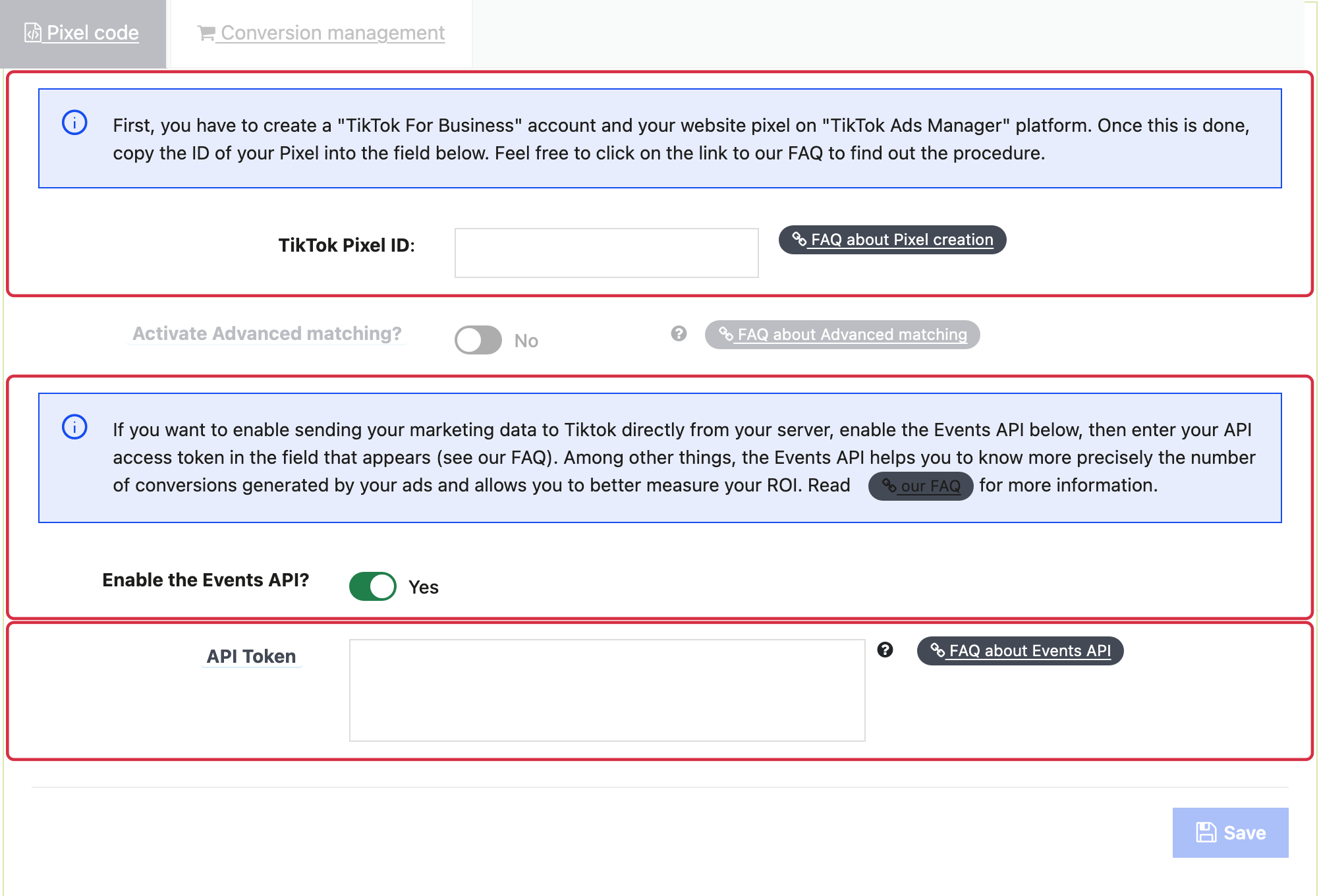
The token field appears after enabling the Events API; no token is shown in this example.
Prepare the product feed
- In Basic settings, check the public shop URL, image type and other common feed values. Fill in translated text for the languages you export.
- In Feed management > Export method, select products by categories or brands and save.
- In Feed data options, choose grouped or separate combination export, description, availability and relevant attributes. When exporting combinations separately, check that their links open the correct variants and their IDs match those used by the Pixel.
- In Product exclusion rules, check general exclusions and, if needed, create advanced rules. An excluded product will be absent from the feed even if it belongs to a selected category or brand.
- In Apparel feed options, enable relevant attributes, save and configure their values by category. These attributes can also be useful for other products.
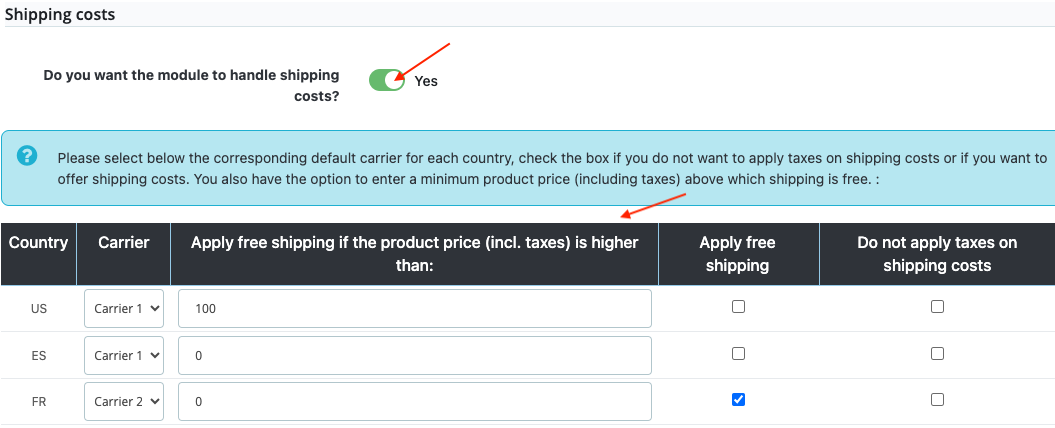
- In Shipping, choose whether the module should calculate shipping fees. Check carriers by country, price or weight ranges, free shipping thresholds and tax options. Enter the carrier rate tables in PrestaShop.
Complete and update your catalog
In Advanced data feed options, configure category matching, Google Analytics UTM parameters if needed, and custom labels to segment products.
In My feeds, choose an update method and retrieve the URL for the correct Country/Language/Currency group. Import the feed into TikTok. For an XML file updated by CRON, TikTok must retrieve the file after generation has finished.
The feed diagnostic checks data before import. The local report does not replace TikTok acceptance checks.
WARNING: after changing feed settings, manually generate the file again in My feeds > XML + CRON, then refresh the report in Reporting to view an up-to-date analysis.
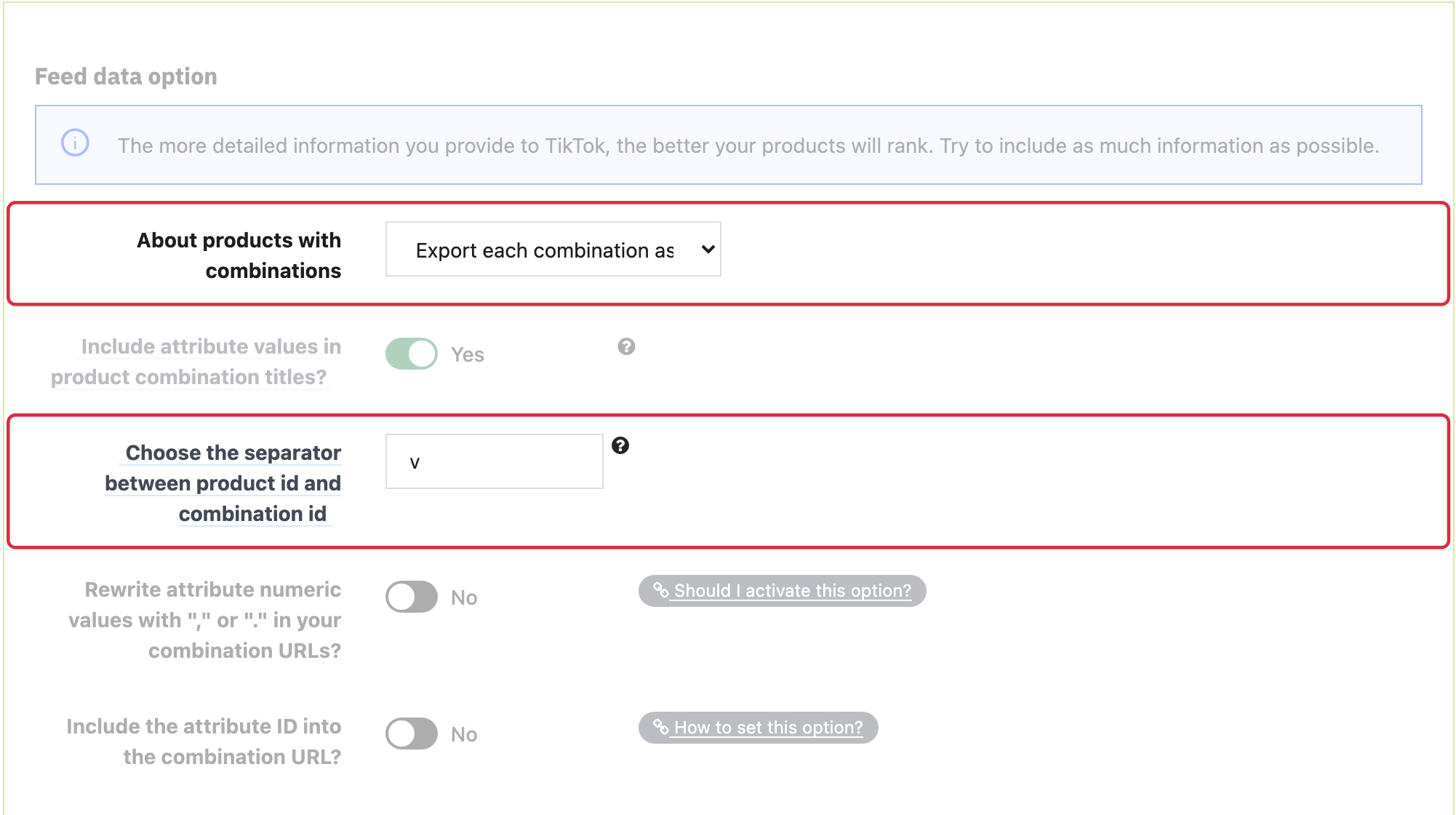
Visual references from the previous interface: labels and layout may vary. Follow the written steps above.