How can I check that my data is updated?
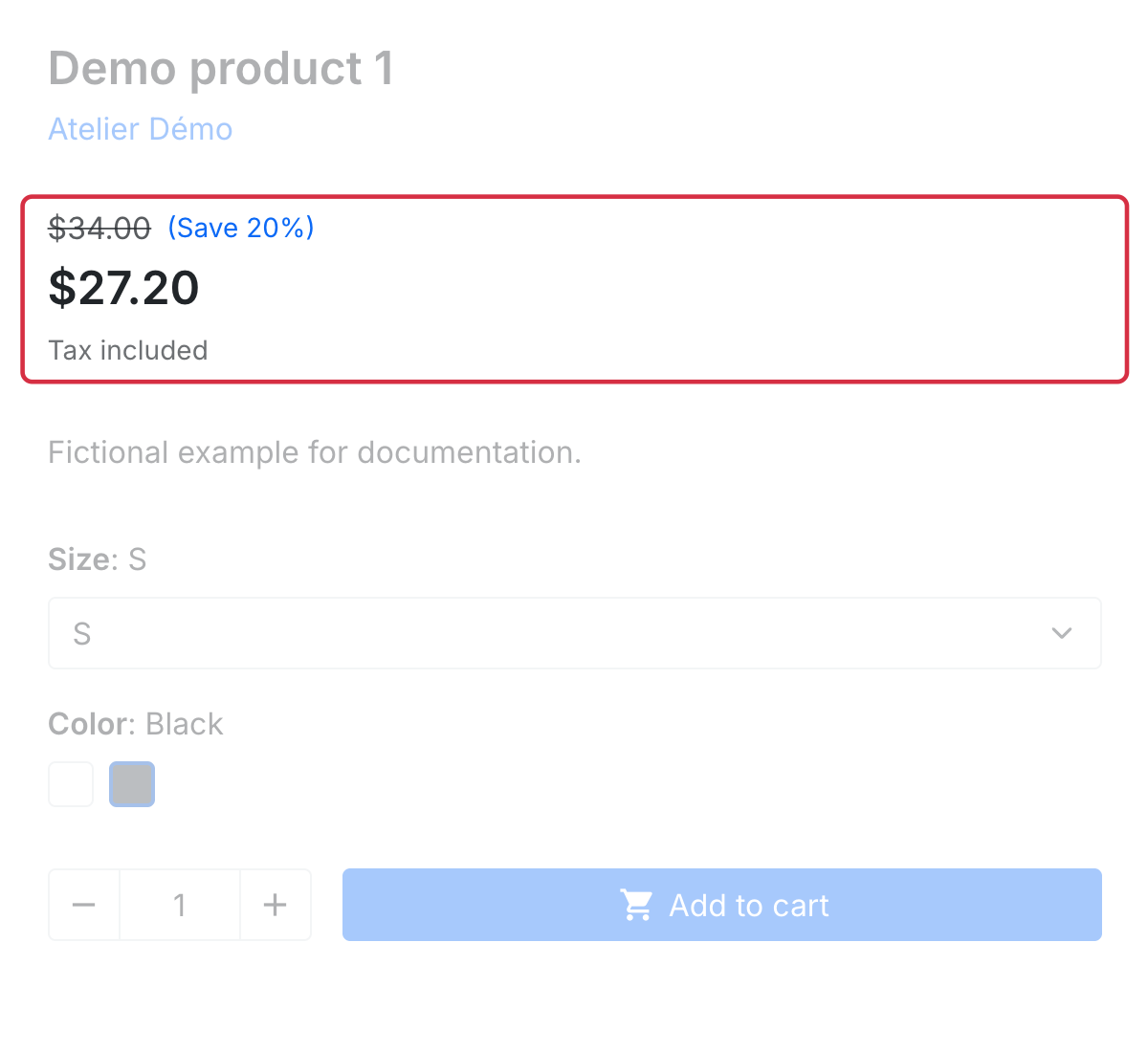
Compare each stage: shop → XML actually served → Merchant Center source → displayed product. Use the same ID, variant, country and currency.
- Under My feeds, open the relevant feed. With a physical file, wait for its latest generation to finish; on-the-fly content is generated when requested.
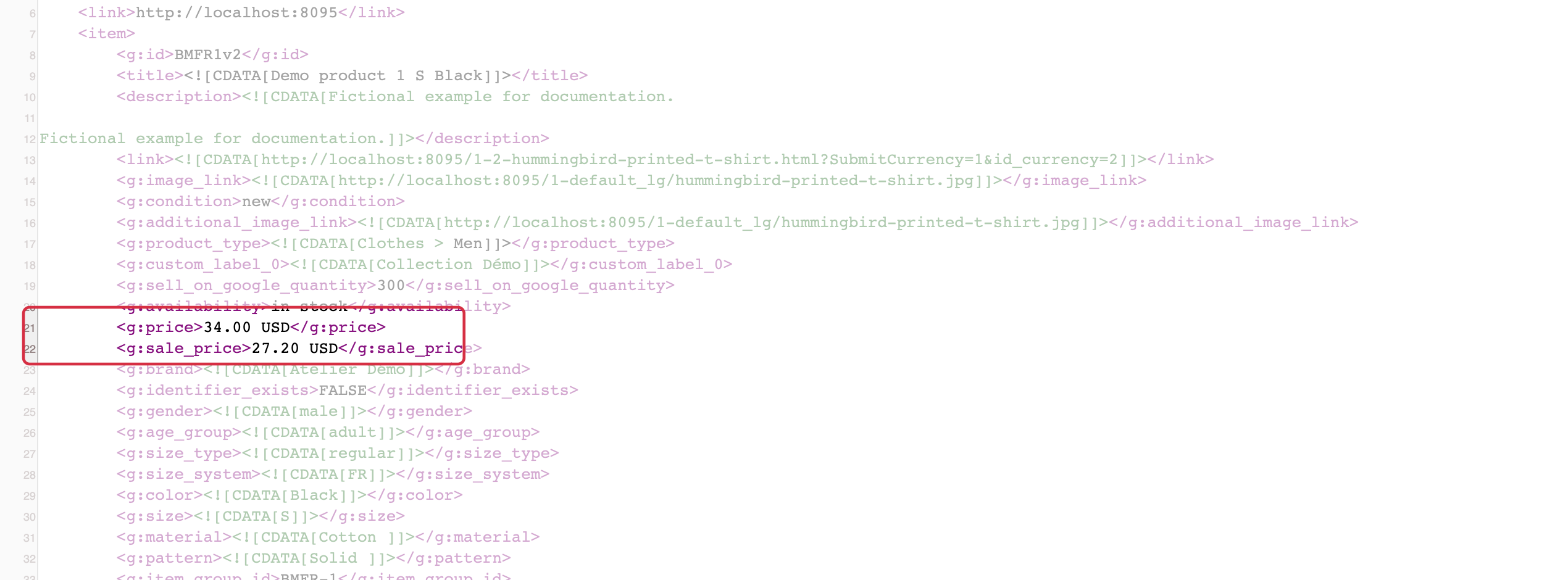
- Locate the ID in XML and compare
price,sale_price,availability,linkand image with the product page. - Open the exact XML link without customer cookies. Check that variant and currency are preserved.
- In Merchant Center, inspect source details and the latest successful fetch, then the item's data and issues.
If XML differs from the shop, check settings and generation. If XML is correct but Google data differs, investigate an old fetch, pending processing, another source or an automation. “Found by Google” and automatic updates are separate mechanisms.
See prices, data source setup and automatic sources.
For detailed requirements: Official Google documentation (1), Official Google documentation (2).
Other FAQs in this category
- How to import my feeds in Google Shopping ?
- How to check which prices are sent to Google?
- Why are my product feeds generating errors ?
- How does the diagnostic tool work ?
- Why were the XML files not created ?
- How to create a Language/Country/Currency feed different from those proposed by default by the module?
- How to check if my discounted (specific) prices are correctly exported?
- Why have some of my products not been exported in the feed ?
- Why do I get an error on update xml file ?