Do I have to indicate the gender for which my products are made?
Facebook tags on the gender of people (male, female, unisex) for whom your products are intended are mostly useful for apparel and it's why their configuration in the module is available in the "Apparel feed options" tab of "Feed management" section. However they can also be applied to other product types that are specifically made for men or women. Anyway, if your products have this information, do not hesitate to include it in your feed. Indeed, the more data your feed will contain, the more possibilities you will have to segment and manage your catalog.
To configure the "gender" tag for each of your categories, follow the procedure below.
Select "Yes" for the "Do you want to include "gender" tags?" option, save the tab and click the green button to configure the tag for each product category:
From version 1.5.0 of the module, you have the possibility to choose the mode of attribution of the tags (for the lower versions, only the first option is possible):
You can:
- either assign the same tag value to all products in a category
- or use the values of a feature for each category
1/ Assign the same tag value to all products in a category
In this case, you just have to select, for each category(*), the gender for which the products in the category are intended. All products in a given category will have the same tag value.
Each category is independant and can therefore be associated with a different gender. You also have the possibility to assign the same gender for all categories with a single click using the buttons at the top of the table.
Several values predefined by Facebook are possible:
- male
- female
- unisex
(*)Warning : please note that the categories we are talking about are the DEFAULT categories.
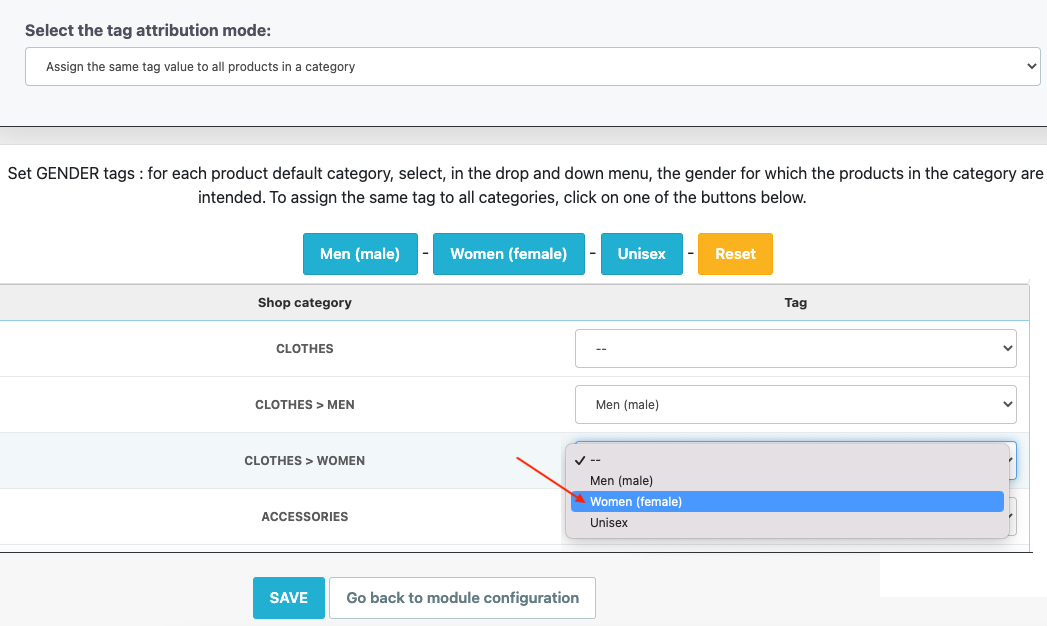
Once you have assigned tags for all categories to be exported, click "Save".
2/ Use the values of a feature for each category
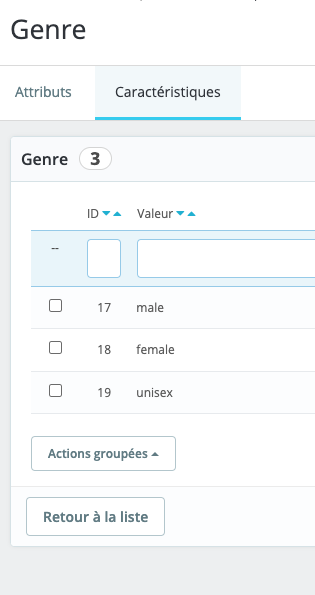
Use the technical values corresponding to gender, such as male, female and unisex, in every language of your feature. Check exported XML values and the specifications for your Meta destination.
- Open this official documentation
- Find the "gender" field
- In the "description" column you will find the English values officially expected by Facebook
Fill out the values of your feature with these English values, for all the languages of your catalog. For example, here in french:
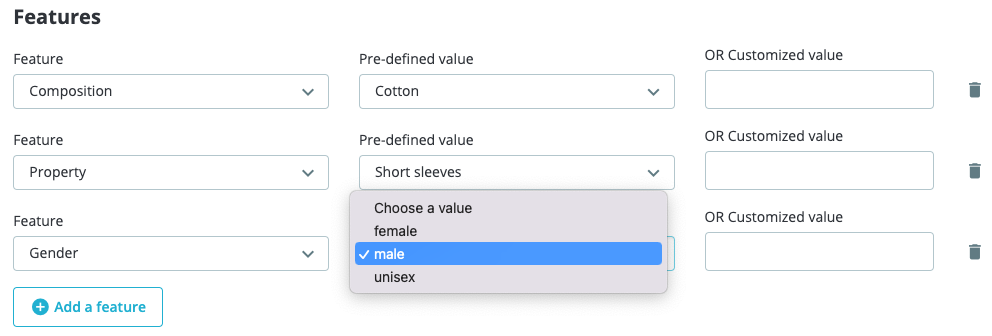
For each product to be exported to Facebook for which you want to indicate the gender, assign the right feature value through its back-office form:
Then, go back to the tag's value assignment table, select the option "Use the values of a feature for each category" and then, for each category, select from the drop-down menu the feature that defines the gender for which each product in the category is intended. To assign the same feature to all categories, click "Set for all categories":
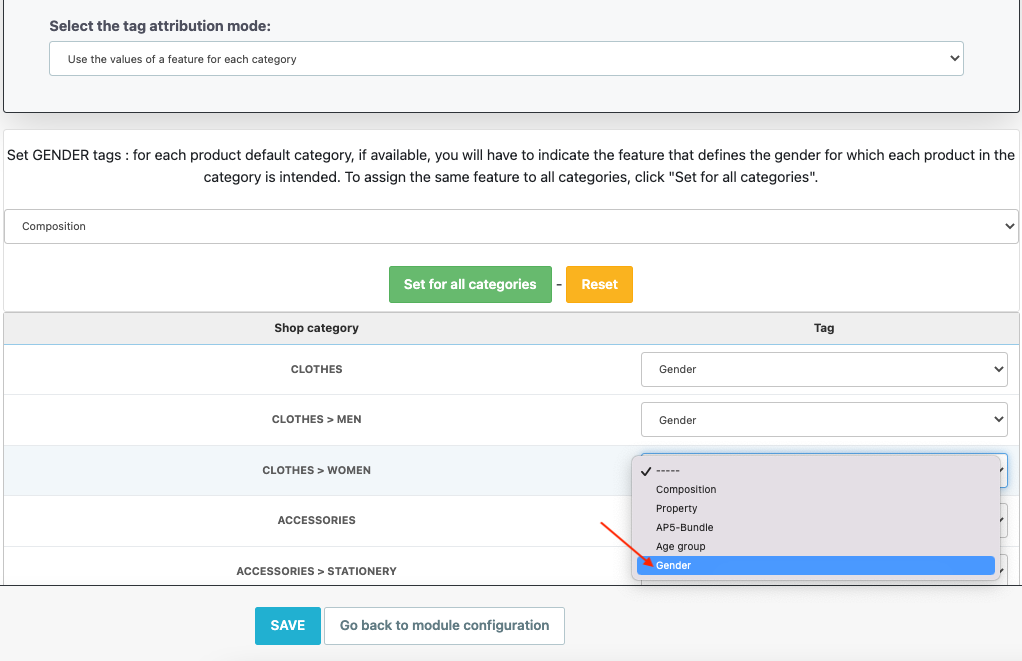
Once you have assigned the correct feature to each category, save.
Other FAQs in this category
- How to send quality images to Facebook?
- What is the product GTIN code for?
- How to indicate the availability of my products on Facebook?
- What is the product condition?
- What are Facebook's product data guidelines?
- What are Facebook's requirements for shipping weights?
- What are the guidelines for product titles?
- What are the price guidelines to follow?
- Do I have to provide the brand of my products in my feed?
- Do I have to provide product colors in the feed?
- Do I have to include product sizes in the feed?
- What are the Facebook's requirements for product description?
- Is it necessary to indicate an age group for using my products?
- Do I have to provide information about my product patterns?
- Do I have to provide information about my product material?
- What is the product supplier reference (MPN code) for?
- What is the purpose of assigning a "shop" prefix to product IDs?
- What is the "product type" attribute?