How to display my product price per measure unit?
This FAQ only applies to merchants who have a Google Merchant Center Pro version higher than or equal to 1.7.0.
For some product types (perfume, food, hardware, ...) the Google Shopping users may be interested in knowing the price per unit of volume, weight, surface, length, ... To see the product types primarily concerned click here.
Then, Google set two tags: "Unit pricing measure" and "Unit pricing base measure" that will be used with your product "price" tag. The "Unit pricing measure" tag is the total quantity or dimension of your product. The "Unit pricing base measure" matches the volume / surface / dimension etc... your users will want to considere as a reference to make, for example, product comparisons.
Example: you sell €18.55 a 30ml bottle of perfume. Your users may want to know the price for 100ml.
- The "Price" tag matches your product price: €18.55
- In the "Unit pricing measure" tag you must indicate the product volume: 30ml
- In the "Unit pricing base measure" tag you must indicate the reference volume: 100ml
Then Google will automatically calculate the unit price: (18.55*100)/30 = €61.83/100ml
Check unit-price display obligations applicable to your product and country of sale. Google’s requirements do not replace those obligations.
Please read the Google's official guidelines about "Unit pricing measure" and "Unit pricing base measure" tags of the products advertised in Google Shopping attentively. Check well the units and values accepted by Google.
Important note: if you already use the "Energy efficiency class" tag for certain products (see our FAQ on it), do not use the "Unit pricing measure" tag for these products because Google will not display both. If both are present in the feed for a given product, Google will only display the information on the energy efficiency class.
The Pro version of our Google Merchant Center module allows you to include the "Unit pricing measure" and "Unit pricing base measure" tags in your product feed.
First of all you must create an "Unit pricing measure" feature in your PrestaShop back office:
and assign it the values matching with your products (for example "30ml", "30sqm", etc...). Do not put spaces between the number and the unit.
Then, you must assign the matching value of this feature to each relevant product directly in its product file:
Repeat the procedure by creating a "Unit pricing base measure" feature and assigning it reference values (for example "100ml", "100sqm", ...). Do not put spaces between the number and the unit.
Important:
Use the same units as for the "Unit pricing measure" tag. For example, if you used the ml for the "Unit pricing measure" feature values (for example "30ml", "30ml", ...) then also use the ml for the base measure (for example use "1000ml" and not "1l").
Go back again to the previous product files and assign them the correct reference value:
Once done, go to the "Advanced feed options" tab of the module "Product feed management" section and select "YES" for the "Do you want to include unit pricing measure tags?". A new option appears matching with the "Unit pricing base measure" tag. Also check "YES":
Save and for the option to insert "Unit pricing measure" tags, click "Configure the tag for each category".
The tag attribution table opens. For each relevant category, select the “Volume” feature for “Unit pricing measure”, then click Save Configuration.
(*)Warning : please note that the categories we are talking about are the DEFAULT categories.
Return to the module and open the per-category configuration for “Unit pricing base measure”.
Map “Reference volume” to the same categories and save the configuration. In this example, the first tag supplies 30ml and the second 100ml.
After updating the feed, check price, unit_pricing_measure and unit_pricing_base_measure. Google may use this data to calculate unit prices; display depends on context and its policies.
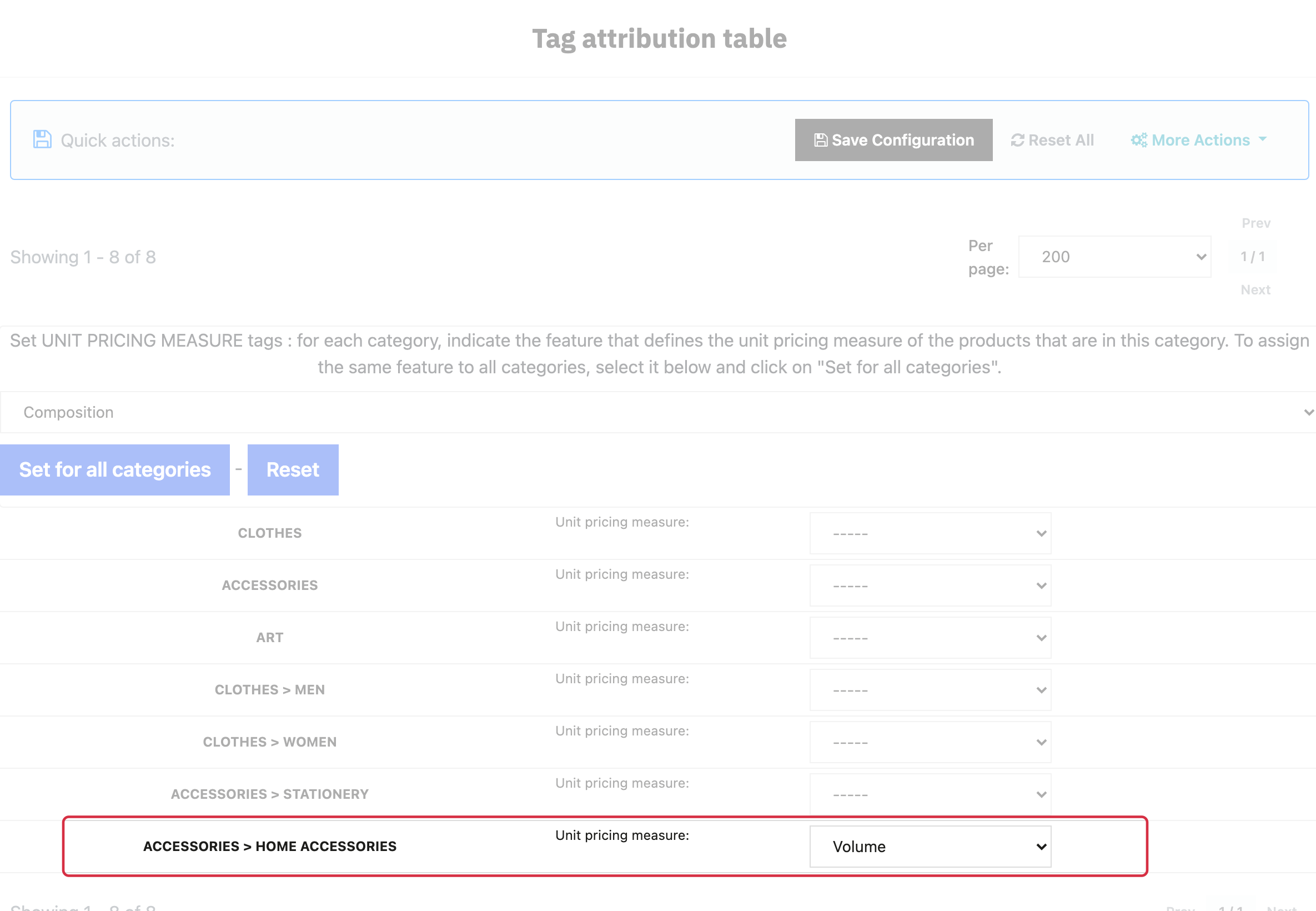
Mapping “Volume” to the unit pricing measure tag for a default category.
Other FAQs in this category
- Where can I find my store code?
- How to add a local inventory feed in Google Merchant Center?
- What are the additionnal features for product title of the PRO version?
- How to configure my local product inventory feed?
- How to configure my special offer (promotion) feed ?
- Google Customer Reviews: How to configure the feature?
- How to create advanced custom labels ?
- What is the difference between the classical module and its Pro version?
- Google Customer Reviews: Why does my badge say "No Reviews Available" when I've already collected reviews?
- Google Customer Reviews: What are the conditions for Google to request product ratings in addition to seller ratings?
- Google Customer Reviews: Where to find my Google Merchant Center account ID?
- Google Customer Reviews: Is the program available in my country?
- Google Customer Reviews: What is the Google Customer Reviews program?
- Can I temporarily stop certain products from showing in shopping ads?
- How to apply specific shipping labels?
- How to display the energy efficiency class or other energy certification of my products?
- How to create advanced exclusion rules?
- What is the point of exporting the cost price of products?
- What are local inventory ads for?
- How to configure my product ratings feed ?
- How to switch from a classic GMC feed to a Pro one ?
- How do I export product features as product details?
- How do I export tags dedicated to Google AI Mode?
- Can I request the module to adapt the tax rate based on geolocation?
- How to indicate that my product is available for pre-order or that it will soon be back in stock?