Google Customer Reviews: How to configure the feature?
Requirements
Enable Google Customer Reviews in Merchant Center and accept its program agreement. Claim your website and make sure every payment method returns customers to an HTTPS order-confirmation page. Read how the program works and Google’s guidelines.
Enable the feature
- Open the module’s Google Customer Reviews tab and enable the feature.
- Enter your Merchant Center account ID.
- To load the opt-in, you must enable the display of the Google Customer Reviews badge, then save.
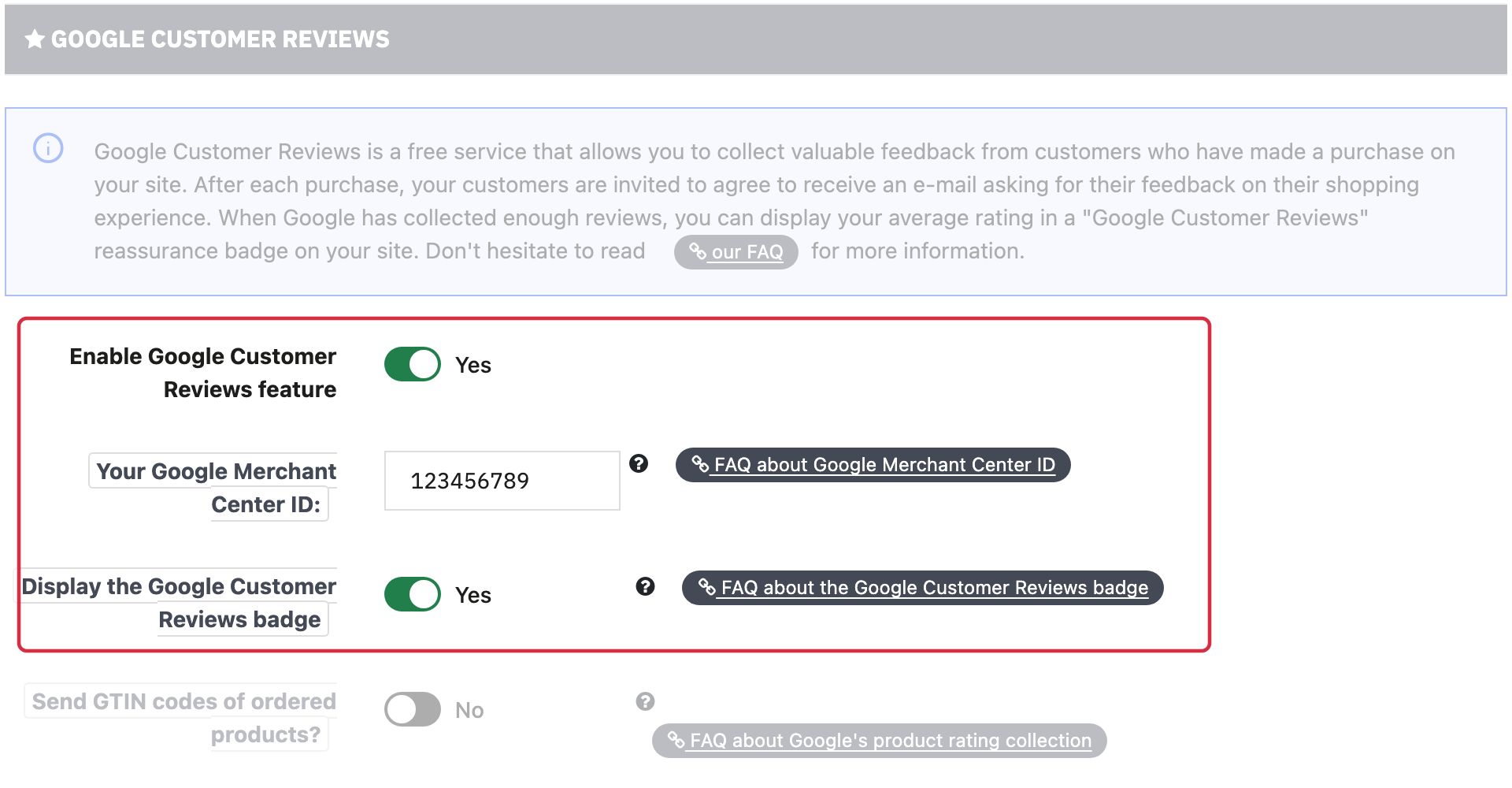
Activation, fictional account ID and badge: both switches are required by this module integration.
Warning: the module’s integration loads the survey opt-in only when both the feature and the badge are enabled. This is a module dependency: Google considers its store widget optional. Google is changing the legacy badge presentation, so do not rely on one specific appearance.
A common reference for rating display is: around 100 unique and eligible "seller" ratings over the past year . This is indicative: Google also considers country and eligibility. See why a rating may not be displayed.
To also request feedback on purchased products, enable the option that sends official, valid product GTINs. Read the product-review collection requirements.
Order statuses
Select the statuses for which the opt-in should appear. This depends on your payment methods and their confirmation pages: check every flow with a valid fictional order. Avoid including cancelled orders or failed payments. Save.
Estimated delivery date
The module calculates and submits an estimated delivery date. Google then decides whether and when to send a survey to customers who opted in; the module cannot schedule it when an order changes to “Delivered”.
- If you can dispatch on the order date, enable this mode and set the cutoff time. Otherwise, enter the preparation days before dispatch.
- Select weekdays on which you do not dispatch orders.
- Add exceptional closure dates, without repeating the weekdays already selected.
- Enter average transit days for every relevant carrier and save.
Use values that reflect your actual operations. Preparation and transit are separate delays used to estimate delivery; they do not guarantee Google’s survey date.
Remember to activate the badge display.
Check the result
Check order confirmation for every payment method, the opt-in and the submitted data. This integration shares the confirmation email address, delivery country, order reference and estimated delivery date with Google, plus GTINs when enabled. Read how the survey opt-in and survey work.
Other FAQs in this category
- Where can I find my store code?
- How to add a local inventory feed in Google Merchant Center?
- How to display my product price per measure unit?
- What are the additional features for product title of the PRO version?
- How to configure my local product inventory feed?
- How to configure my special offer (promotion) feed ?
- How to create advanced custom labels ?
- What is the difference between the classical module and its Pro version?
- Google Customer Reviews: Why does my badge say "No Reviews Available" when I've already collected reviews?
- Google Customer Reviews: What are the conditions for Google to request product ratings in addition to seller ratings?
- Google Customer Reviews: Where to find my Google Merchant Center account ID?
- Google Customer Reviews: Is the program available in my country?
- Google Customer Reviews: What is the Google Customer Reviews program?
- Can I temporarily stop certain products from showing in shopping ads?
- How to apply specific shipping labels?
- How to display the energy efficiency class or other energy certification of my products?
- How to create advanced exclusion rules?
- What is the point of exporting the cost price of products?
- What are local inventory ads for?
- How to configure my product ratings feed ?
- How to switch from a classic GMC feed to a Pro one ?
- How do I export product features as product details?
- How do I export tags dedicated to Google AI Mode?
- Can I request the module to adapt the tax rate based on geolocation?
- How to indicate that my product is available for pre-order or that it will soon be back in stock?